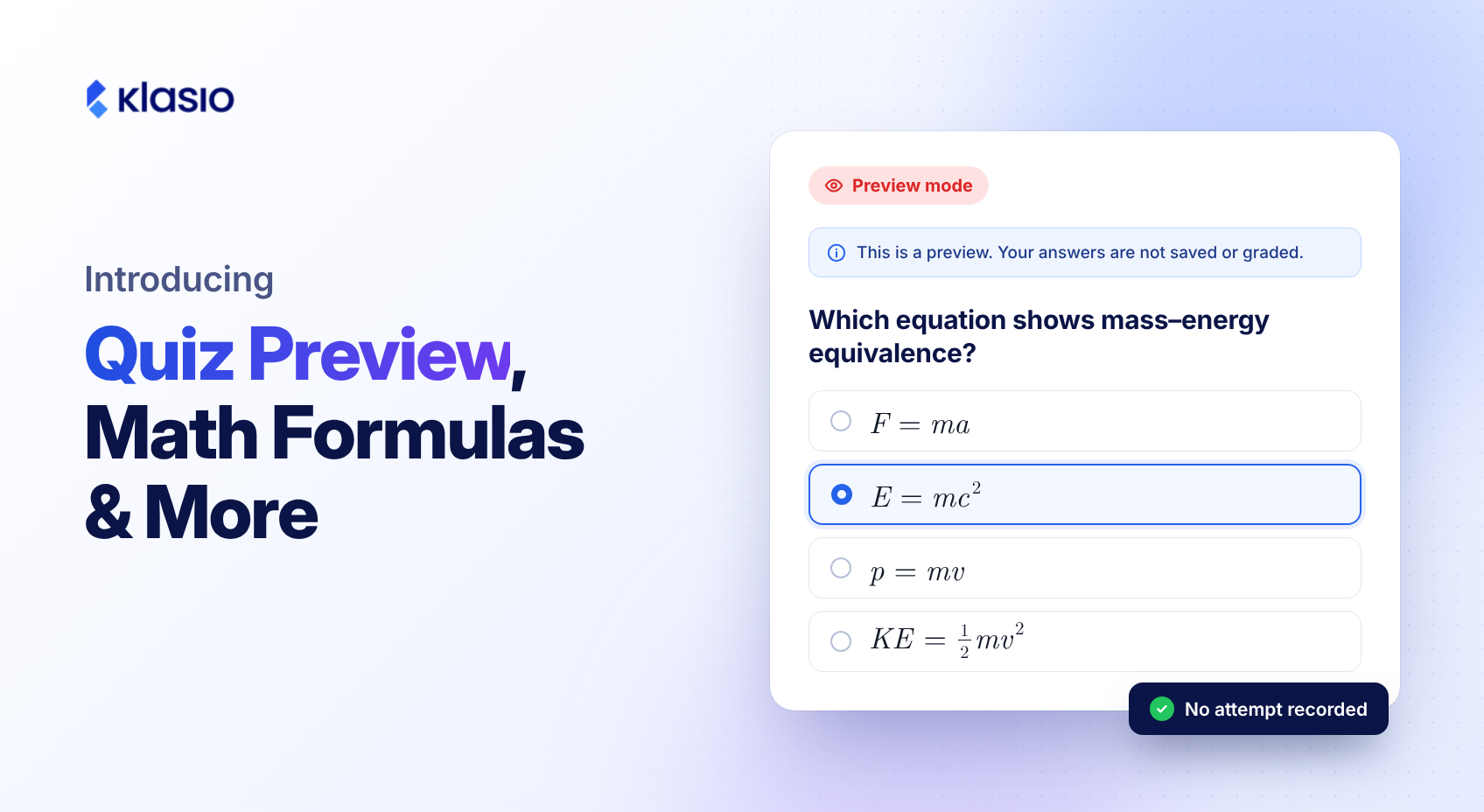
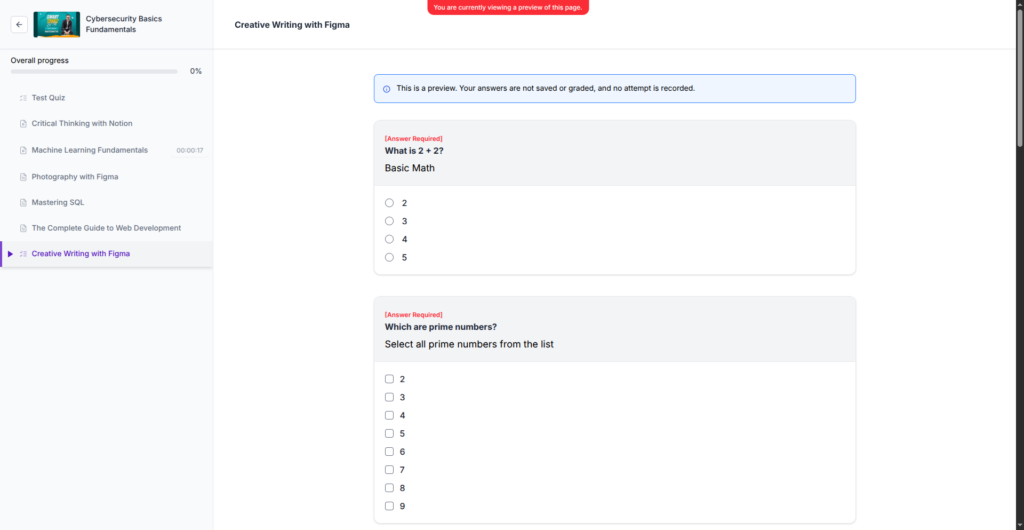
You can now preview any quiz as an admin. Open it, go through every question, select answers, and see exactly what your students will see, without anything being saved, graded, or counted as an attempt.
Until now, there was no direct way to do this. You could check your questions in the editor, but the editor doesn’t show you the real experience. You don’t see how the instructions read on the start screen, how the time limit and attempts look, or whether the answer options make sense in the order a student will meet them. The only way to know for sure was to set up a test student account and take the quiz yourself.
So most of us skipped it. And the first person to find a wrong answer key or a confusing question was a student, usually in the middle of a graded attempt.
See the Quiz Exactly as Your Students Will
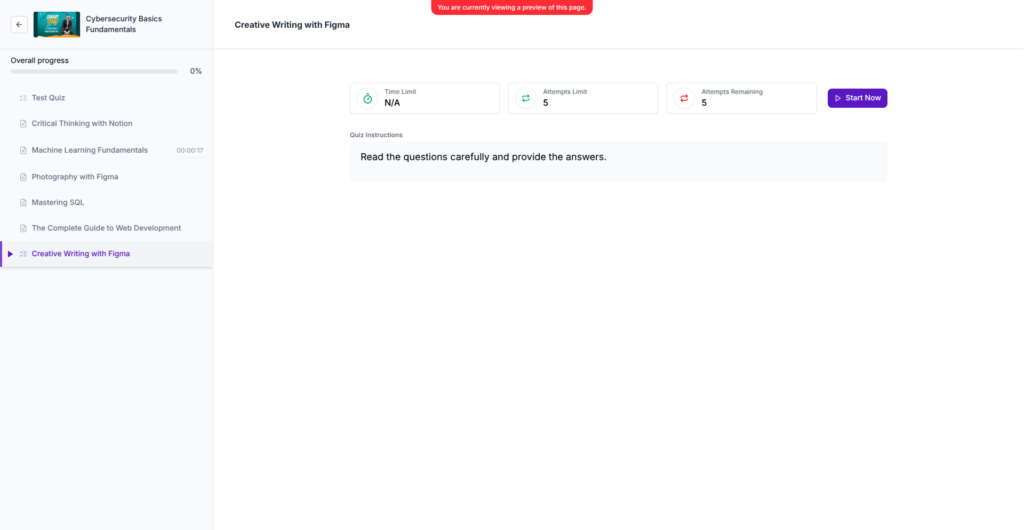
Preview opens the quiz in the student view. You get the same start screen your students get, with the time limit, attempt limit, attempts remaining, and your quiz instructions. Click Start Now and go through it question by question.
A banner at the top reminds you that you’re viewing a preview. Inside the quiz, Klasio shows a clear notice: your answers are not saved or graded, and no attempt is recorded.
Catch Mistakes Before They Reach a Student
A wrong answer marked as correct. A typo in a question. An instruction that made sense when you wrote it but reads differently on screen. These are small mistakes, but when a student finds them during a graded quiz, they lose marks they shouldn’t lose, and you lose a little of their trust.
With preview, you can check all of it in a couple of minutes. Run through the quiz as many times as you like. Since no attempt is recorded, your reports and grades stay clean.
Write Math Formulas in Quiz Answer Options
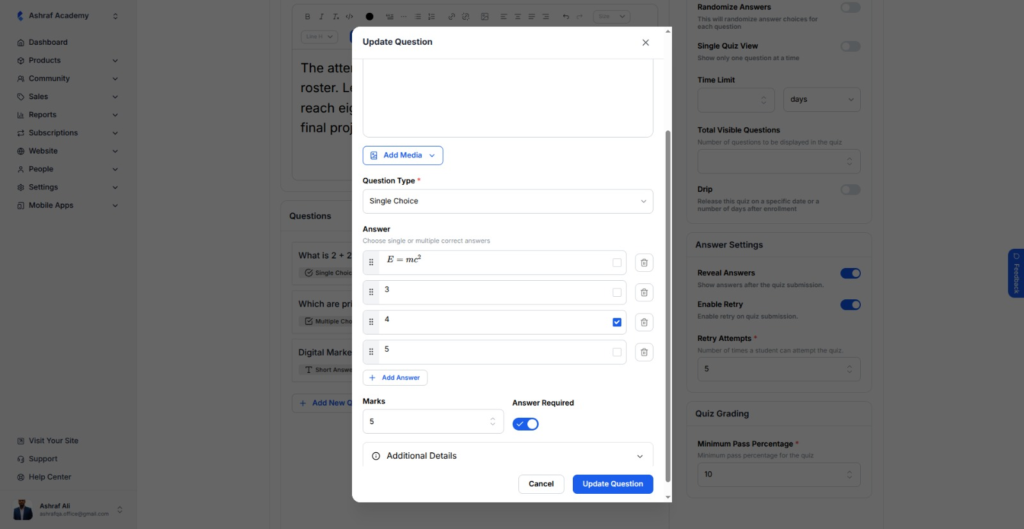
If you teach math, physics, chemistry, or anything with equations, answer options were a problem. They only accepted plain text, so a formula like E = mc² had to be typed as “E = mc^2” or added as an image. Students had to work out what you meant before they could even answer.
Answer options now support KaTeX, a widely used standard for showing math on the web. Write the formula in the answer option, and students see it rendered properly, with superscripts, symbols, and fractions where they belong. It works in both single choice and multiple choice questions.
Your quizzes now look as clean as your lessons, and students get tested on the subject, not on decoding plain-text math.
Paste YouTube and Vimeo Links Straight Into Video Lessons
Adding a YouTube or Vimeo video to a lesson used to mean hunting for the embed code. Open the video, click Share, click Embed, copy a block of code. Small task, but it adds up when your course has 40 lessons.
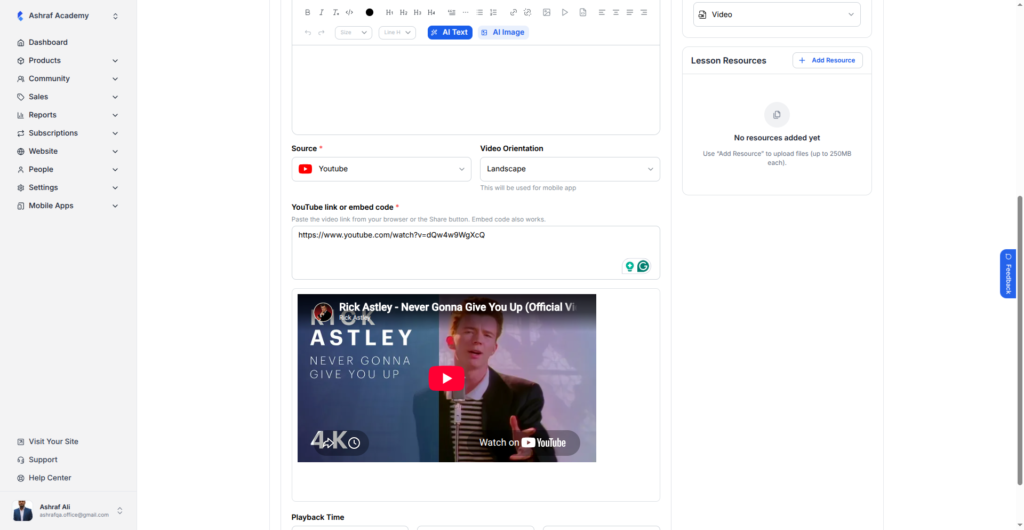
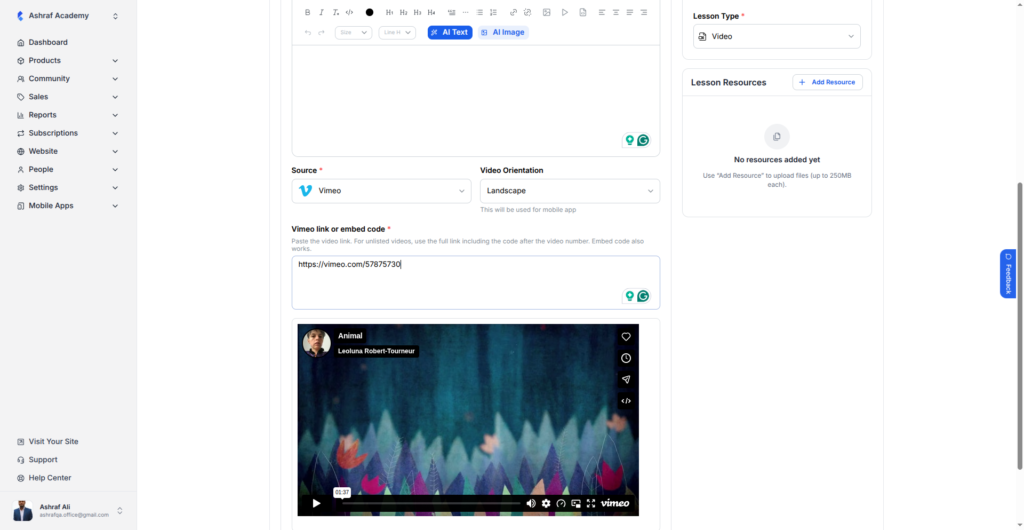
Now you can paste the normal link, from your browser’s address bar or from the Share button. Choose YouTube or Vimeo as the source, paste the link, and a preview of the video appears right below, so you can confirm it’s the right one before you save. Embed code still works if you prefer it. For unlisted Vimeo videos, use the full link, including the code after the video number.