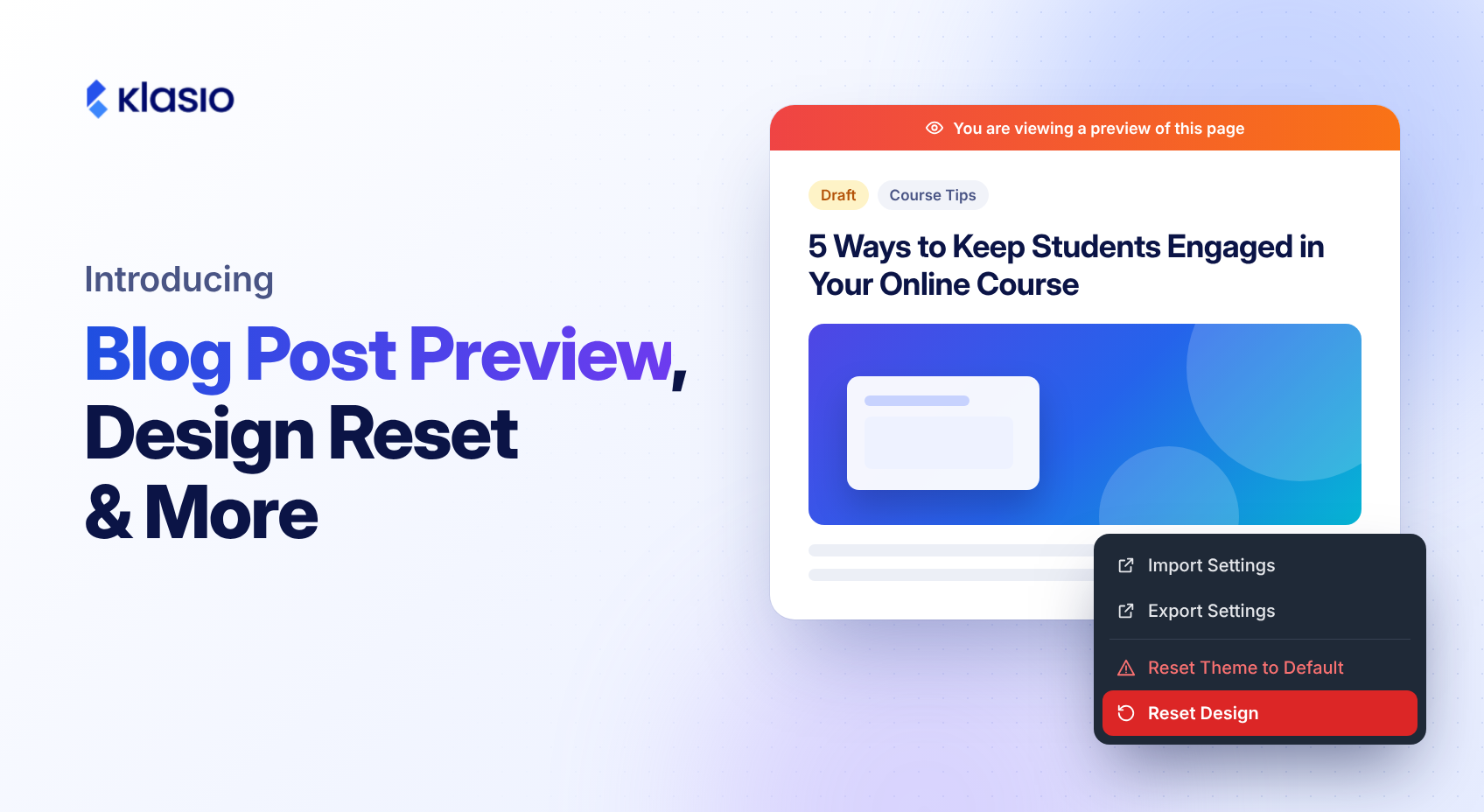
You can now preview any blog post draft on your actual site before you publish it. Published posts get a quick View link too, right from your post list.
Before this, checking a post took more effort than it should. The editor showed you your words, but not how the post really looks on your site: the featured image, the title size, the layout, the sidebar sign-up form. To see that, you often had to publish the post first and then fix whatever looked off, while it was already live. And to check a published post, you had to leave your dashboard and go find it on your site.
Preview Drafts in Your Real Site Design
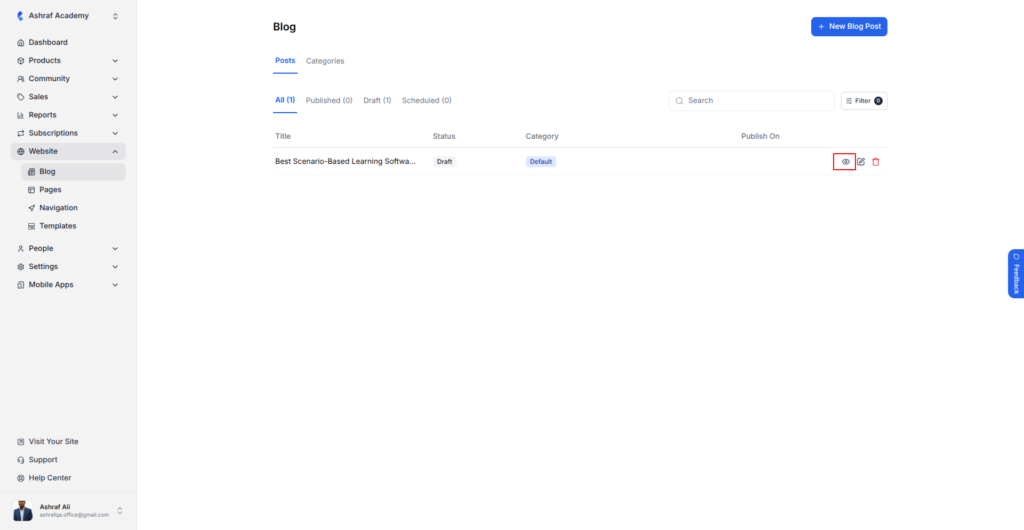
Go to Website > Blog > Posts. You’ll see a new eye icon next to each post.
On a draft, it opens a preview of the post in your site’s real design, with your header, navigation, featured image, and sidebar, just as a reader would see it. A banner at the top reminds you that you’re viewing a preview, so there’s no confusion about what’s live.
On a published post, the same icon takes you straight to the live post.
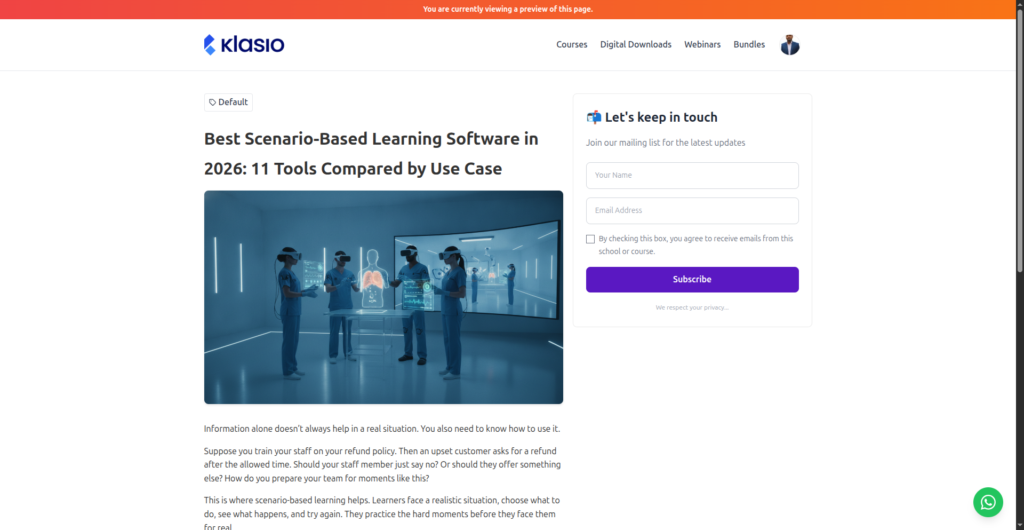
A cropped featured image or a heading that wraps badly is easy to fix, if you see it before your readers do. Now you can check every post in its final form, fix what needs fixing, and publish once. No more publishing just to see what it looks like, and no more fixing a post that’s already been shared.
Reset Your Page Design and Start Fresh
Before, there was no clean way back. You had to undo changes one by one or rebuild the page from memory.
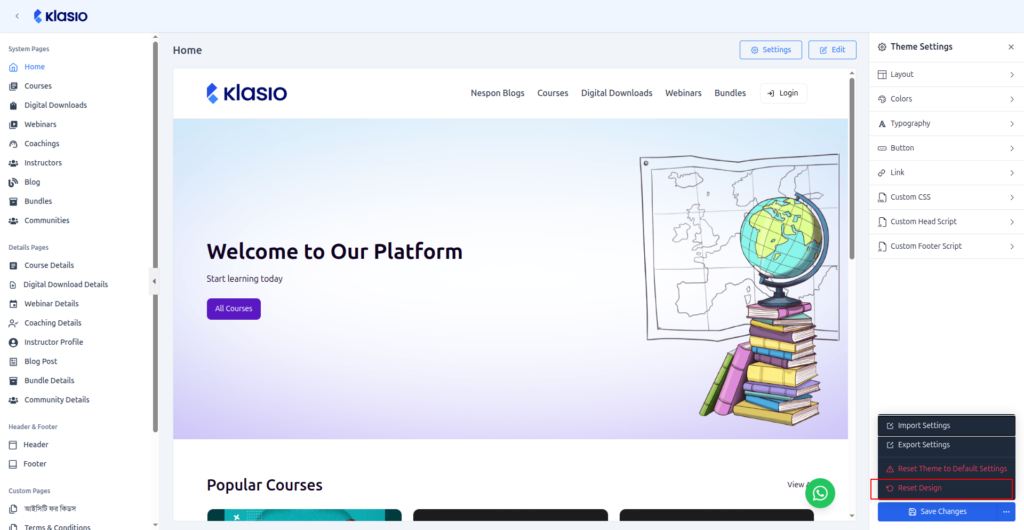
Now there’s a Reset Design option in the website builder. Open Theme Settings, click the menu next to Save Changes, and choose Reset Design. It sits alongside Import Settings, Export Settings, and Reset Theme to Default Settings, so all your design controls are in one place. [Add one line: what Reset Design restores, and how it differs from Reset Theme to Default Settings.]
Knowing you can always go back makes it a lot easier to try something bold with your site.