
As a course creator, you’ve already done the hardest part: creating valuable, in-depth content for your students. But what if that one video lesson could do more than just teach? What if it could also attract new students, build your email list, and keep your social media feeds buzzing with fresh content? That’s the magic of repurposing.
Repurposing your content means taking your existing course materials and transforming them into new formats like blog posts, social media clips, podcast episodes, and e-books. It’s the secret to working smarter, not harder.
But where do you even begin? The thought of editing, designing, and scheduling all that content can feel overwhelming.
Don’t worry. In this guide, I’ve gathered the 33 best tools to make repurposing simple, fast, and even fun. Whether you need to transcribe a video, design a beautiful graphic, or schedule a month’s worth of posts, there’s a tool here for you.
Category 01: Best Transcription & Text Editing Tools
These tools form the foundation of content repurposing by converting your spoken course material into accurate, editable, and searchable text. They transform video and audio lessons into reusable assets for blog posts, e-books, newsletters, and social media quotes.
01. Descript
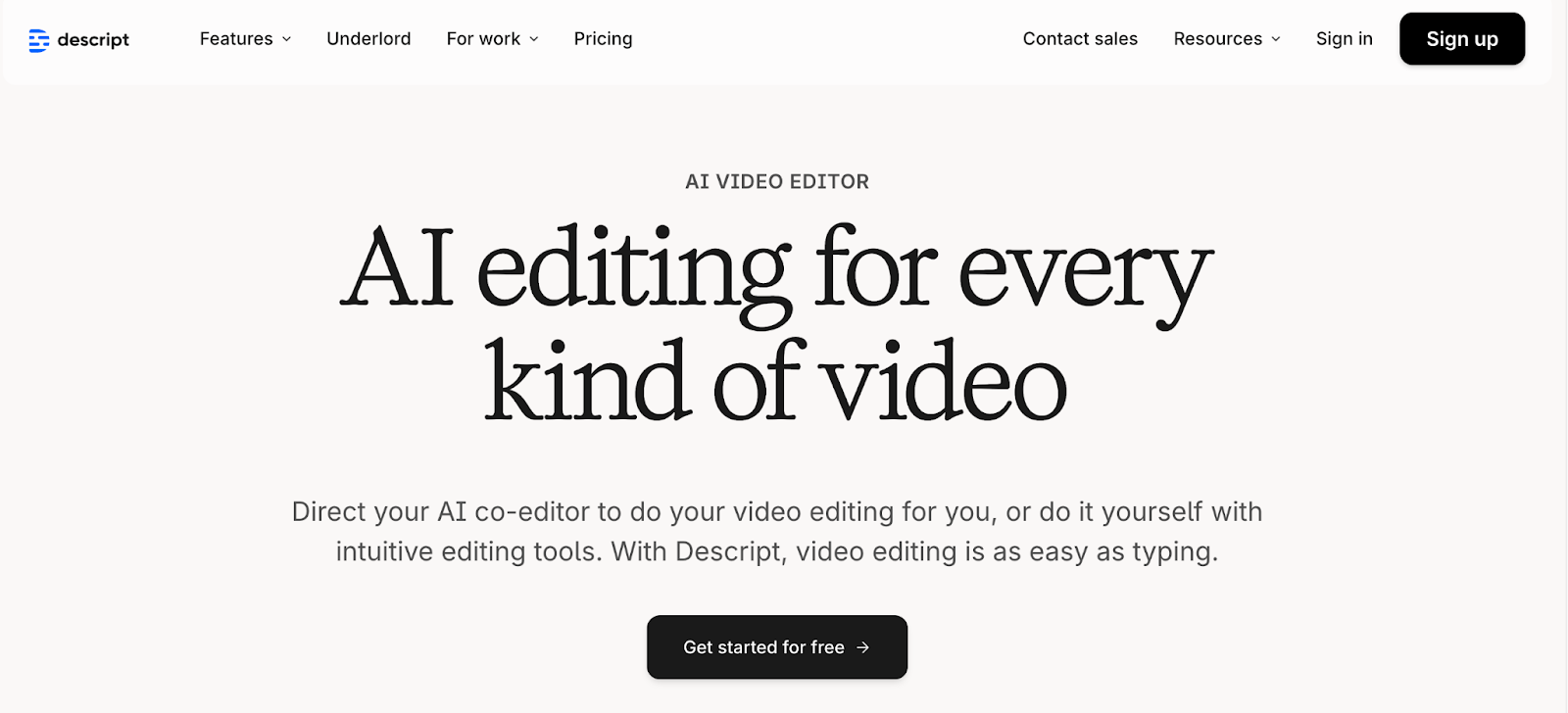
Descript is a really helpful tool that makes editing your video and audio lessons much easier. It automatically writes out what you’ve said, creating a text document of your recording. The cool part is that you can edit your video by just editing the text.
So, if you want to cut out a sentence or a filler word like “um,” you just delete the word from the transcript, and Descript removes it from your video. This makes it super fast to clean up your lessons and create short, polished clips for your blog or social media.
02. Otter.ai
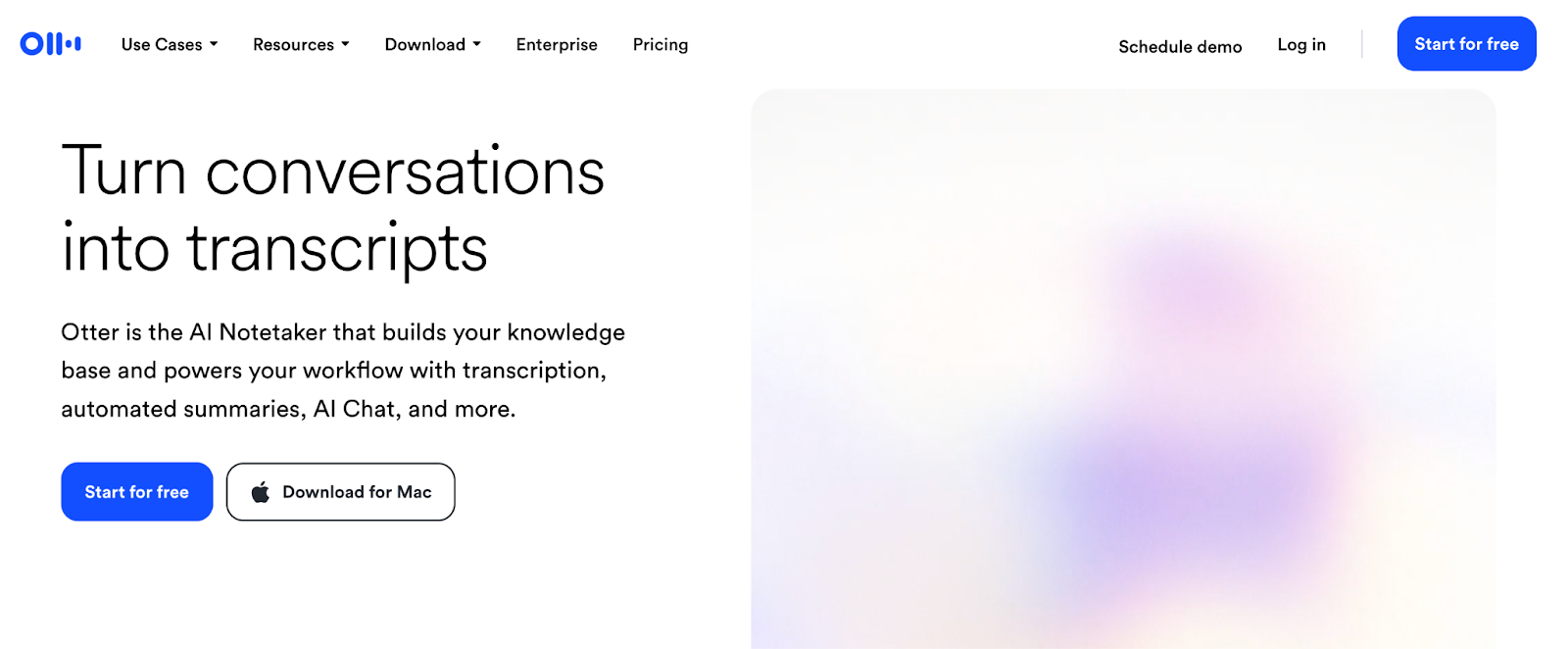
Otter.ai is great for turning your spoken words into text. You can use it during live lectures, meetings, or when you’re recording long course videos. It transcribes in real-time with good accuracy, so you can have a written version of your lesson almost instantly.
This is really useful for creating blog posts, show notes for your podcast, or even an outline for an e-book based on what you’ve taught. It helps you get a text version of your content without having to type it all out yourself.
03. Happy Scribe
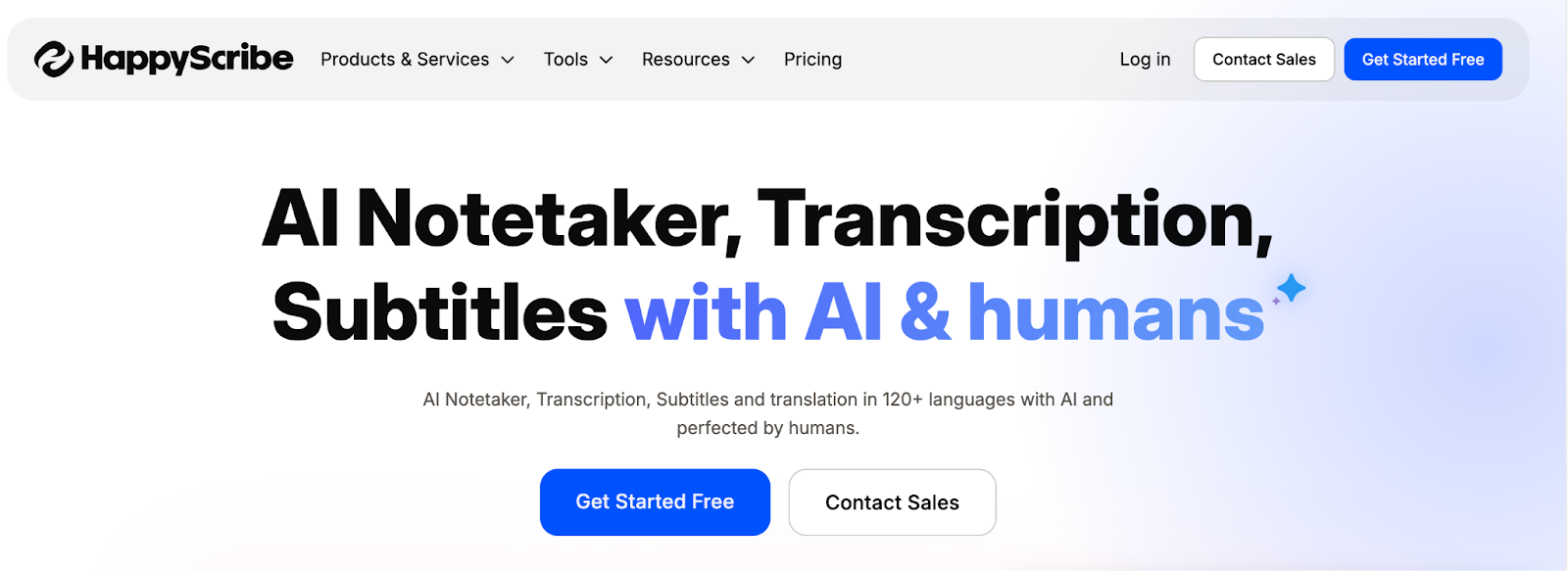
If you’re thinking about reaching a wider audience, Happy Scribe is a tool you should look at. It specializes in creating written transcripts and subtitles for your videos in many different languages.
You can use it to add accurate captions to your course videos, which makes them more accessible for everyone. Plus, if you want to expand into international markets, you can use Happy Scribe to translate your lesson transcripts.
04. Trint
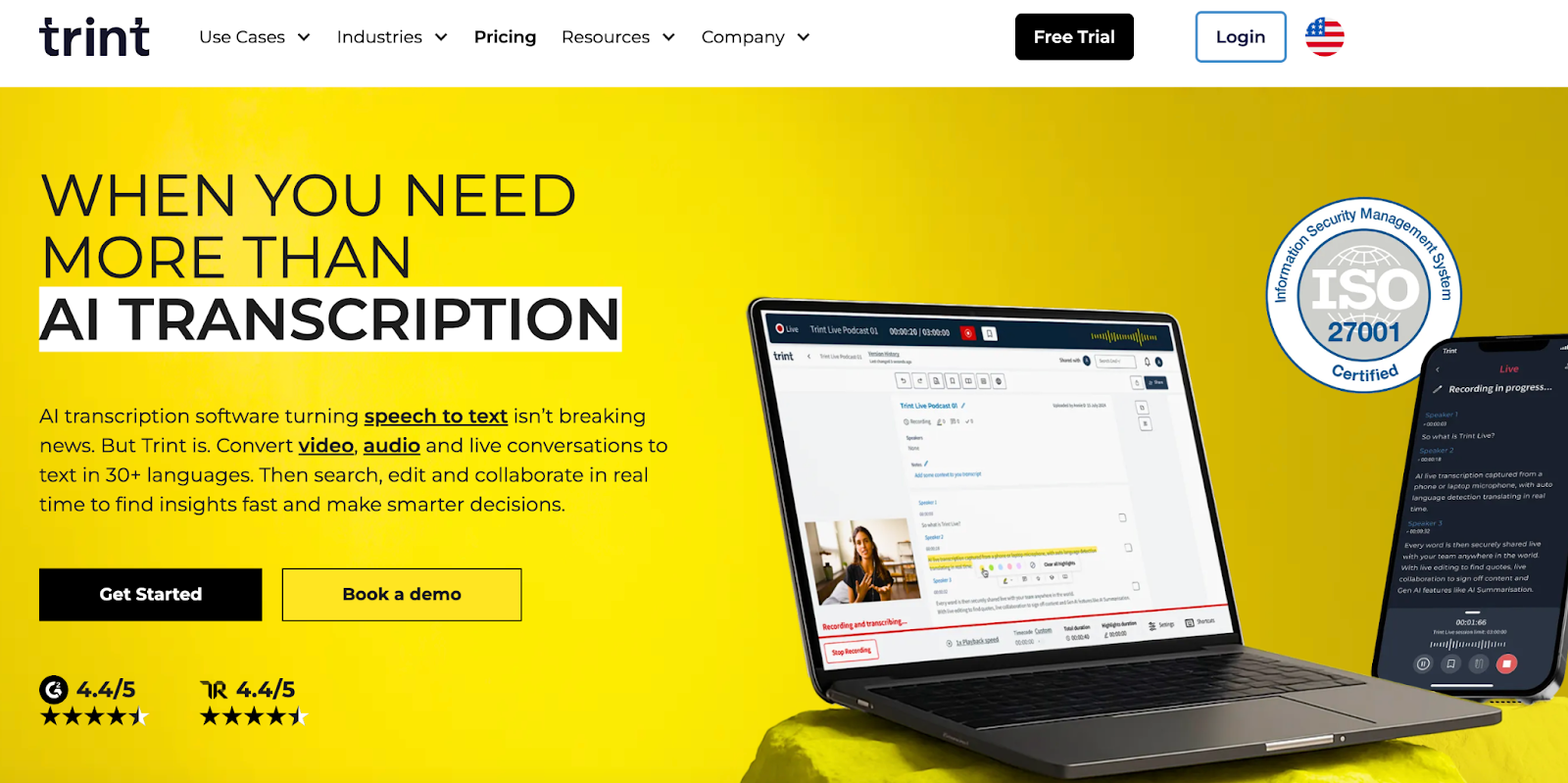
Trint is another tool that uses AI to turn your audio and video into text. Once your lesson is transcribed, you can easily search through the text to find specific parts of your recording.
This is handy when you want to pull out important quotes or key takeaways to share on social media. Trint also has features that let you work with a team, so if you have help, you can all collaborate to find the best moments from your course content and share them with your audience.
Category 02. Best AI Video Clipping & Short-Form Video Creation Tools
Focused on speed and reach, these AI-powered tools automatically identify the most engaging moments from long-form videos and convert them into vertical, captioned clips optimized for Reels, Shorts, and TikTok.
05. Opus Clip
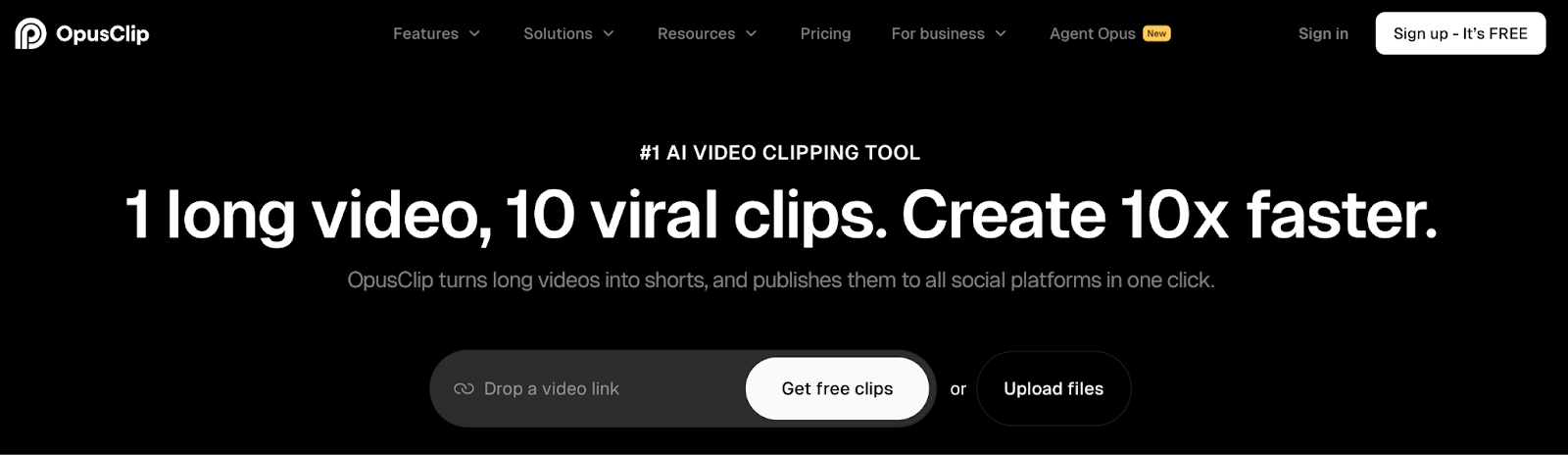
Opus Clip is a smart tool that helps you get more out of your long course videos. It uses AI to watch your video and automatically find the most interesting and engaging moments. It then turns these moments into short, vertical clips, perfect for social media like Instagram Reels or YouTube Shorts. It even adds captions for you.
This can save you a lot of time because you don’t have to manually search for good clips and edit them yourself.
06. Pictory.ai
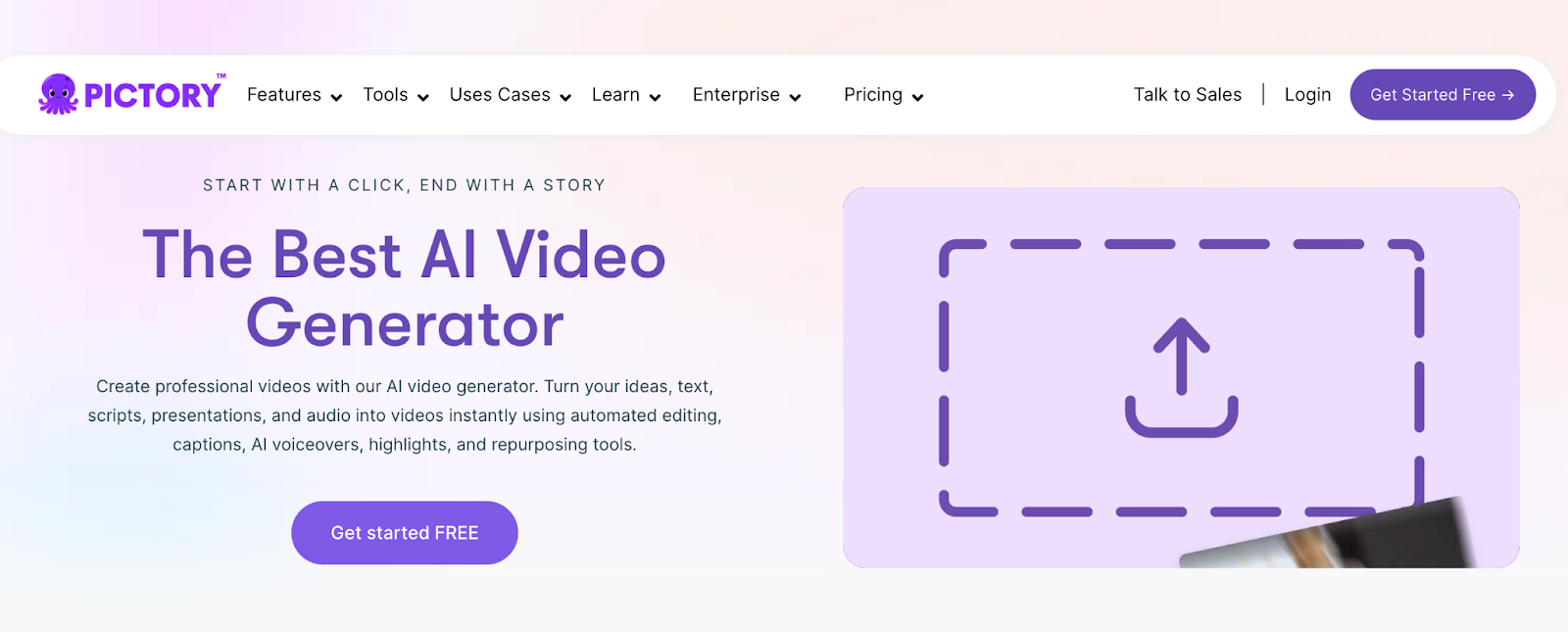
Pictory.ai is a creative tool that helps you make short, shareable videos from your existing content. You can give it a long video, a blog post, or even just a simple script, and it will turn it into a professional-looking video summary.
It finds visuals to match your text and puts everything together for you. This is great for turning your written course materials, like a lesson summary or a blog post, into an engaging video that you can share on platforms like YouTube or LinkedIn.
07. Vidyo.ai
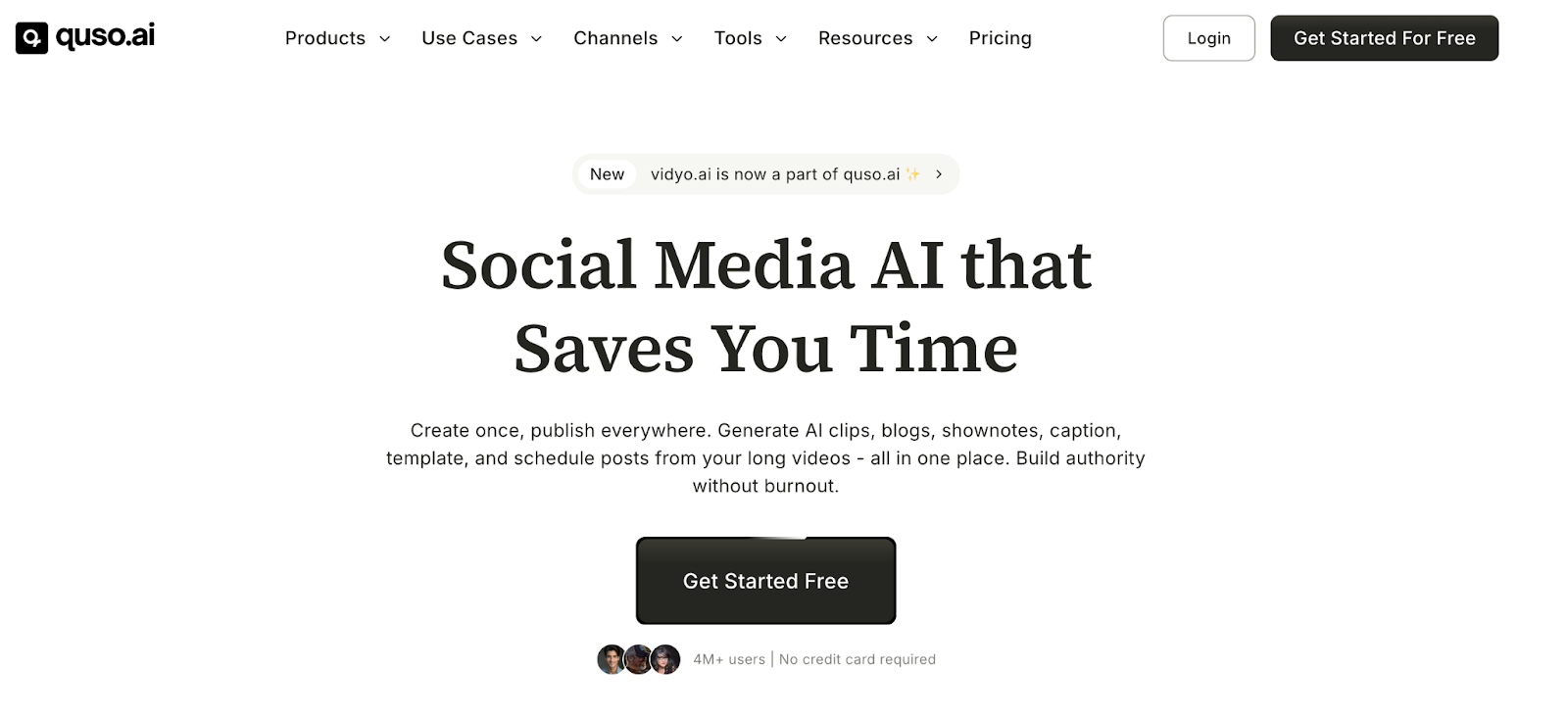
Vidyo.ai is designed to help you repurpose your long videos into many short clips for social media. It does the hard work for you, like resizing the video for different platforms (like square for Instagram or vertical for TikTok), adding captions, and picking out the best parts of your lesson.
This allows you to create a lot of fresh content for your social media channels every day without spending hours editing, helping you keep your audience engaged and interested in your courses.
08. Klap
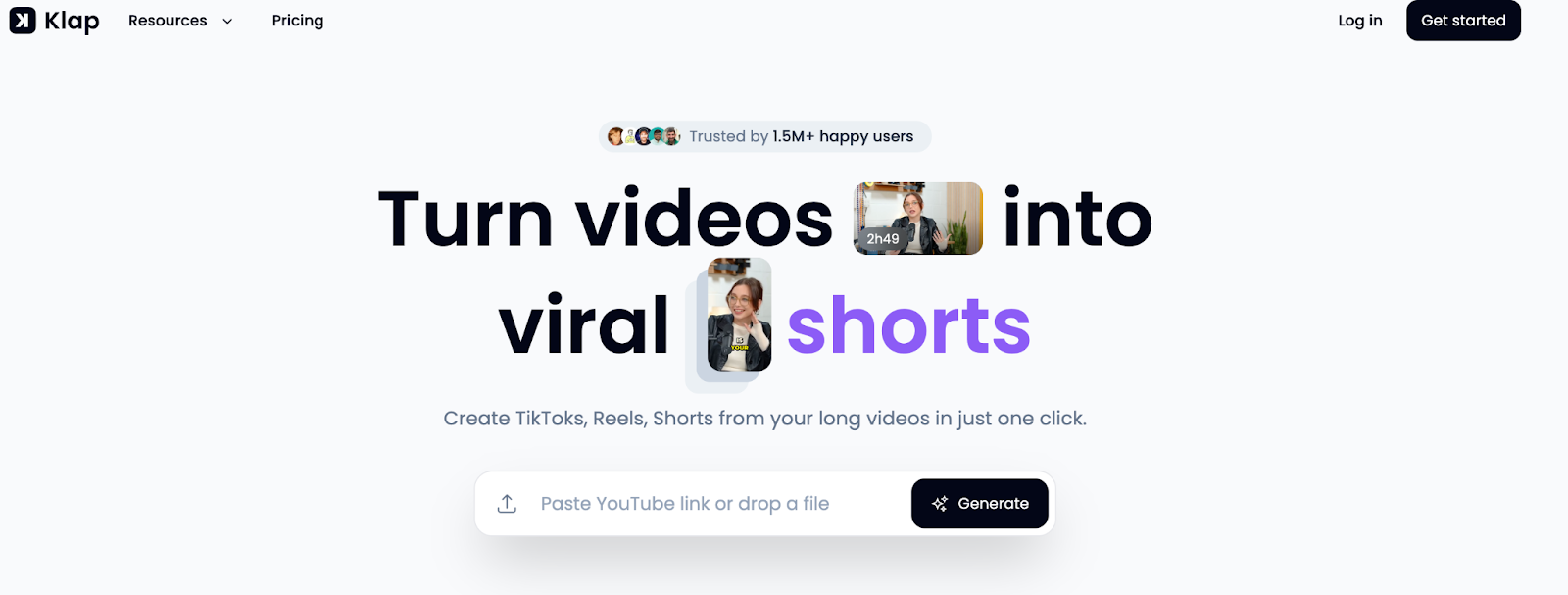
Klap is an AI tool made specifically for creators who post their videos on YouTube. It can take one of your existing YouTube videos and automatically identify the most important highlights.
Then, it packages these highlights into short, eye-catching clips with dynamic captions. This is a really effective way to promote your main course videos on other platforms and encourage people to visit your YouTube channel to watch the full lesson.
09. Wisecut
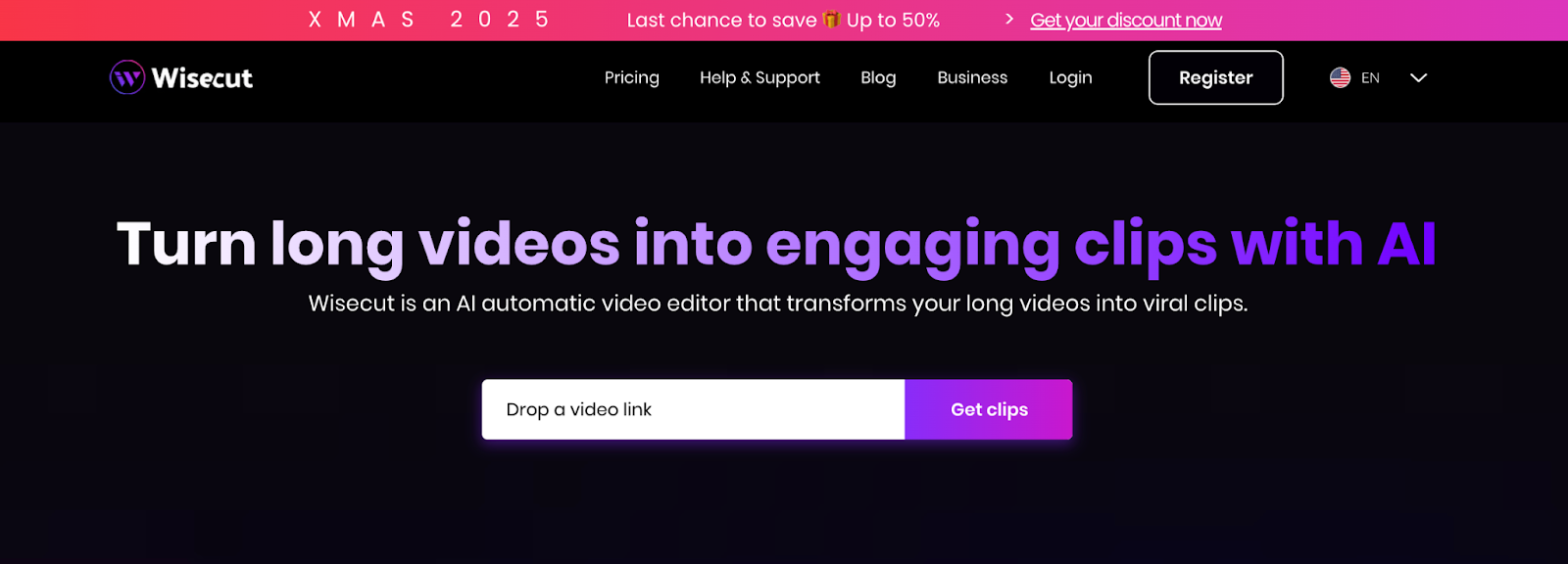
Wisecut is like having an automatic video editor. It uses AI to edit your raw video footage, making it look more polished and professional. It can create smooth jump cuts to remove awkward pauses, automatically add background music that fits the mood, and even include sound effects.
This tool is perfect if you don’t have advanced video editing skills but want to turn your course recordings into dynamic promotional videos or short, engaging micro-lessons for your students.
Category 03. Best Visual Design & Infographics Tools
These platforms make it easy to create professional, on-brand visuals without design expertise. They help turn complex course concepts into simple, shareable graphics, carousels, infographics, and quote cards for social media.
10. Canva
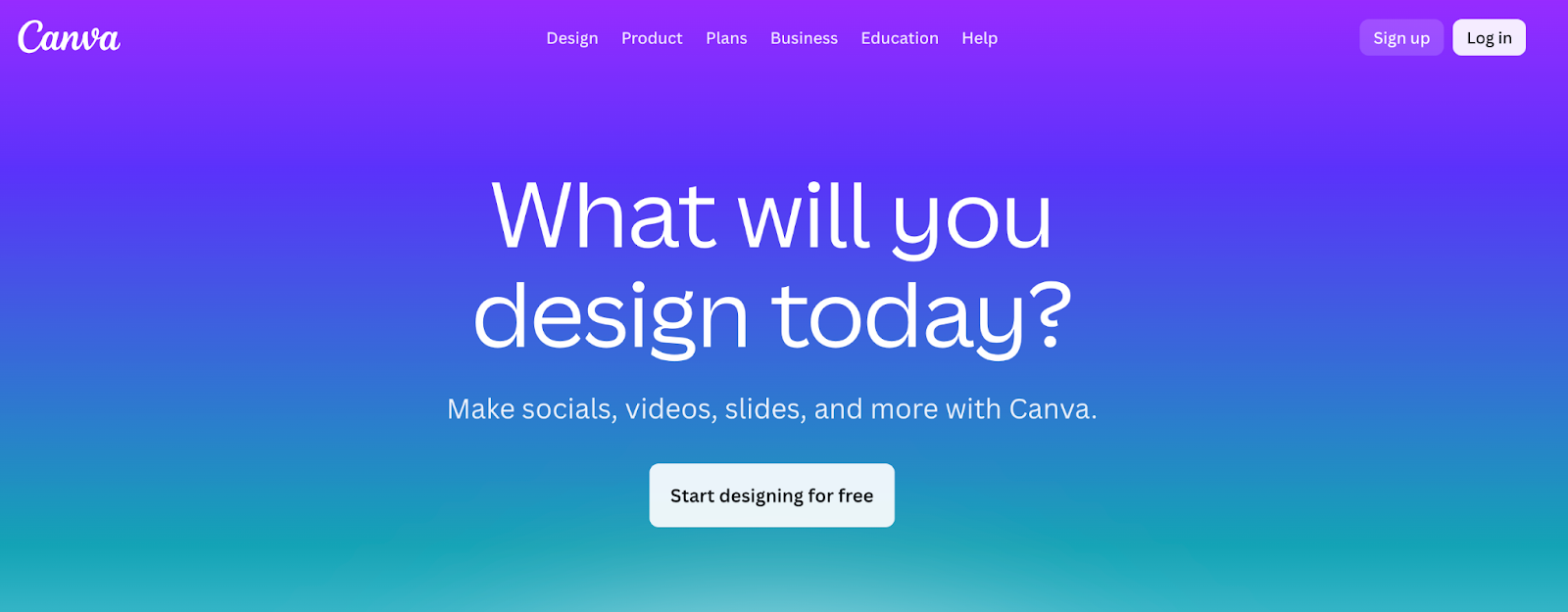
Canva is a design tool that is perfect for beginners. It has a huge library of ready-to-use templates, which makes creating professional-looking graphics really simple. You can use it to design all sorts of things for your course and marketing.
For example, you can create beautiful quote cards with key takeaways from your lessons, educational infographics that explain a concept visually, or even multi-slide posts for Instagram. It helps you make all your social media graphics look eye-catching and consistent with your brand, without needing any design experience.
11. Adobe Express
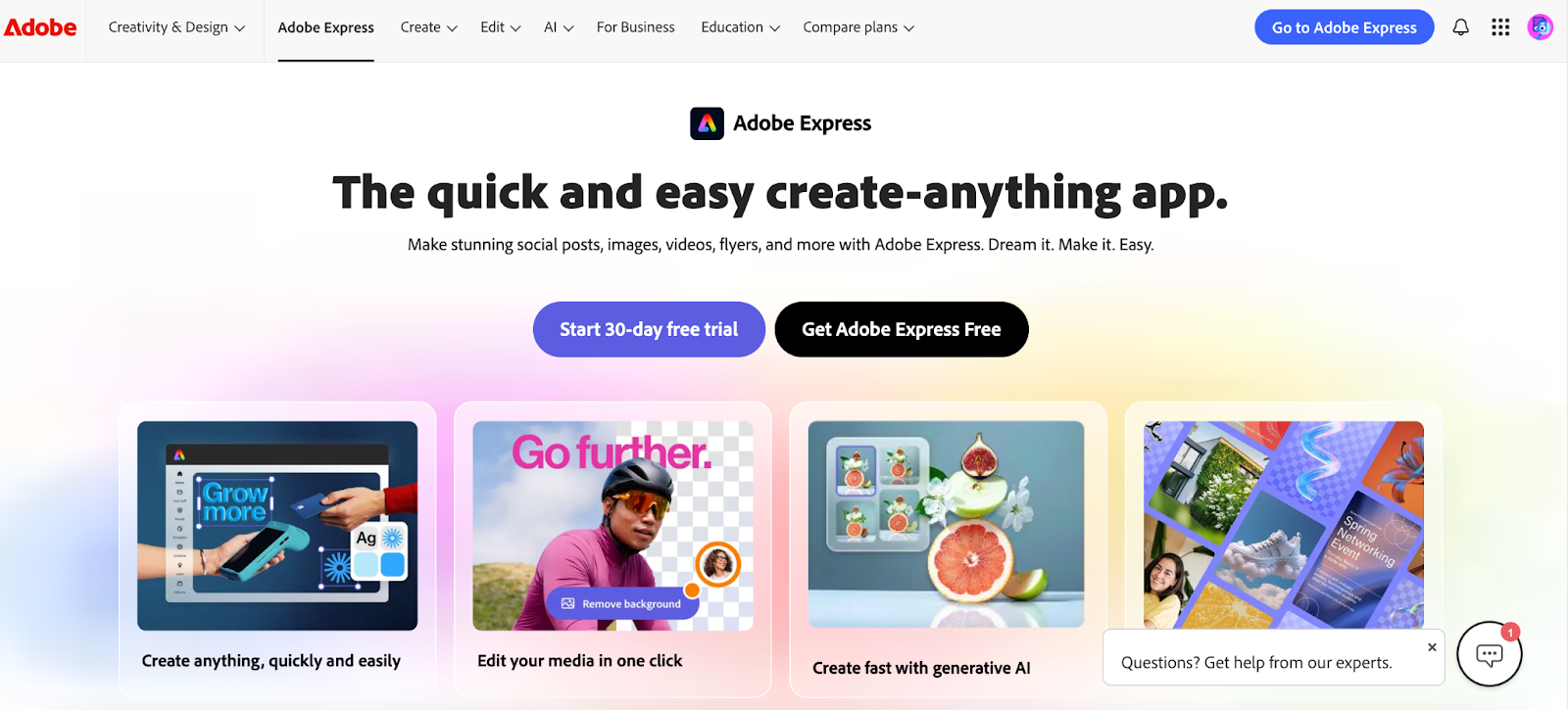
Adobe Express is another easy-to-use design tool, much like Canva. It’s great for quickly creating branded visuals for your course. If you ever plan on using other Adobe tools (like Photoshop or Premiere Pro), Express is a nice starting point because it works well with them.
With Adobe Express, you can use it to make sure your brand looks the same across all the different visuals you create, from social media posts to graphics for your course videos.
12. Visme
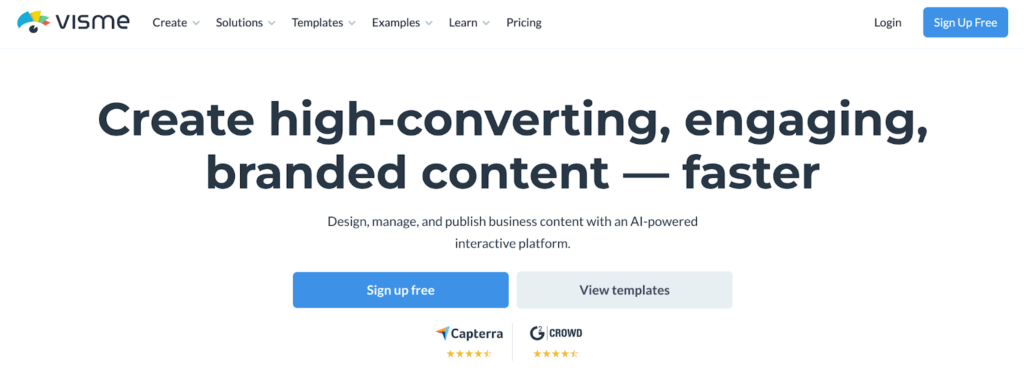
Visme is a tool that’s especially good for creating professional-looking infographics, presentations, and documents. If your course has a lot of data, complex ideas, or step-by-step frameworks, Visme can help you turn that information into beautiful graphics that are easy for your students to understand.
You can use these visuals in your blog posts or as free downloadable resources (like a PDF guide) to attract new students.
13. Piktochart
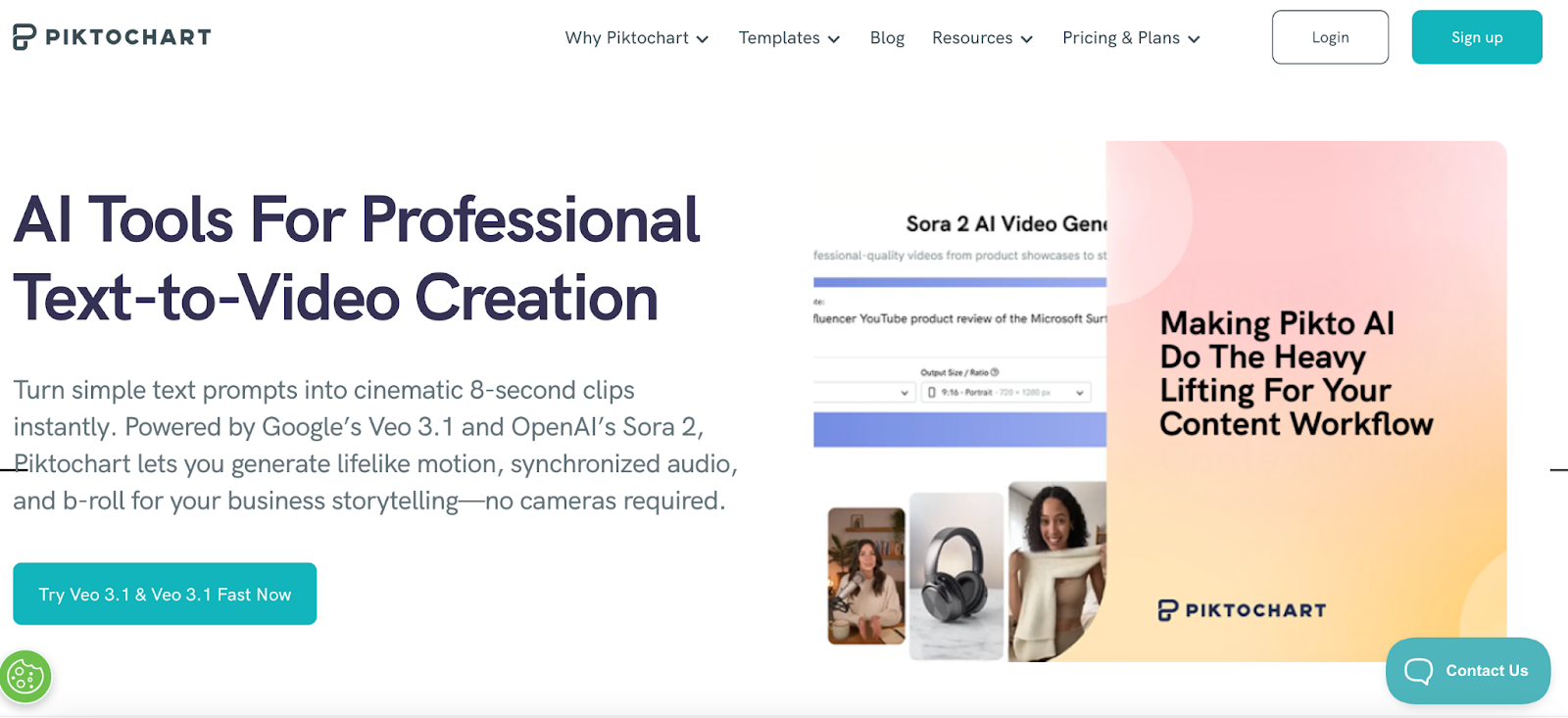
Piktochart is another great tool that focuses on making infographics and reports simple and clear. It’s particularly useful when you want to summarize a complex topic from one of your course modules into a single, easy-to-read visual.
You can create a chart or a visual summary that you can share on social media or your blog. This not only helps demonstrate your expertise on the subject but can also drive people to check out your full course.
14. Snappa
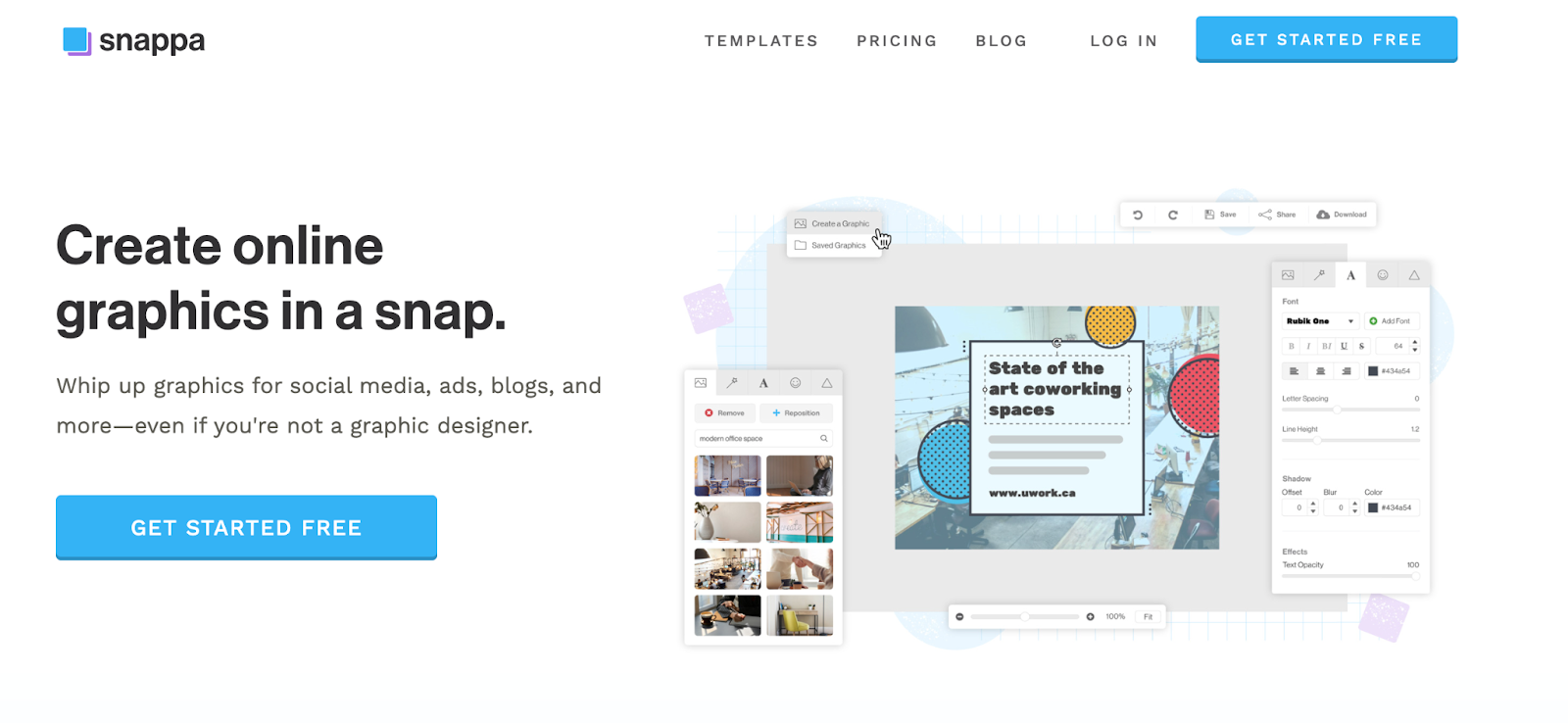
Snappa is a graphic design tool that is all about speed and simplicity. It’s designed to help you create high-quality images for your social media posts and blog headers very quickly. It has presets for all the different social media platforms, so you don’t have to worry about getting the image sizes right.
This ensures that all the content you share looks professional and is perfectly formatted for every platform, helping you maintain a polished online presence.
Category 04. Best E-book & Document Creation Tools
Designed for packaging value, these tools streamline the process of transforming edited transcripts and notes into polished e-books, guides, workbooks, and checklists—perfect for lead magnets and email list growth.
15. Designrr
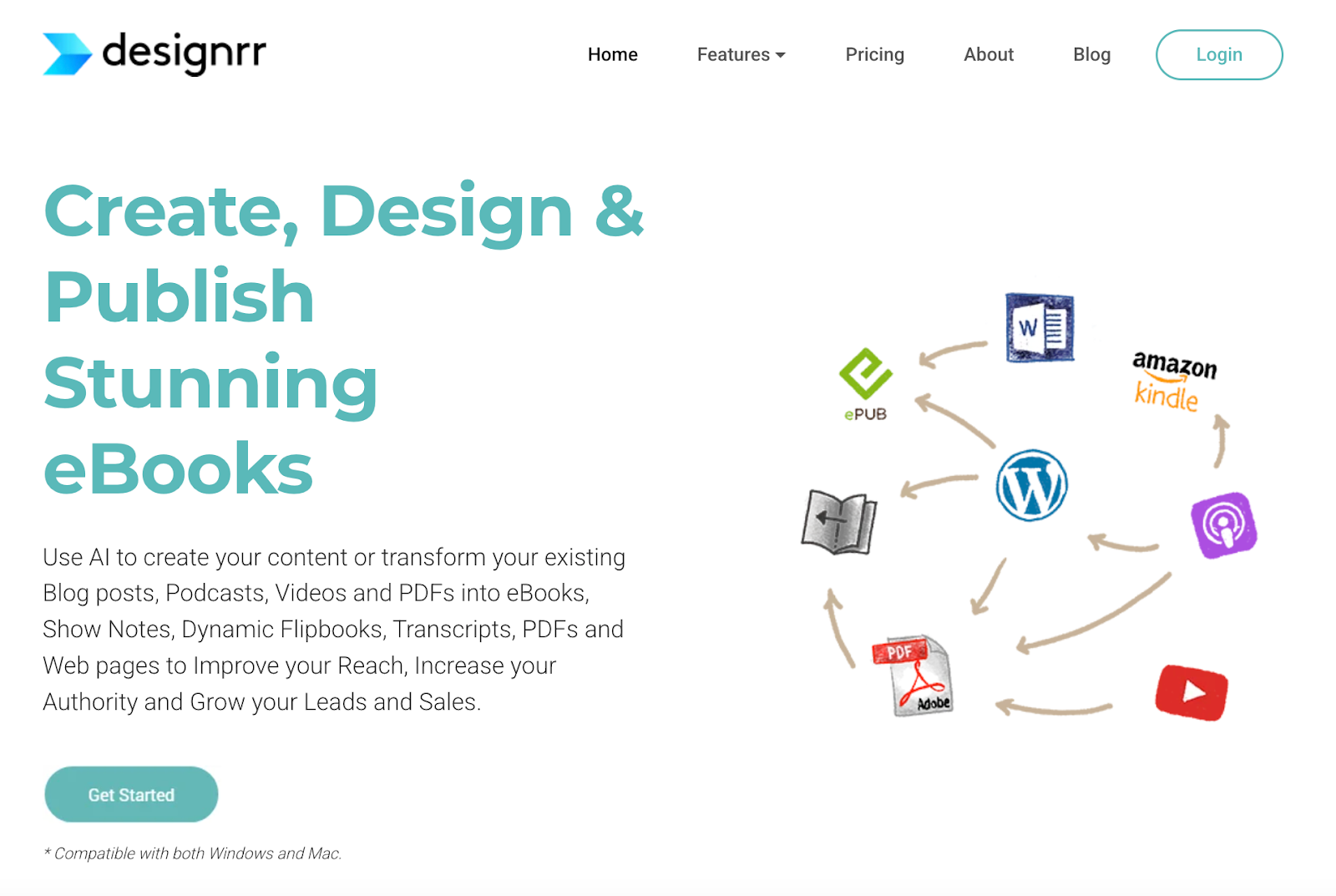
Designrr is a huge time-saver when you want to create professional-looking e-books or free guides. It can take your existing content, like blog posts, course transcripts, or even a Word document, and automatically format it into a beautifully designed e-book.
You don’t have to mess around with complicated design software. This is an amazing way to create valuable downloadable resources, often called “lead magnets,” which you can offer to people in exchange for their email addresses, helping you grow your audience.
16. Beacon
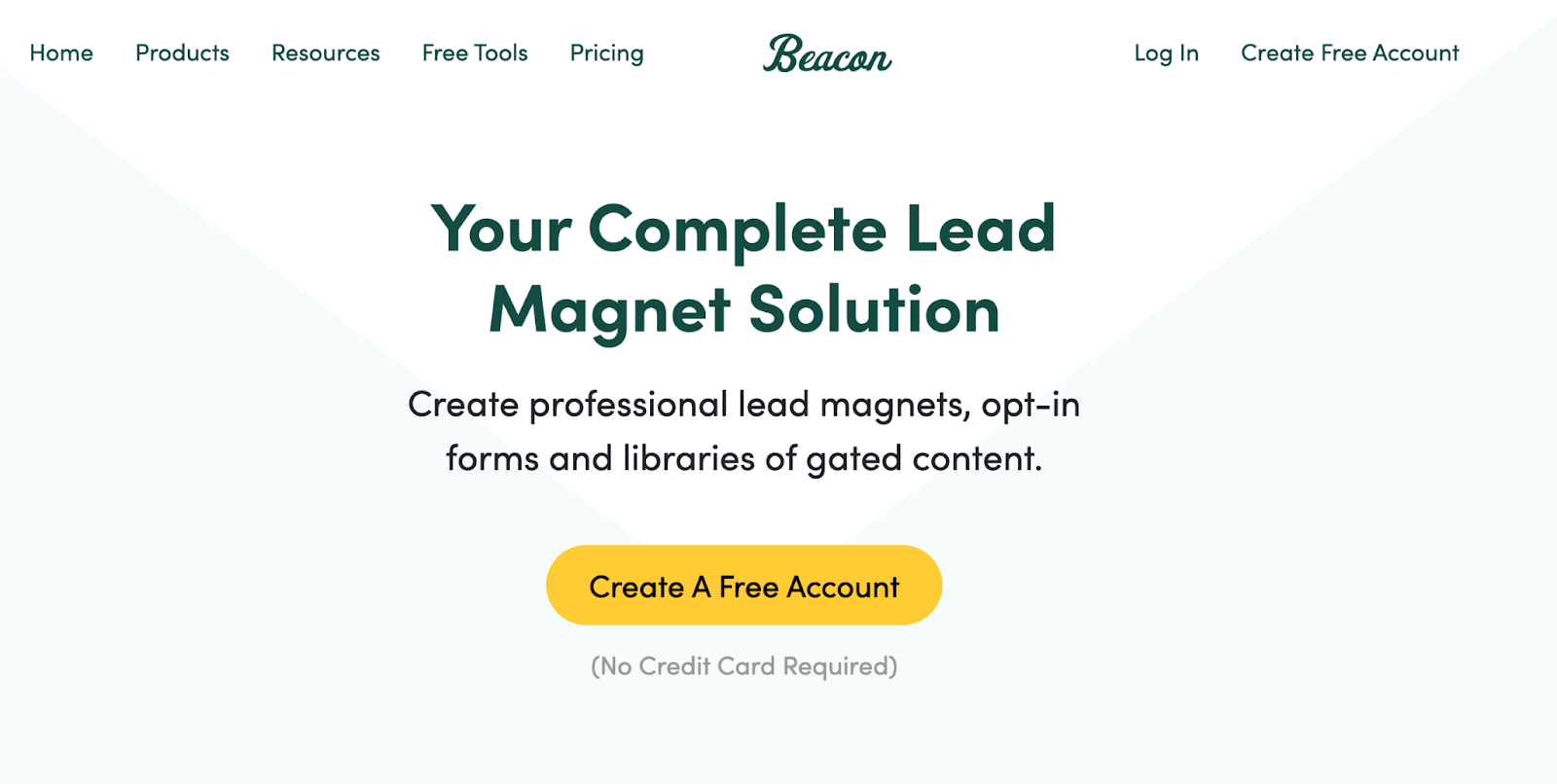
Beacon is a tool specifically designed to help you turn your blog posts into attractive guides and checklists that encourage people to sign up for your email list. It provides you with beautiful templates that are easy to customize with your own branding.
The process is very straightforward: you can import a blog post, and Beacon helps you package it into a polished, professional-looking PDF. It’s a great way to get more value out of the content you’ve already written.
17. Google Docs
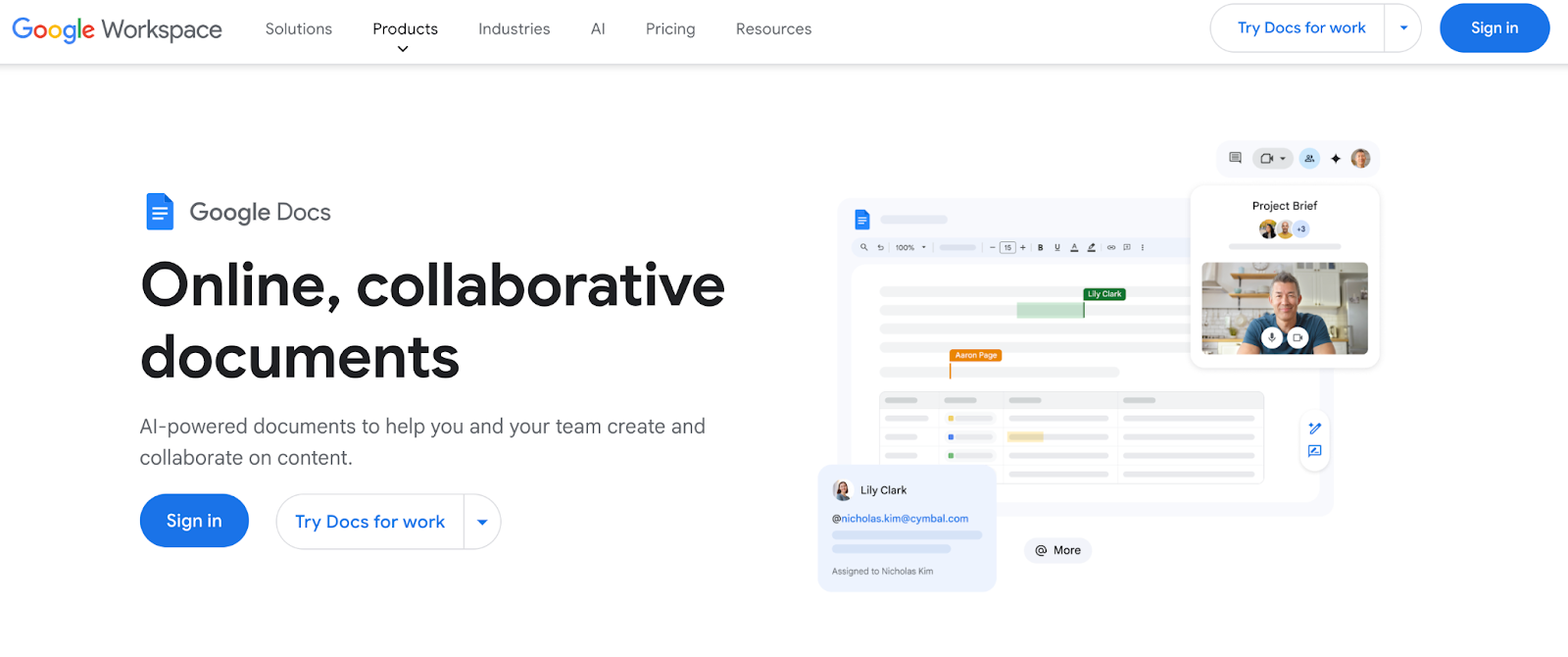
Google Docs is a simple, free, and essential tool for any course creator. You can use it to write, edit, and organize all of your written content.
For example, after you get a transcript back from a tool like Otter.ai, you can paste it into a Google Doc to clean it up and format it.
It’s also great for collaborating with others if you have a team. Once you’re done, you can easily save your document as a clean, professional PDF, perfect for creating e-books, course handouts, or worksheets for your students.
18. Notion
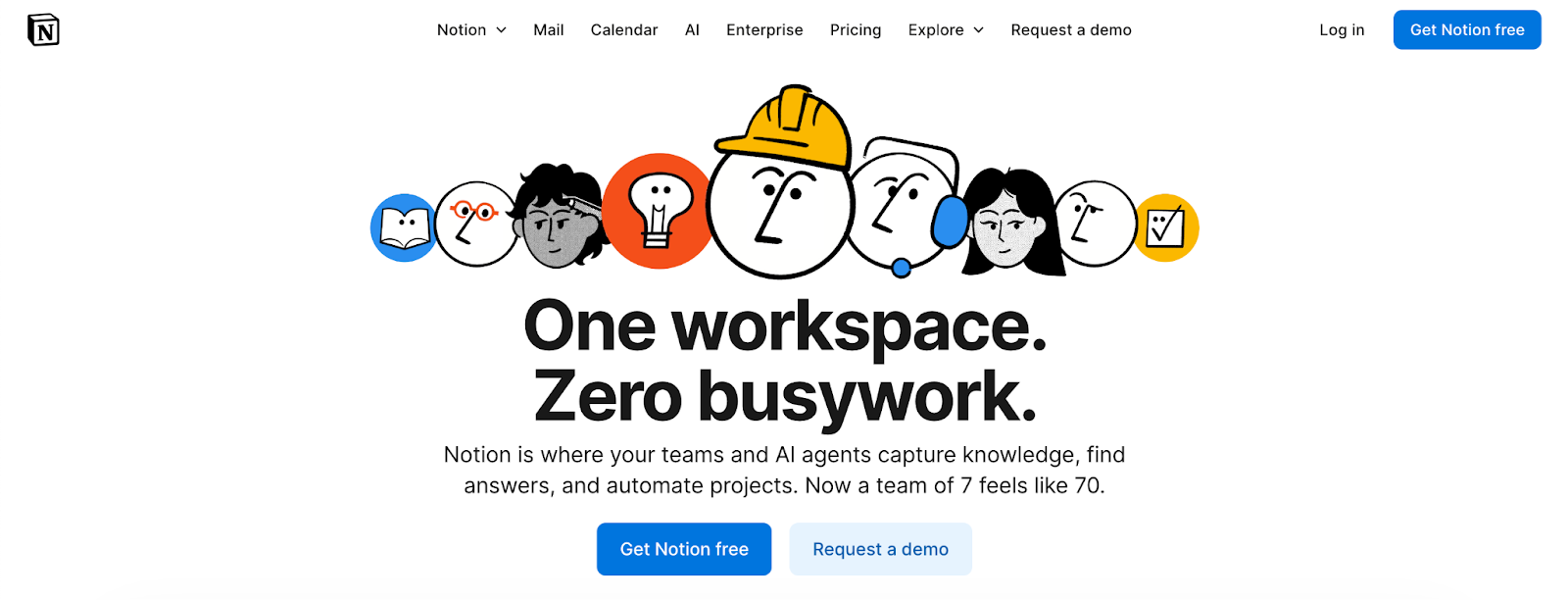
Notion is like a digital workspace where you can organize everything related to your course. It’s much more than just a document editor; you can use it to plan your content, manage your video production workflow, and compile all your repurposed materials.
For example, you can have a database of all your video ideas, another for your blog posts, and another for your social media content, all linked together. It’s perfect for keeping track of all the moving pieces when you’re working on a big project.
19. PaperTurn
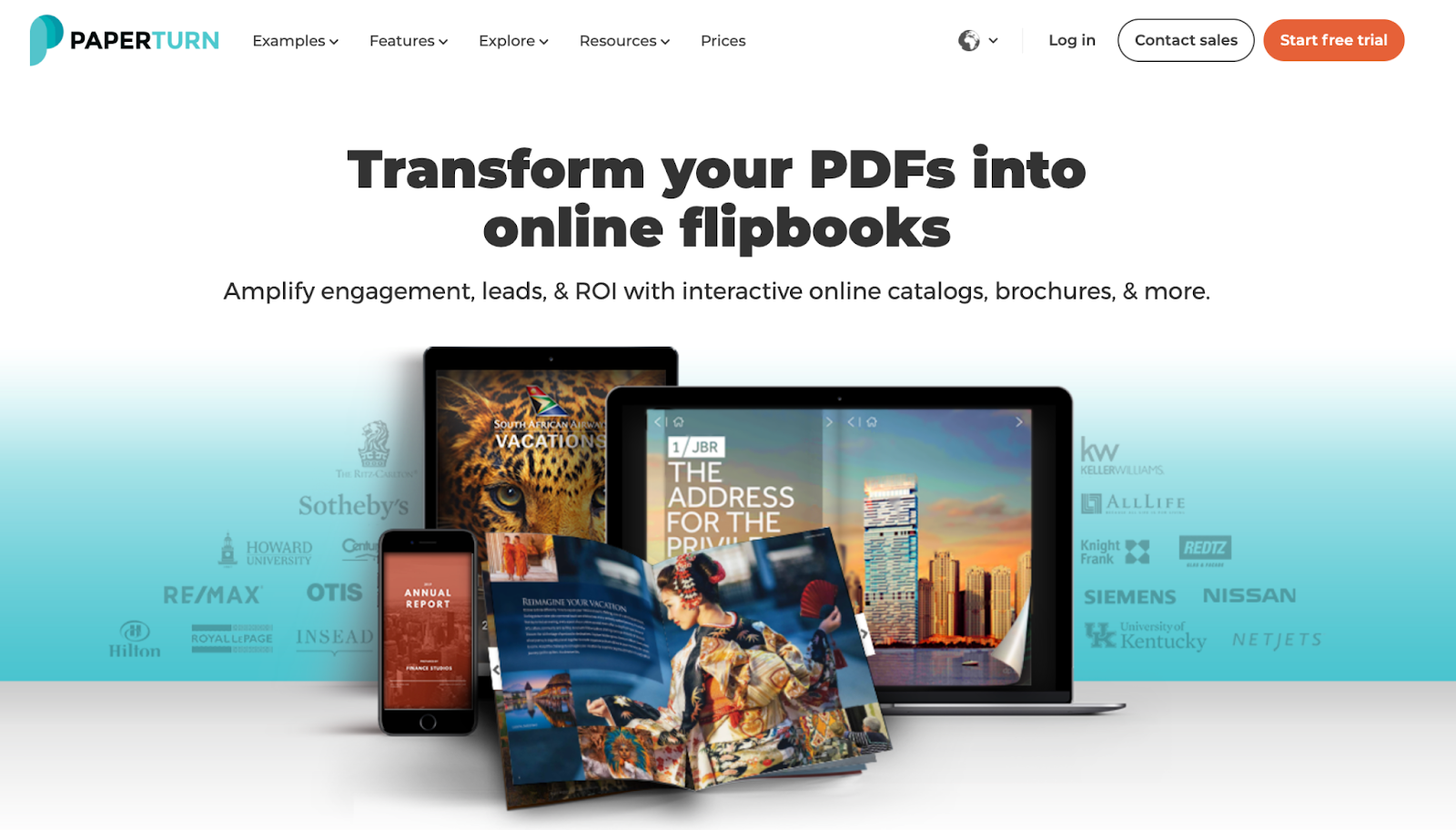
PaperTurn takes your standard PDF documents and turns them into interactive, digital flipbooks. Instead of your audience just downloading a plain PDF, they get a more engaging experience where they can flip through the pages like a real book or magazine.
This is a great way to make your course guides, e-books, or marketing materials feel more premium and professional. It can make your content stand out and leave a lasting impression on your potential students.
Category 05. Best Podcast & Audio Editing Tools
For courses with audio components, these tools enable high-quality podcast production. They support remote recording, noise reduction, audio enhancement, and automated publishing for a professional listening experience.
20. Riverside.fm
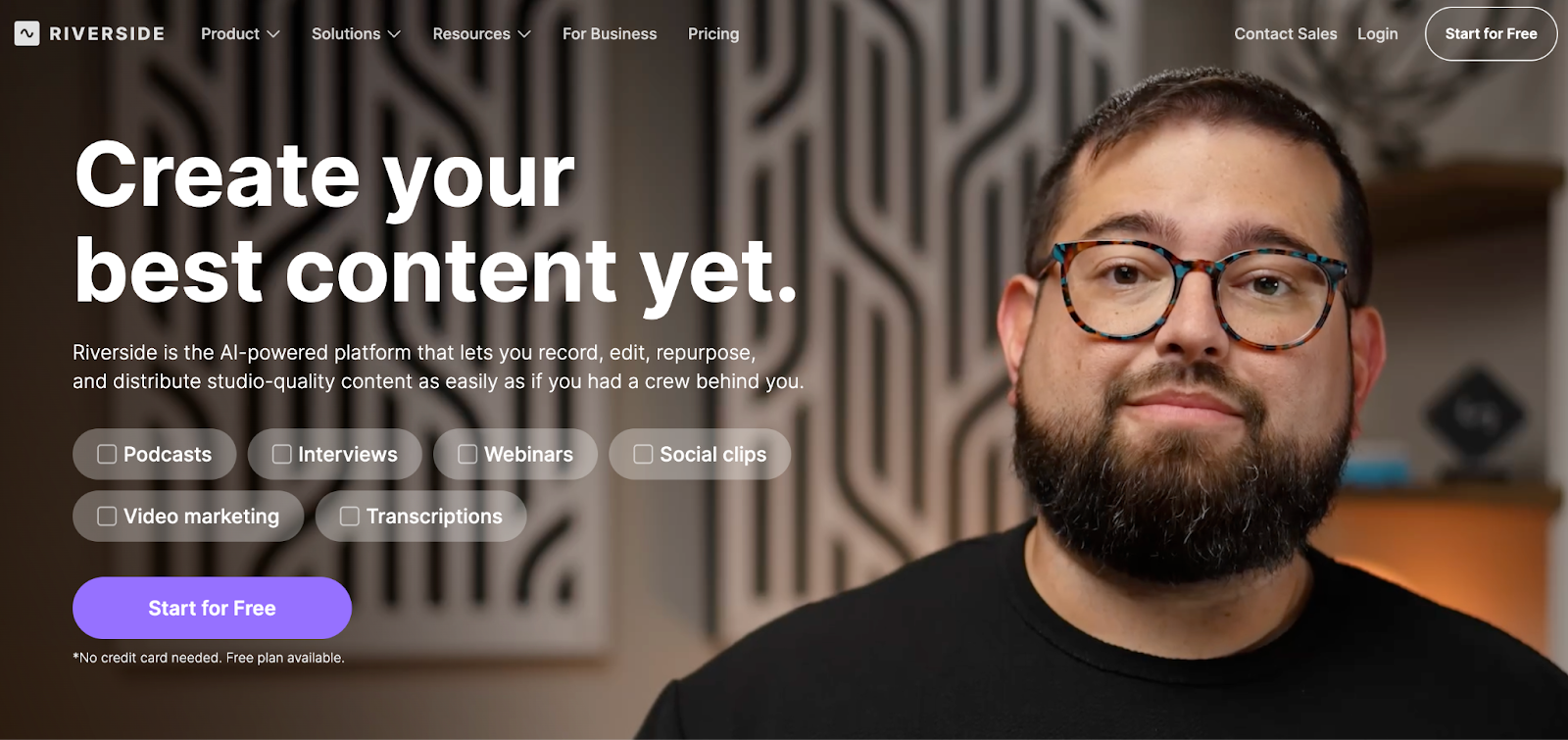
Riverside.fm is a tool for recording high-quality audio and video, even if you’re recording with someone remotely. It records each person’s audio and video on separate tracks, which makes editing much easier later on.
This is perfect if you want to turn your course lessons into a professional-sounding podcast. You could also use it to record bonus content for your course, like an interview with an expert or a Q&A session with a student, all with crystal-clear sound quality.
21. Podcastle
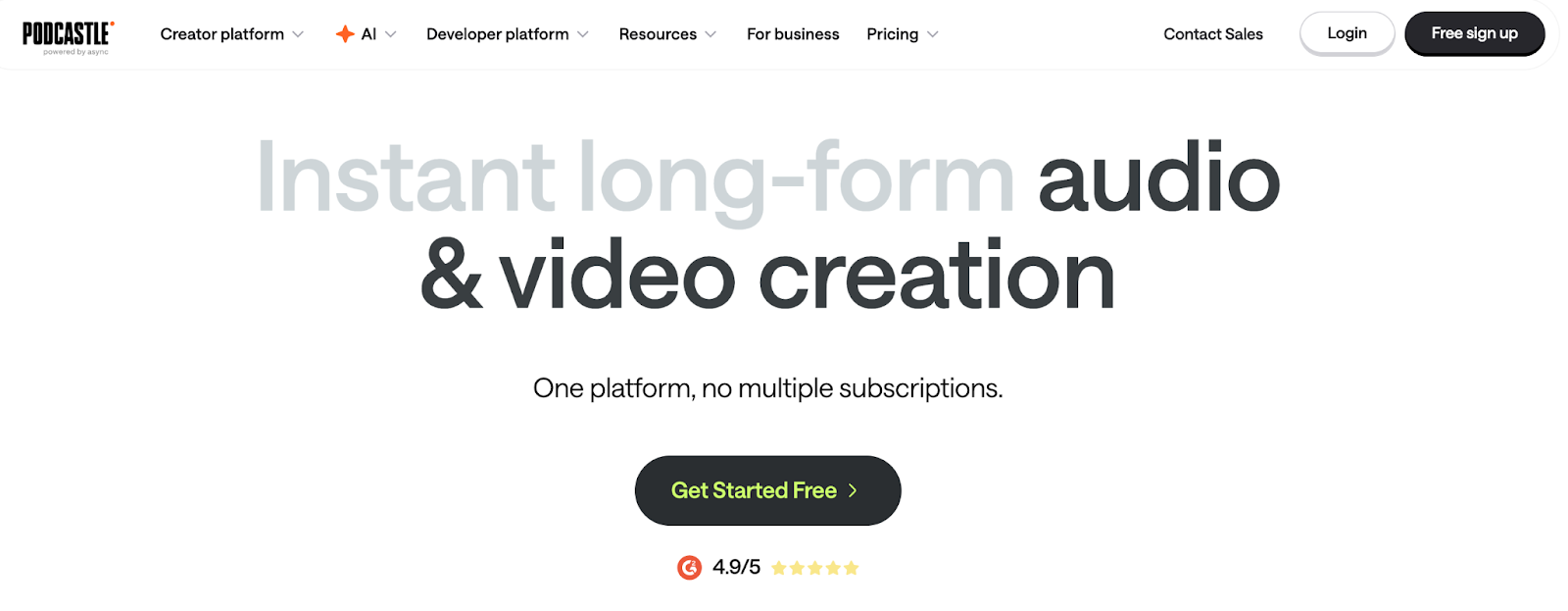
Podcastle is an all-in-one tool that helps you record, edit, and improve your audio. It has some really helpful AI features, like the ability to automatically remove background noise and make sure the volume is consistent throughout your recording.
This makes it simple to take the audio from your course videos and turn it into a polished podcast episode that’s ready to be shared. It’s a great option if you want to create high-quality audio without needing a lot of technical skills.
22. Audacity
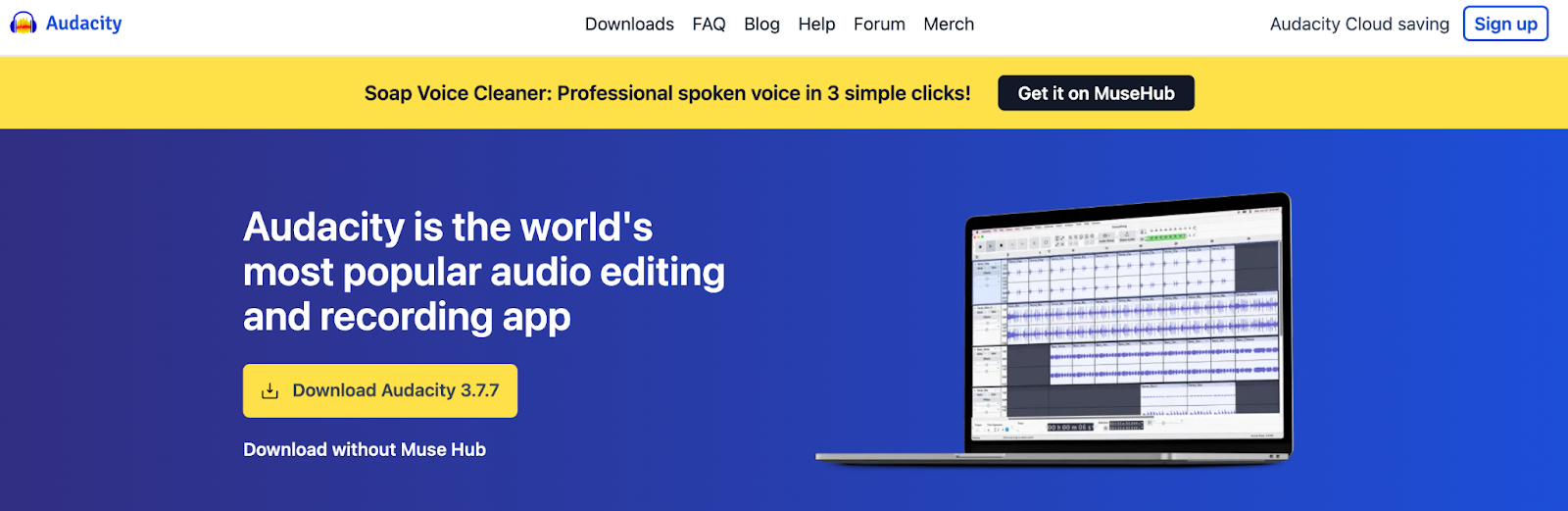
Audacity is a free and powerful software for editing audio. It gives you a lot of control over your sound, so you can do things like remove specific background noises, cut out mistakes, and generally perfect the quality of your audio.
It might take a little more time to learn compared to other tools, but it’s a fantastic option if you want to get serious about making your podcast or audio lessons sound as professional as possible, without spending any money on software.
23. Headliner
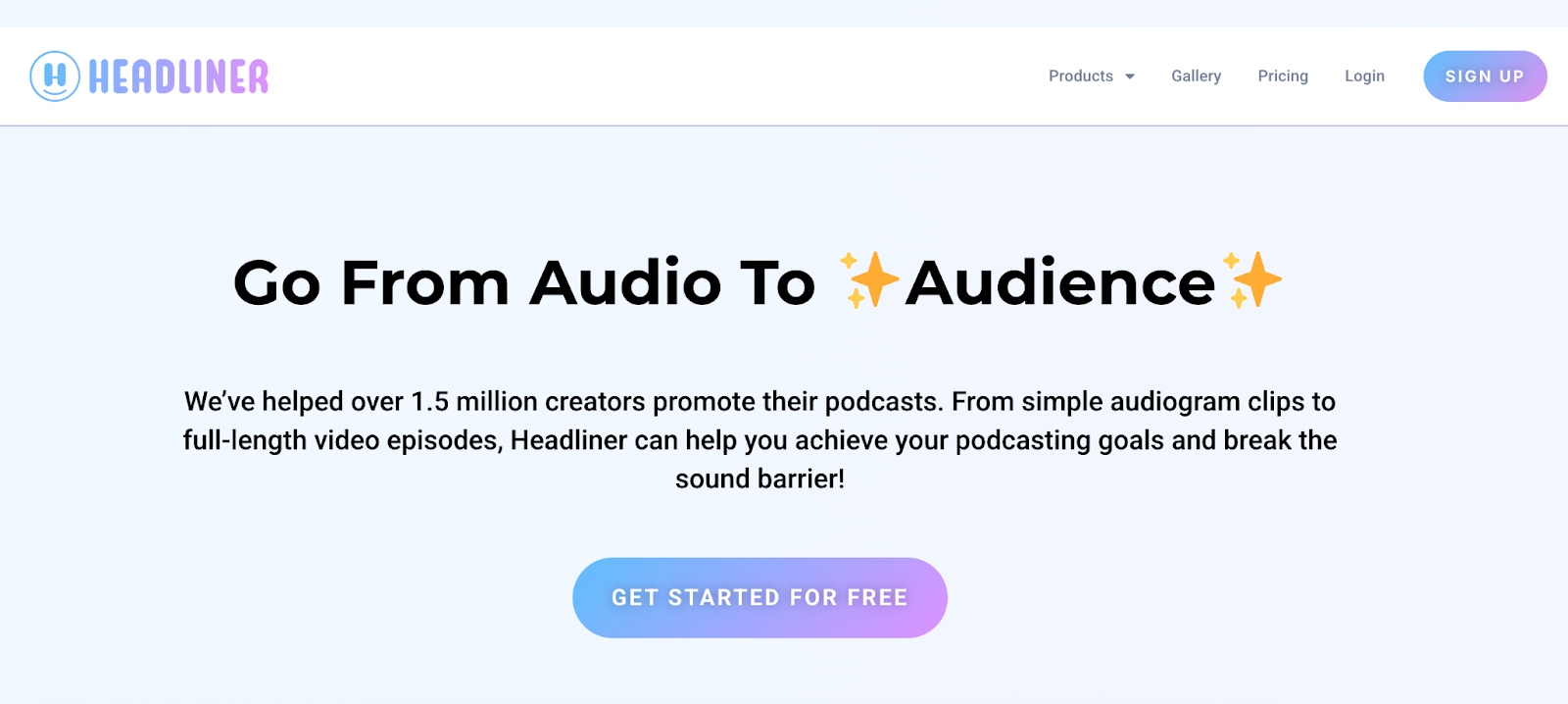
Headliner is a tool that helps you promote your audio content on social media. Since you can’t post just an audio file on platforms like Instagram or Facebook, Headliner turns your audio into a video. It creates something called an “audiogram,” which is a simple video that shows a waveform animation while your audio plays.
You can add a title and captions, too. This is a great way to share clips of your podcast or audio lessons and get people interested in listening to the full thing.
24. Alitu
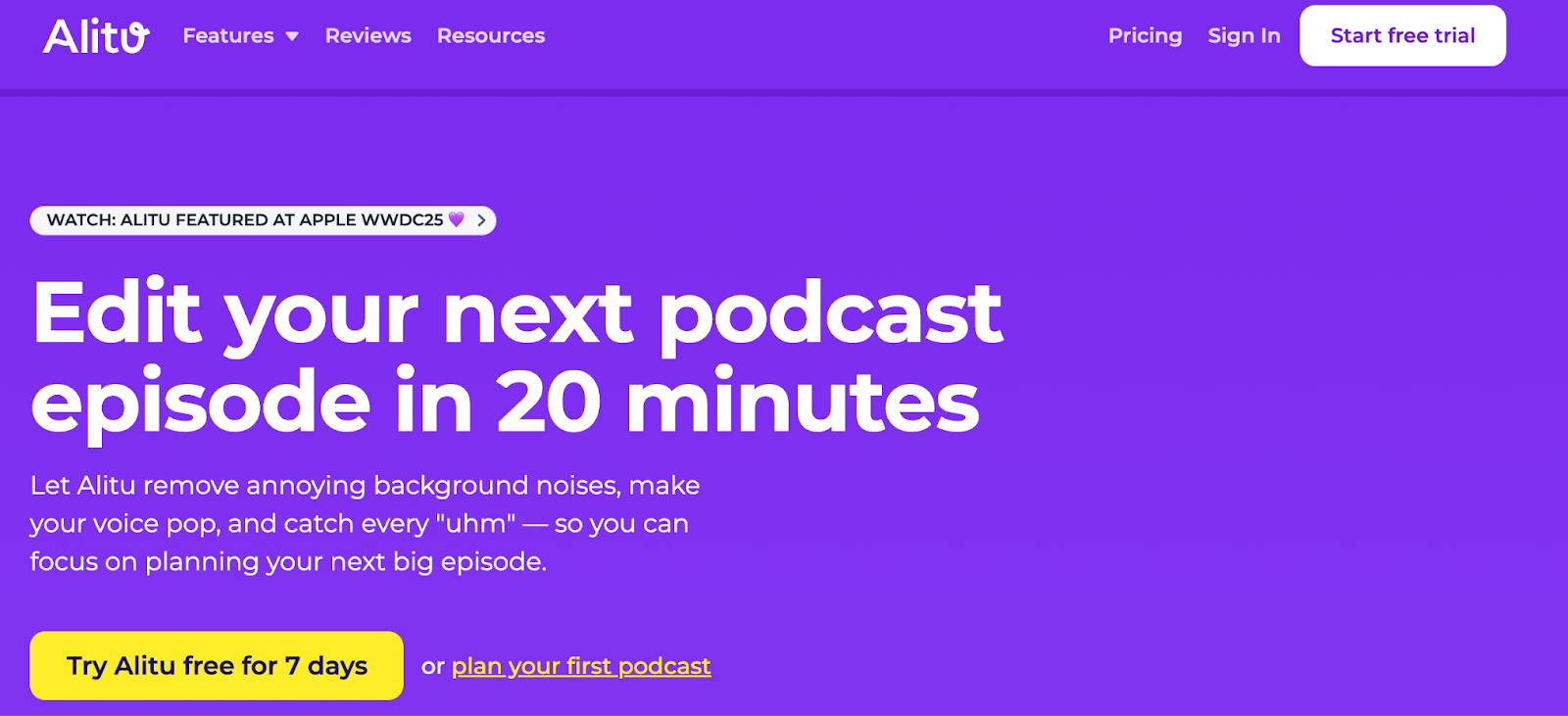
Alitu is designed to make podcasting as easy as possible by automating a lot of the technical work. It can automatically add your intro and outro music, adjust the volume levels to make everything sound balanced, and get your episode ready for you to upload.
This is perfect if you want to focus on creating great content from your course lessons without getting bogged down in the details of audio production. It streamlines the whole process, saving you a lot of time and effort.
Category 06. Best AI Content Generation & Rewriting Tools
These AI assistants help expand, rewrite, and optimize repurposed content. They’re ideal for generating SEO-friendly blog posts, compelling headlines, summaries, and platform-specific social media captions.
25. Jasper AI
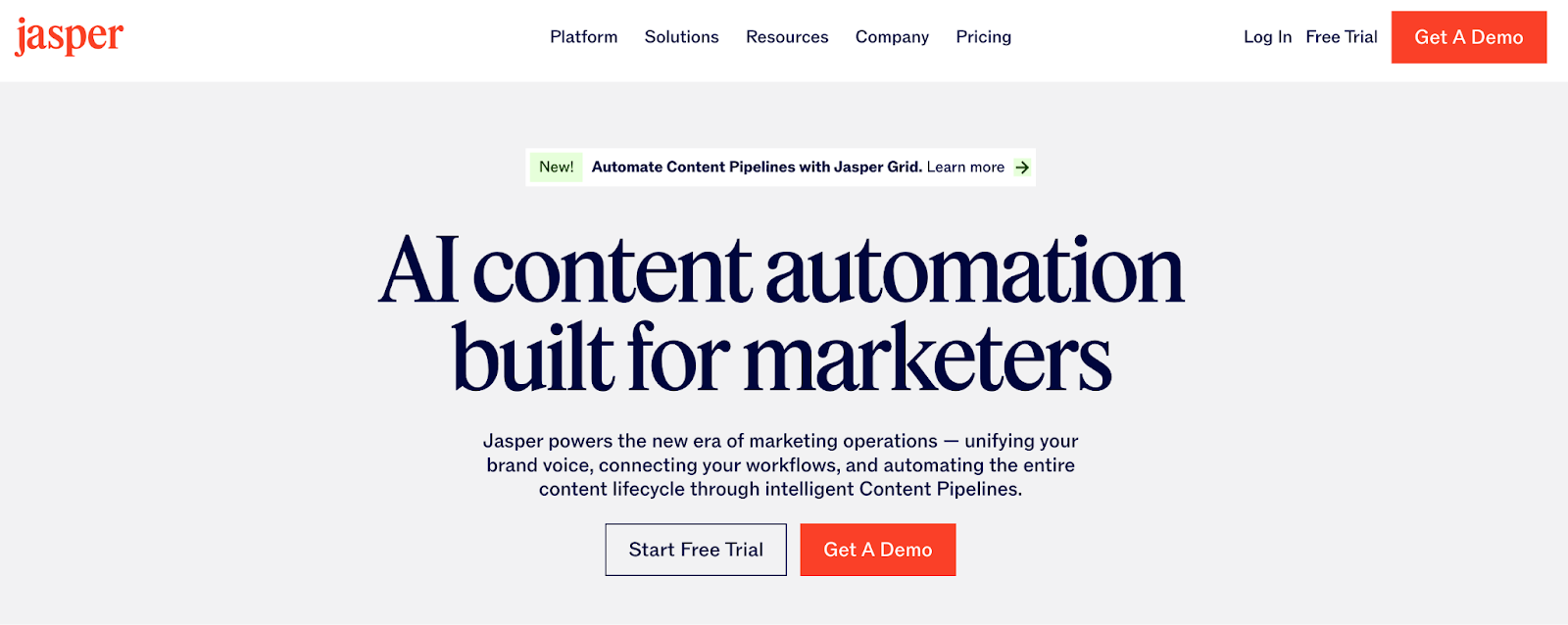
Jasper AI is like having an AI writing assistant that can help you with all sorts of text-based tasks. You can use it to take a simple idea from your course and quickly turn it into a full-length blog post.
It’s also great at rewriting your existing content in a different tone or style.
For example, you could give it a transcript of a lesson, and it can help you write a sales email or a promotional video script based on that content.
It’s a powerful tool for creating written material much faster than you could on your own.
26. Copy.ai
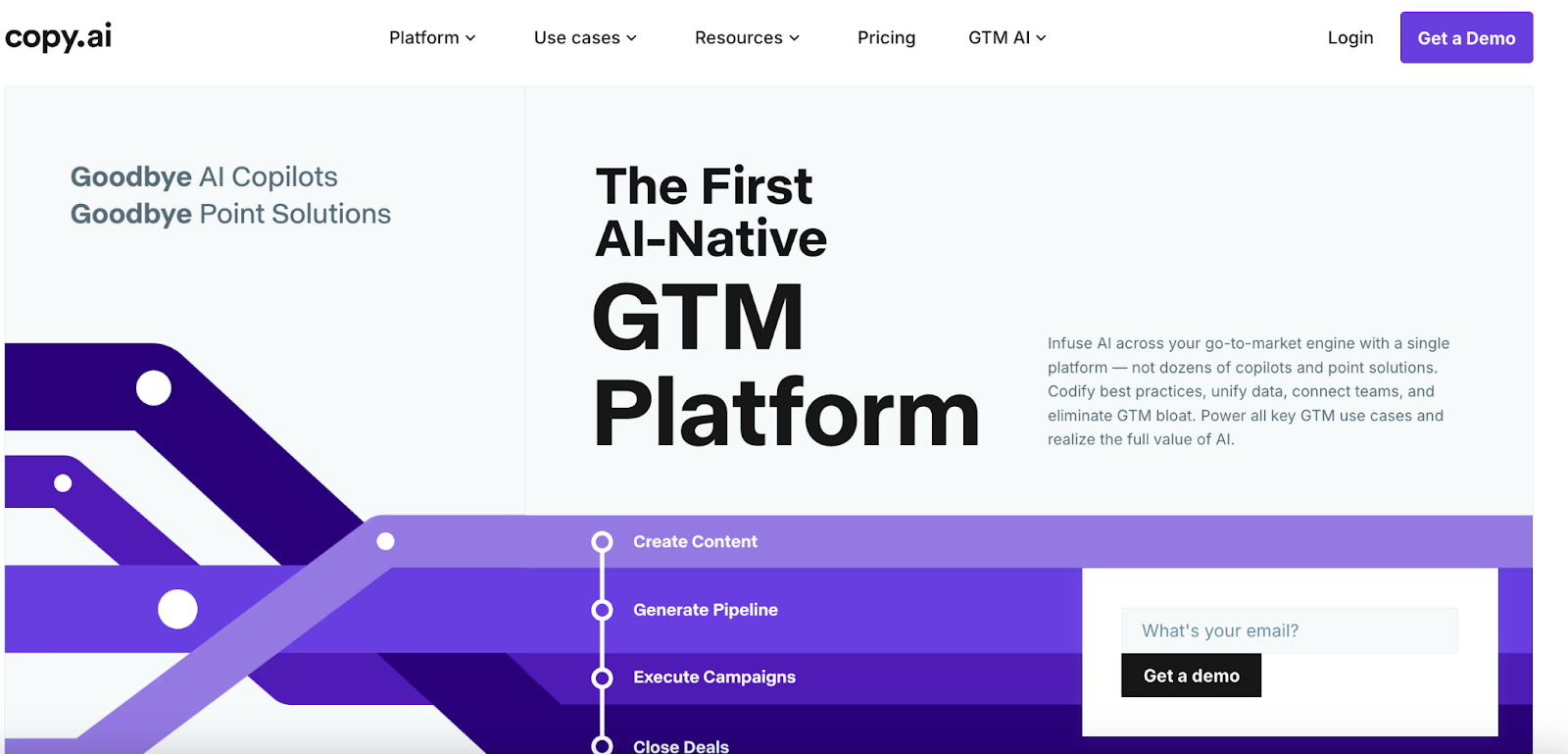
Copy.ai is a fantastic tool for saving time when you need to write short-form content. Its main strength is generating lots of different options for things like headlines, social media captions, and email subject lines.
You can give it a core idea from your course, and it will come up with multiple creative “hooks” to grab people’s attention. This is incredibly helpful for making sure that every piece of content you share has a compelling and fresh angle.
27. Writesonic
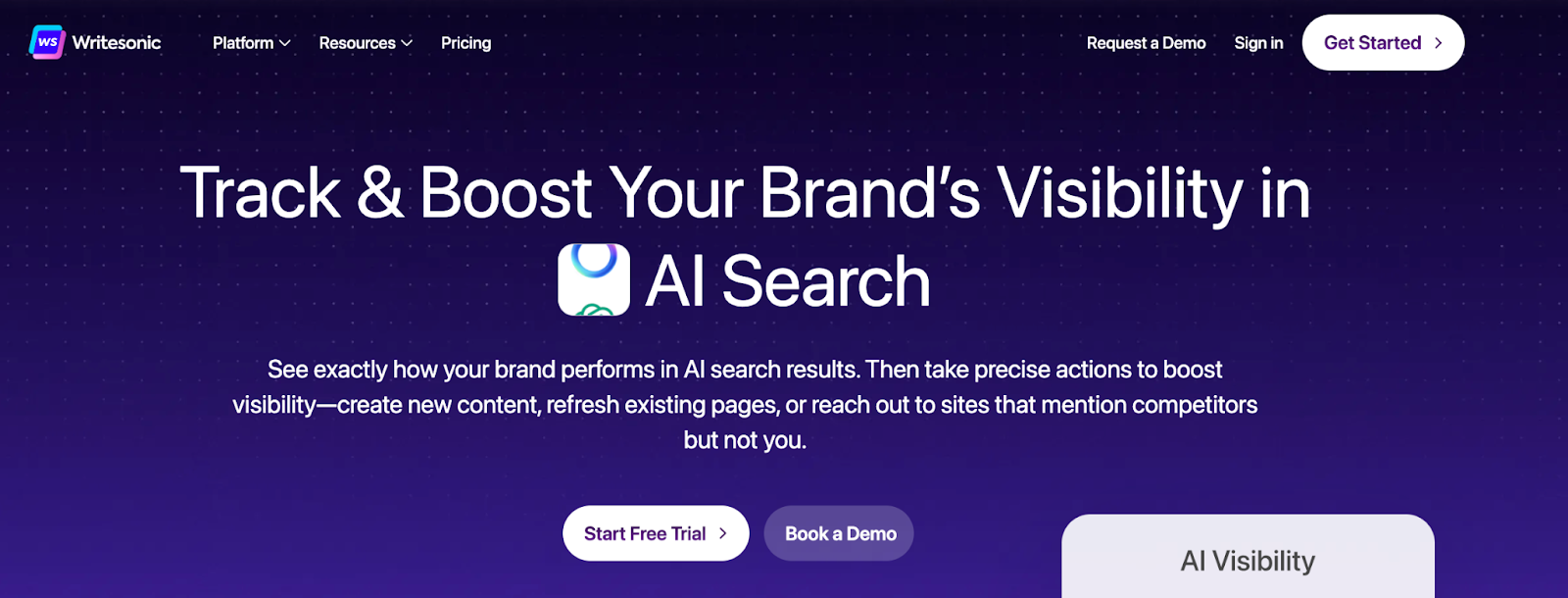
Writesonic is an AI tool that’s particularly good at helping you structure and write long articles. If you have a brief concept for a course lesson, you can use Writesonic to help you create a detailed outline for a blog post on that topic.
From there, it can even help you expand on each point to create a full draft. This is really useful for bridging the gap between having a simple idea and having a complete, well-structured piece of written content ready to be published on your blog.
28. Narrato

Narrato is an AI-powered platform that helps you manage and create content. It’s designed to help you take your existing course materials and transform them into new formats, like blog posts or social media updates.
It can also help you optimize that content for different channels to make sure it performs well. Think of it as a tool that helps you manage the entire journey of your content, from a single idea in your course all the way to a final published piece, making the whole process more organized and efficient.
Category 07. Best Workflow Automation & Scheduling Tools
The engine behind consistent output, these tools automate content distribution and scheduling across multiple platforms. They ensure your repurposed content is published on time and reaches the right audience with minimal manual effort.
29. Repurpose.io
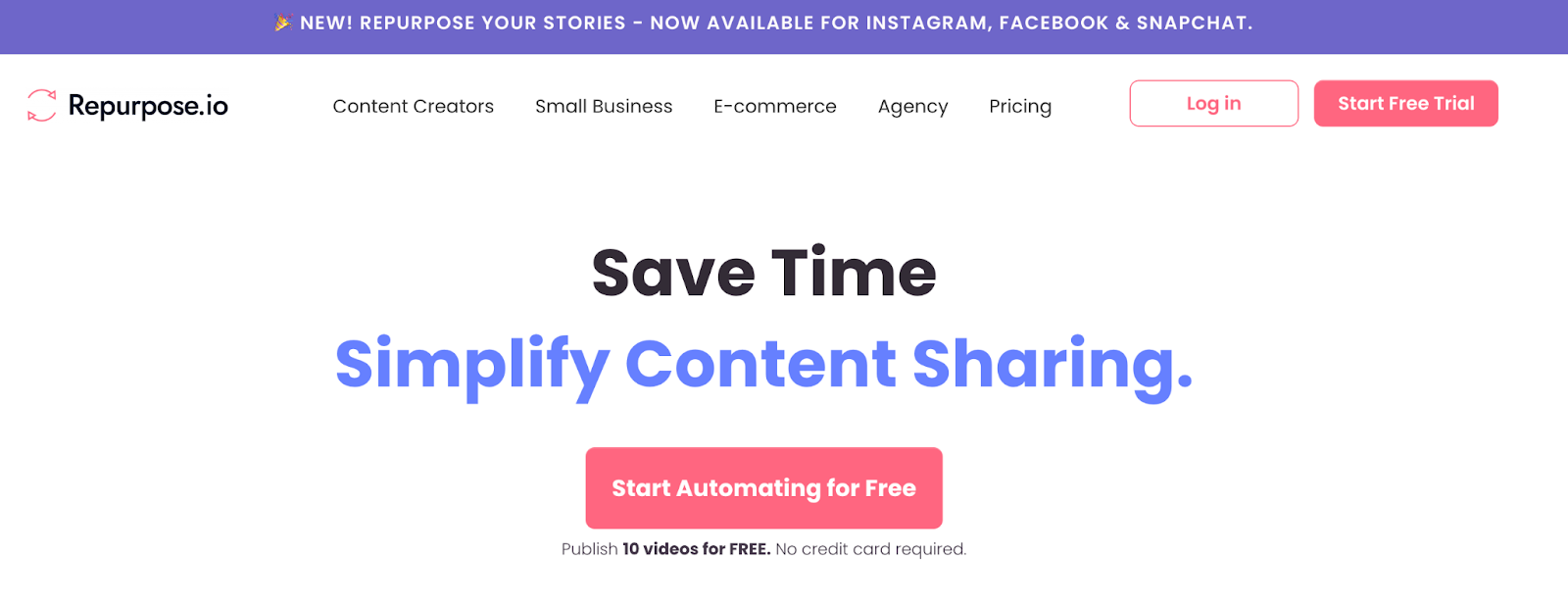
Repurpose.io is a powerful automation tool that does exactly what its name suggests: it repurposes your content for you. You can set up workflows so that every time you publish a new YouTube video, for example, it automatically gets posted as a video on Facebook, a post on LinkedIn, and even as an audio file for your podcast.
It’s designed to be a “set it and forget it” solution, saving you a massive amount of time by handling the distribution of your content across different platforms automatically.
30. Buffer
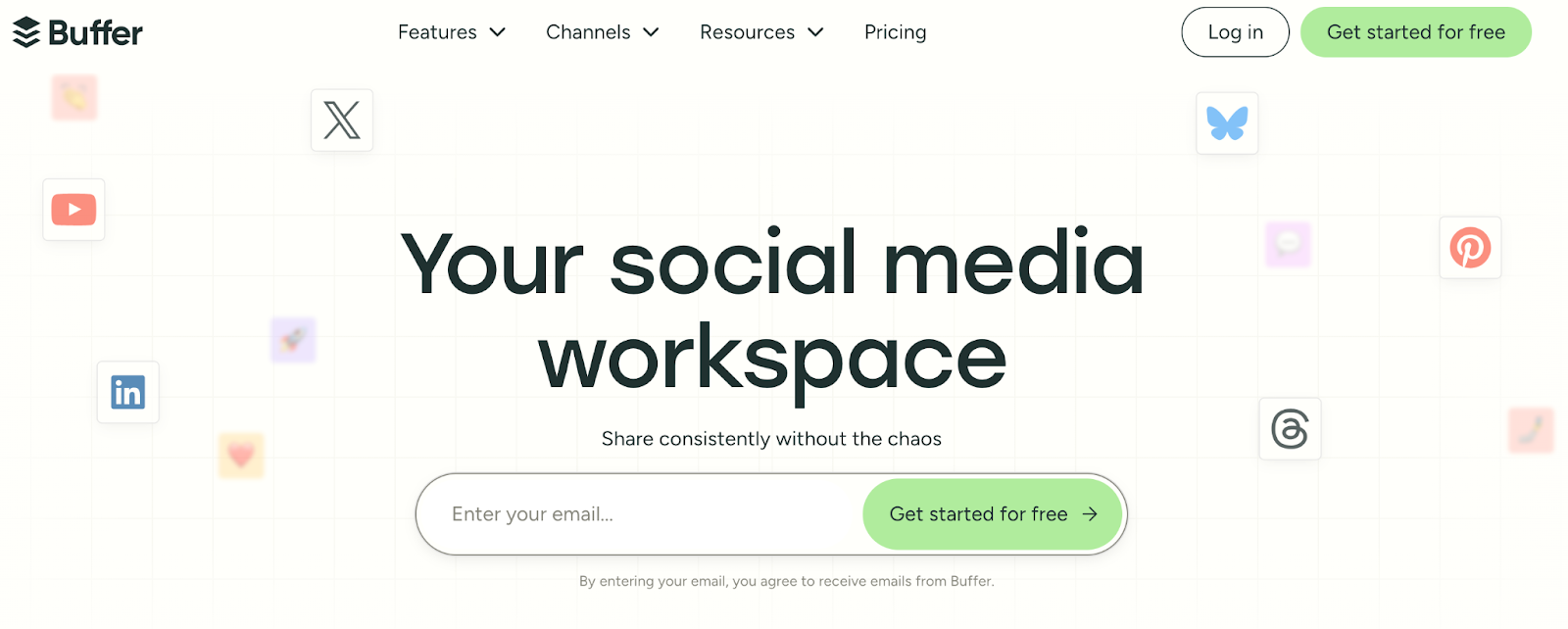
Buffer is a well-known and reliable tool for scheduling your social media posts. Once you’ve created all your repurposed content, like short video clips, quote cards, and blog post links, you can upload them to Buffer and plan out when you want them to be posted on platforms like Facebook, LinkedIn, and Instagram.
This helps you maintain a consistent presence online without having to manually post something every single day. You can batch your work and let Buffer handle the publishing for you.
31. Later
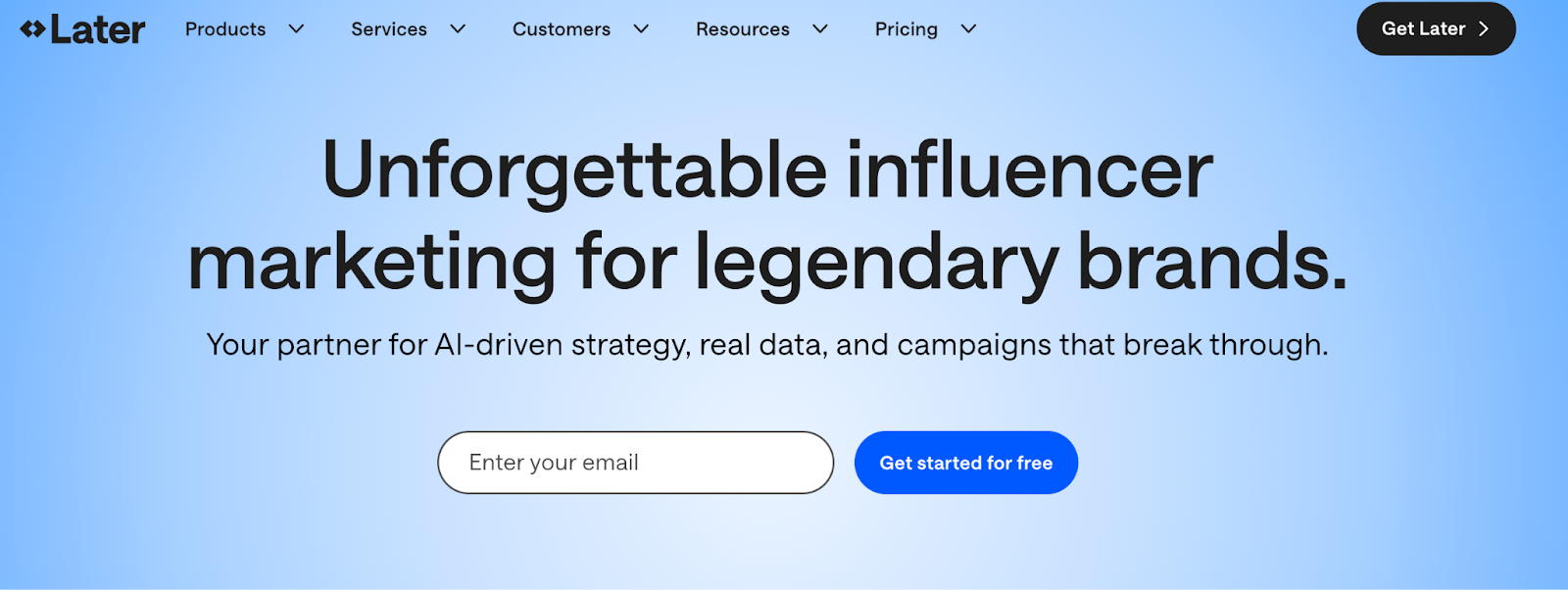
Later is a social media scheduling tool that is especially popular for visual platforms like Instagram and Pinterest. Its standout feature is a visual planner that lets you see a preview of your Instagram feed before you post.
This is perfect for making sure all your repurposed graphics, like quote cards and carousels, look beautiful and cohesive together. It helps you plan your content with your brand’s aesthetic in mind, ensuring your profile looks professional and inviting to new followers.
32. Zapier
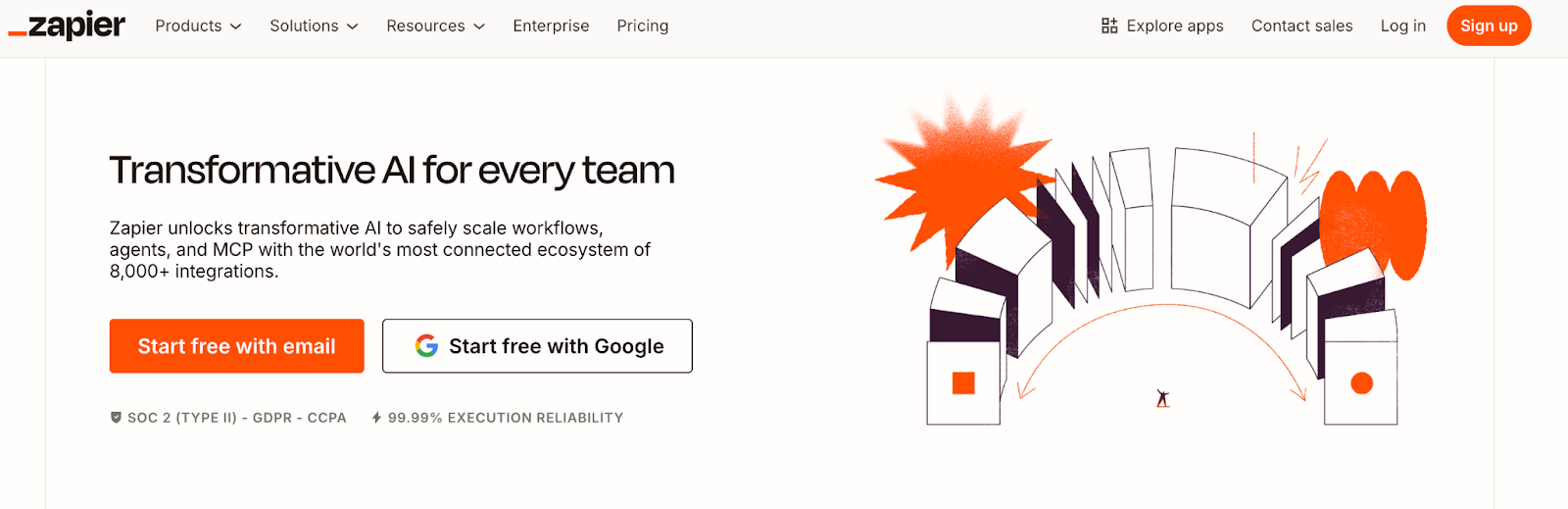
Zapier is like a universal connector for all your different tools. It lets you create automated workflows between apps that don’t normally talk to each other.
For example, you could set up a “Zap” so that every time you save a new transcript in a specific Google Drive folder, it automatically creates a task in your project management tool.
Or, when you publish a new blog post, it could automatically share it to your social media scheduler. It’s a bit more advanced, but it’s incredibly powerful for eliminating repetitive, manual steps in your workflow.
33. Planable
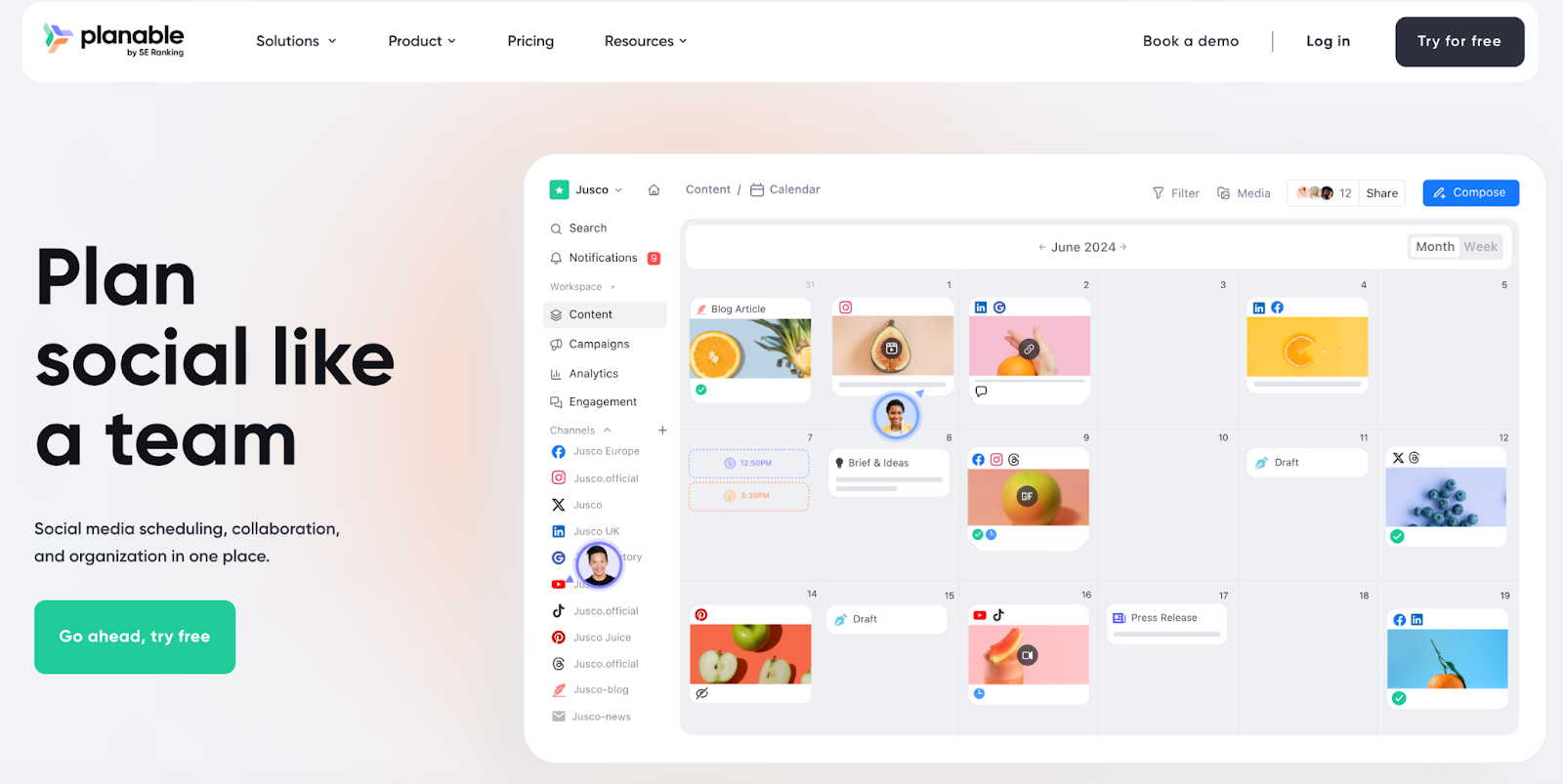
Planable is a tool designed for planning and approving social media content, and it’s especially useful if you work with others, like a virtual assistant or a small team. You can create your posts, and your team members can see exactly how they will look on each platform before they are published.
Everyone can leave comments and give feedback in one place. This ensures that everyone is on the same page and that all your repurposed content is approved and error-free before it goes live.
Conclusion
The journey from a single video lesson to a full-fledged content marketing machine might seem long, but it starts with taking one small step. You don’t need to use all of these tools at once. Start with just one.
Pick a single video lesson this week and try turning it into a short, captioned clip with a tool like Opus Clip. Or, take the transcript and use Jasper AI to help you write a blog post.
The goal isn’t to do everything, but to start doing something. By consistently repurposing your content, you’ll reach more people, build a stronger brand, and grow your course business; all without having to constantly create from scratch.
You’ve already put in the hard work to create amazing content; now it’s time to let that content work for you.




Leave a Reply