
The Subscription Settings page lets you control how subscriptions behave globally across your platform. From billing rules and notifications to how courses display plans and what happens when content is removed.
To access the subscription settings page, go to Subscriptions > Settings from the navigation menu.
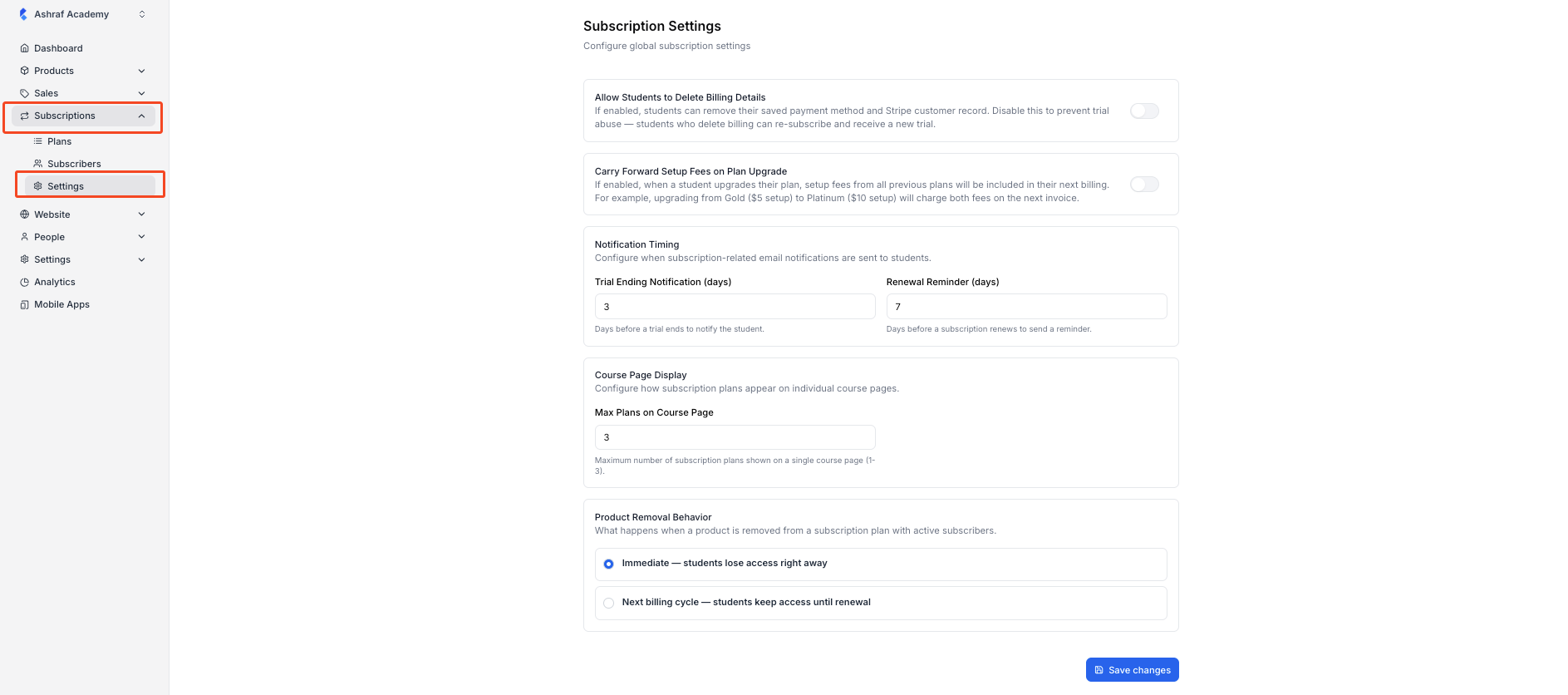
1. “Allow students to delete billing details” controls whether students can remove their saved payment method and Stripe customer record from their account.
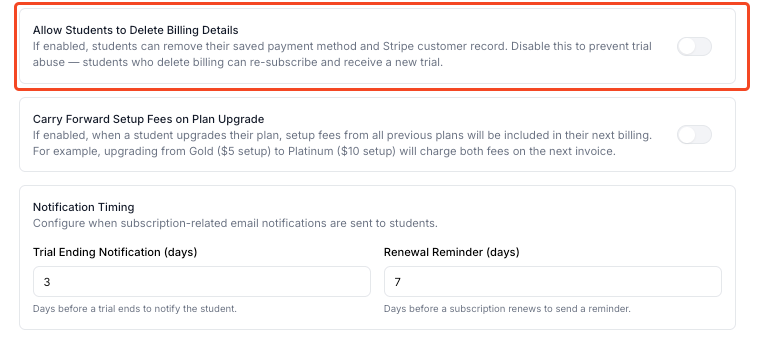
When this toggle is off (recommended), students cannot delete their billing info, which prevents them from signing up again to claim a second free trial.
Turn it on only if you want to give students full control over their payment data.
2. “Carry forward setup fees on plan upgrade” determines whether setup fees from a student’s previous plan are added to their next invoice when they move to a higher plan.
When enabled, all prior setup fees are carried forward and charged together on the upgrade invoice.
For example, a student moving from a Gold plan ($5 setup) to Platinum ($10 setup) would be billed $15 on their next invoice. Leave this off if you want each plan’s setup fee to be billed independently.
3. Notification timing lets you set how many days in advance students receive email reminders about their subscription.
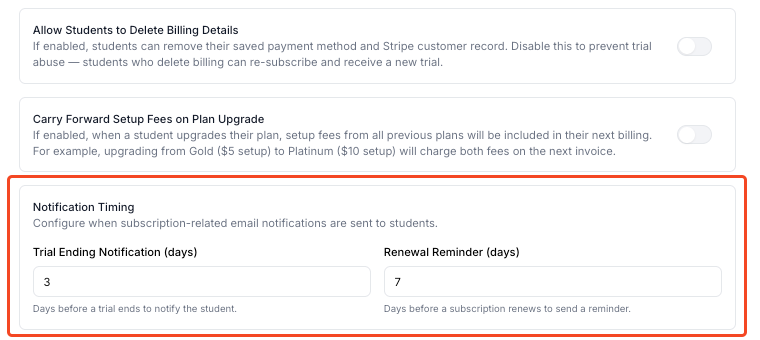
The Trial ending notification field (default: 3 days) sends an alert before a free trial expires, giving students time to add payment details.
The Renewal reminder field (default: 7 days) sends a heads-up before a paid subscription renews, so students aren’t caught off guard by a charge.
4. Max plans that the course page controls how many subscription plans are displayed on an individual course page.
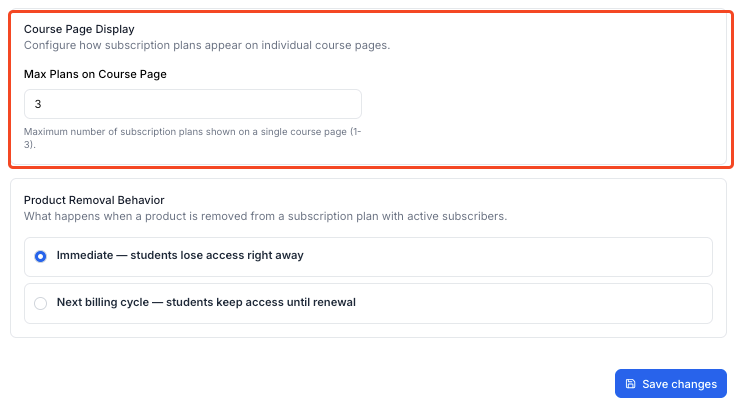
You can set this to a value between 1 and 3. If you have more plans than the limit, only the most relevant ones will be shown to keep the page clean and avoid overwhelming potential students.
5. Product removal behavior defines what happens to active subscribers when you remove a course or product from a subscription plan.
Selecting Immediate revokes student access right away as soon as the product is removed. Selecting Next billing cycle lets students keep their access until their current billing period ends. Choose the option that best matches your refund and access policies.
This setting affects all active subscribers on any plan the product is removed from, so choose carefully before making changes.
6. After you have made the necessary changes, click on the “Save Changes” button to save your changes.