
The “Subscriber” page gives you a complete view of every subscriber across all your plans. You can see who is subscribed, what plan they’re on, what they’re paying, their current status, and when their subscription was created or is set to expire.
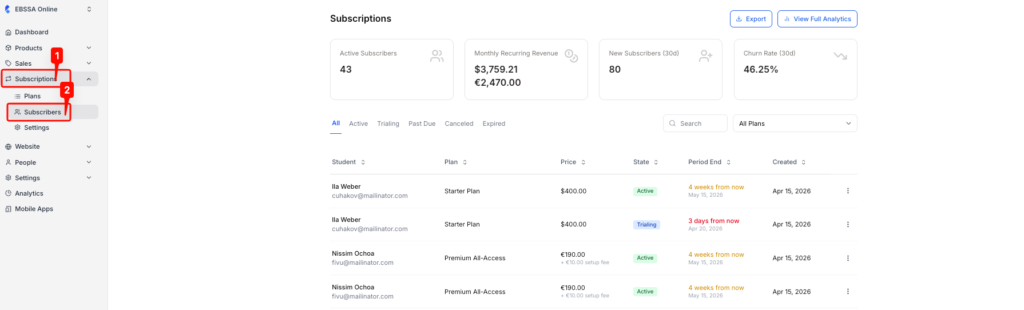
To access the subscriber page, go to Subscription > Subscribers from your navigation menu. On the new screen, you will see the Subscribers page.
Overview Metrics
At the top of the page, four summary cards give you a quick snapshot of your subscription activity:
- Active subscribers: the total number of students with a currently live subscription across all plans.
- Monthly recurring revenue (MRR): your total predictable monthly revenue from all active subscriptions, shown in the currency selected when setting up the plan.
- New subscribers (30d): the number of students who joined a subscription plan in the last 30 days.
- Churn rate (30d): the percentage of subscribers who cancelled or didn’t renew in the last 30 days.
To see a deeper breakdown of these metrics, click the View Full Analytics button in the top-right corner. To export the subscriber list as a file, click Export.
Filtering Subscribers
You can narrow down the subscriber list using the tabs and filters below the overview cards.
- The status tabs — All, Active, Trialing, Past Due, Cancelled, and Expired — let you quickly filter the list to show only subscribers in a specific state. Click any tab to apply it.
- The Search bar lets you look up a specific student by name or email address.
- The All Plans dropdown lets you filter the list to show subscribers from a single subscription plan only.
Subscriber table
The main table lists every subscriber and their subscription details. Here’s what each column means:
- Student: the subscriber’s name and email address.
- Plan: the subscription plan the student is currently on.
- Price: the recurring charge for the plan, plus any setup fee that was applied at signup.
- State: the current status of the subscription. See the status guide below.
- Period end: when the current billing period ends. Subscriptions highlighted in a different colour are ending soon.
- Created: the date the subscription was first created.
To take action on a subscription, such as cancelling it, viewing student or transaction details, click the three-dot menu ( ⋯ ) at the end of the row.
Subscription statuses
Each subscription is assigned one of the following statuses:
- Active: the student has a live, paid subscription and full access to the plan’s content.
- Trialing: the student is in a free trial period and has not yet been charged.
- Cancelled: the subscription has been cancelled. Depending on your settings, the student may retain access until the current period ends.
- Past due: a payment attempt failed. The subscription is at risk of cancellation if the payment is not resolved.
- Expired: the subscription has fully ended, and the student no longer has access.