
Ready-made sections are finished page sections you can drop onto any page and edit. Each one comes with its own layout, images, and text, so you do not have to build the section from single blocks.
You can find them inside the Klasio page builder, on any page of your website.
Here’s how to do it:
Open a page in the builder
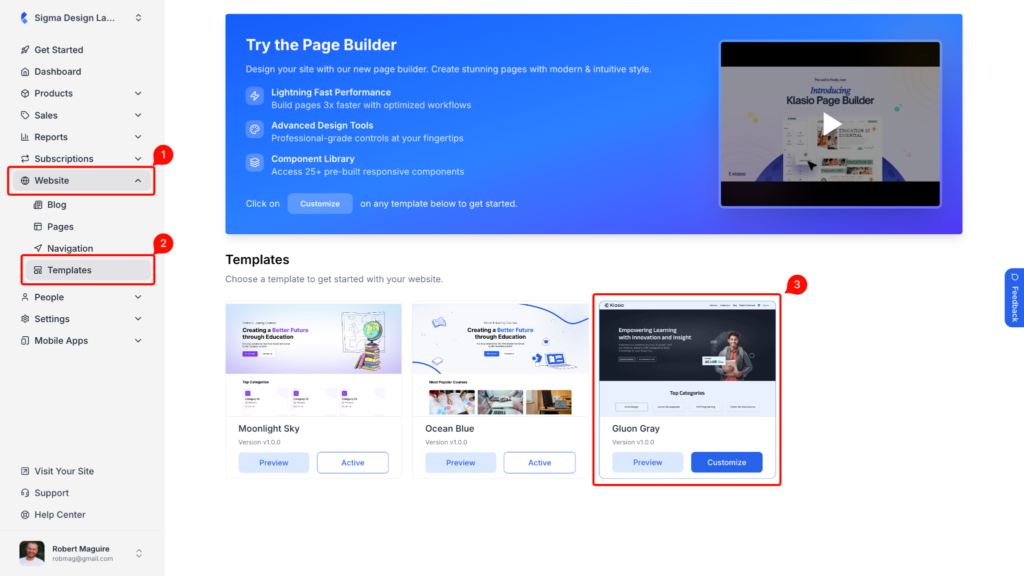
1. From your admin dashboard, go to Website > Templates. Find the template you want to work on and click on the “Customize” button.
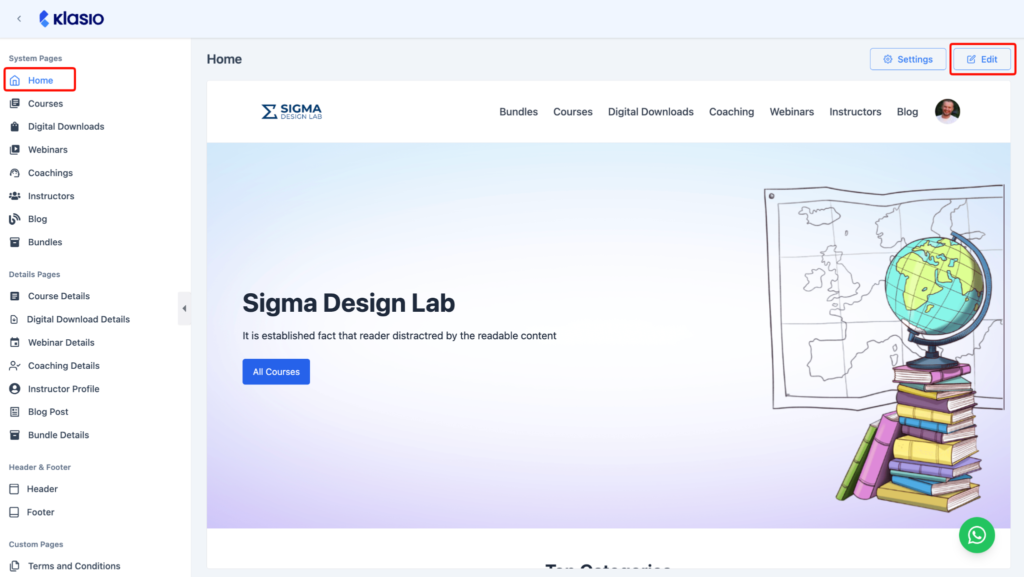
2. In the left panel, select the page you want to edit. Then Click on the “Edit” button in the top right corner.
Browse the ready-made sections
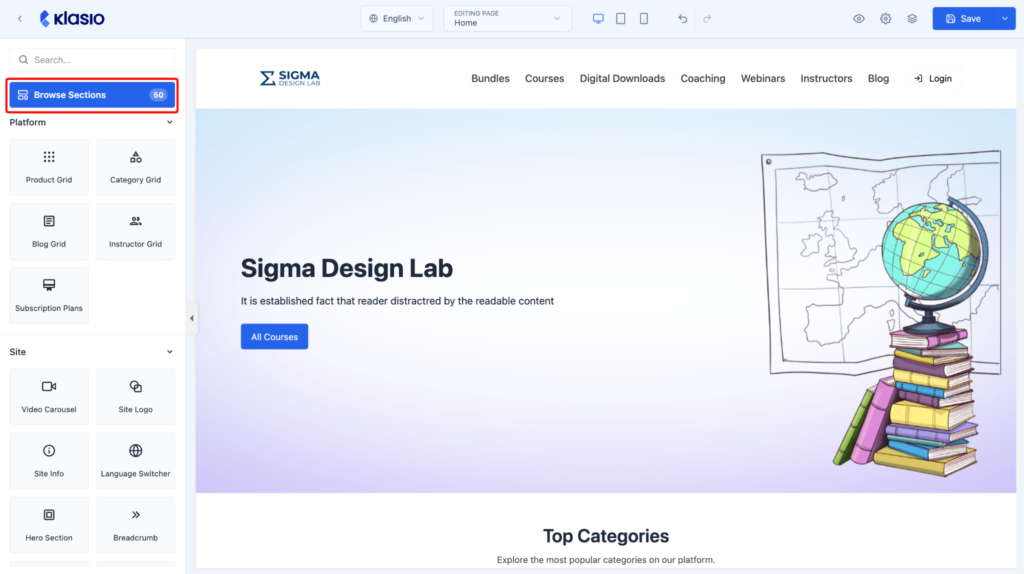
3. In the left panel, click on the “Browse Sections” button. The number next to it shows how many sections are available.
4. The Ready-made Sections window opens with every section shown as a preview.
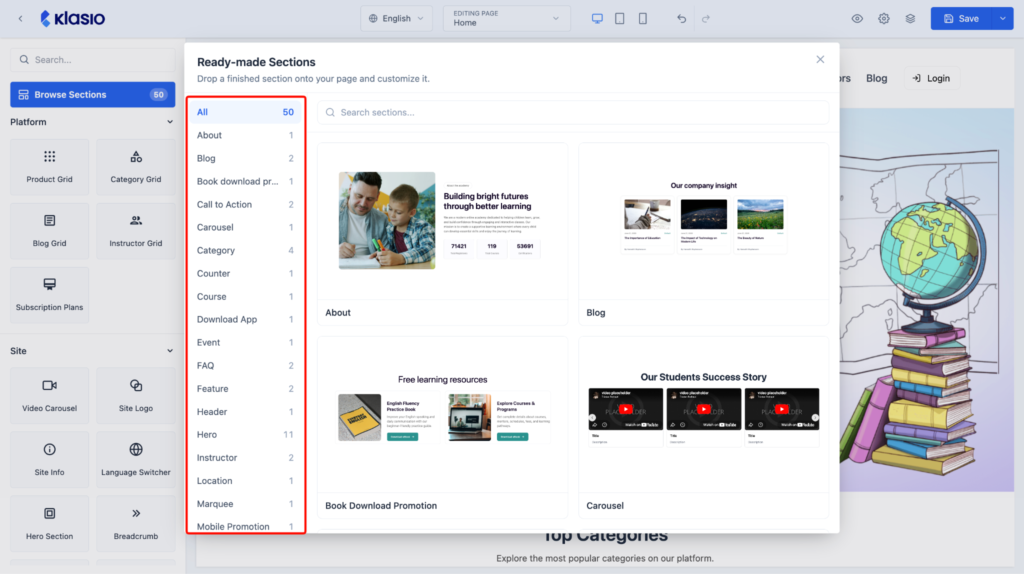
5. You can also type in the Search sections field to find a section by name.
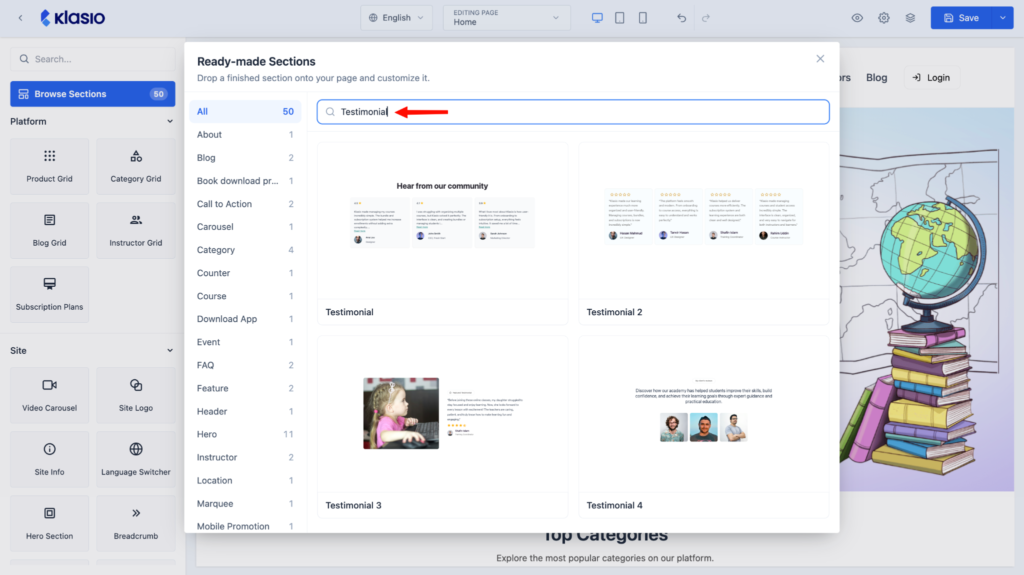
Add a section to your page
- Pick the section you want from the preview grid.
- Drag it onto the spot on your page where it should sit.
- The section is added with its own placeholder content, ready to edit.
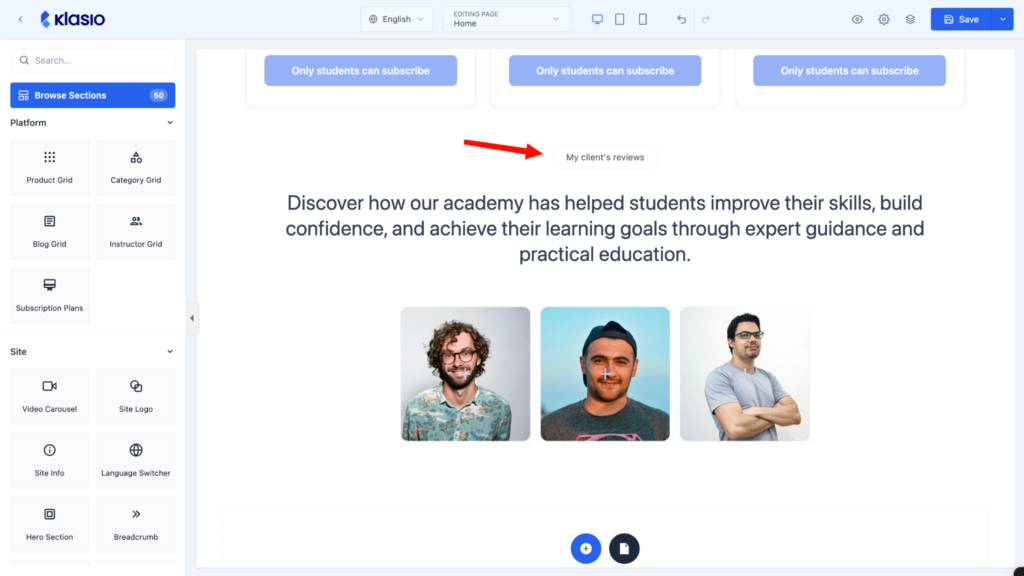
6. You can also open the library from the page itself. Hover over an empty area of the page and click on the section icon next to the blue plus icon.
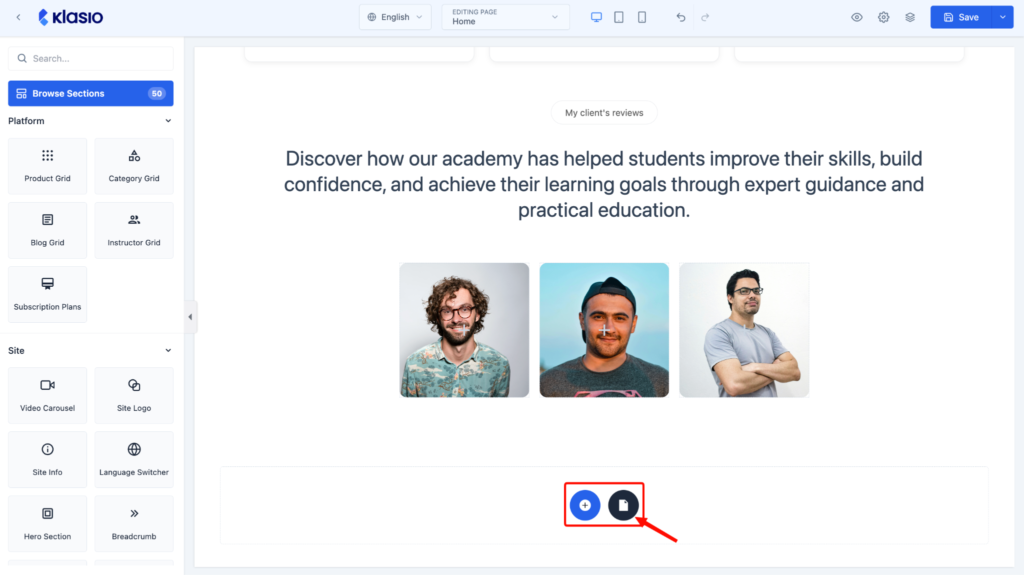
The blue plus icon adds a single block. The section icon opens the ready-made sections library.
7. Once you are done editing your section, Click on the “Save” button when you are done.

This is how you add ready-made sections to your pages in klasio.