
The look and feel of your Klasio website can be customized with custom CSS or scripts. To do that, you need to:
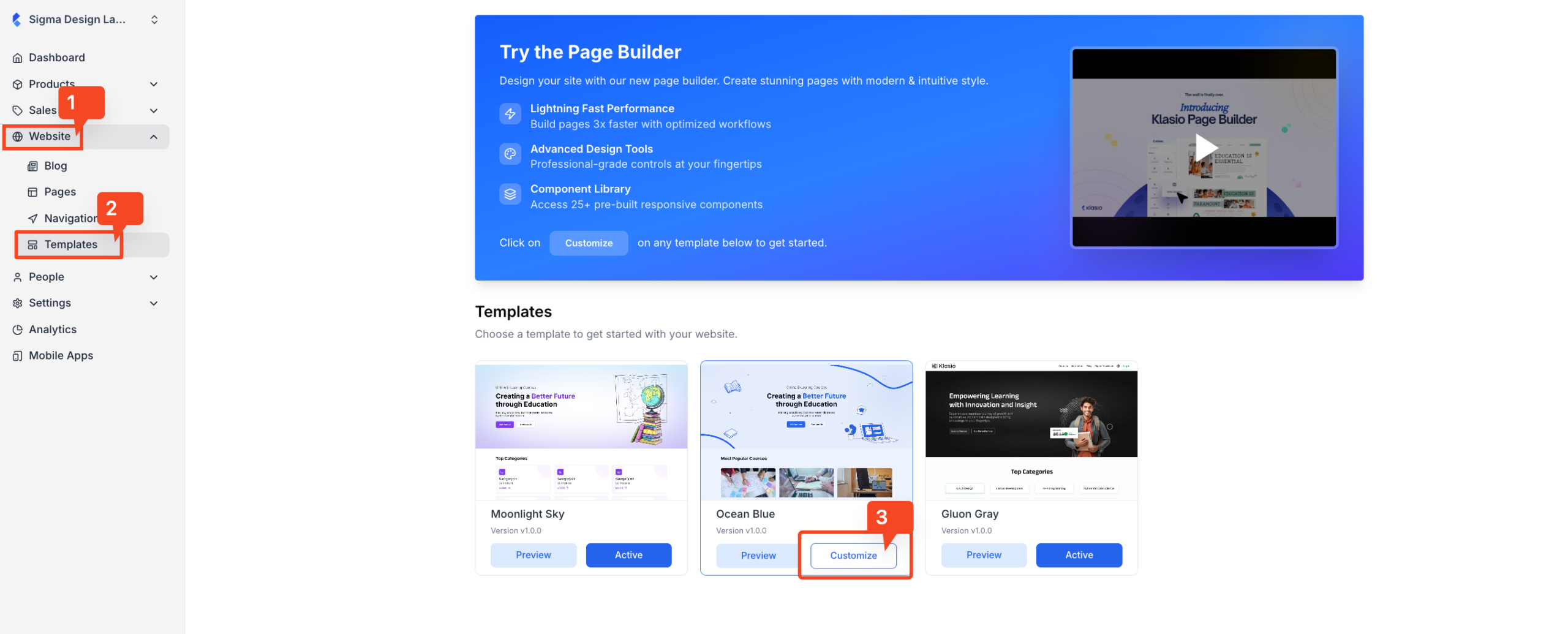
1. From your dashboard, go to Website > Templates. Then, click on the “Customize” button on the active theme of your site.
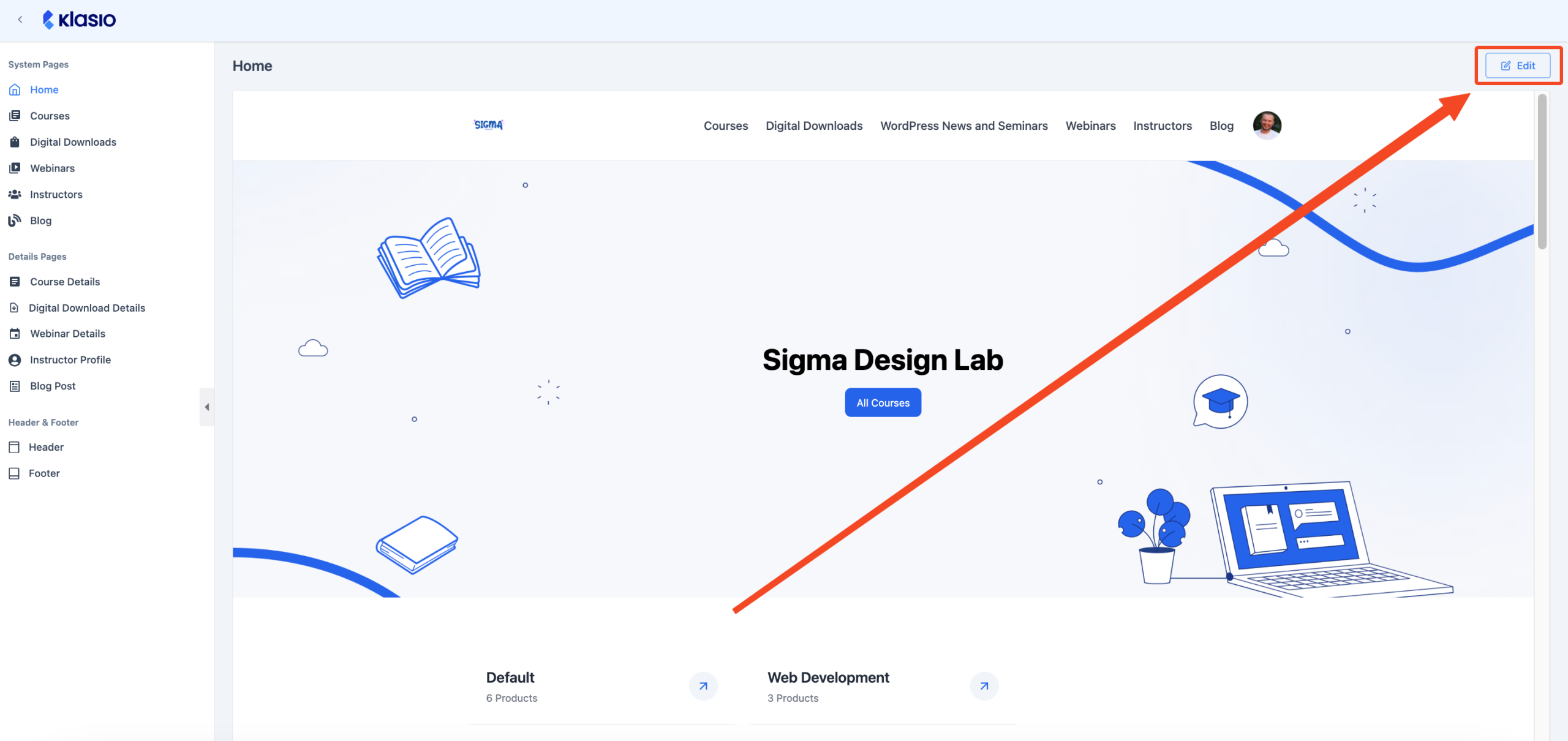
2. Once you click on the “Customize” button, a new tab will open, and you will be directed to the Klasio page builder. Click on the “Edit” button that’s located in the top right corner.
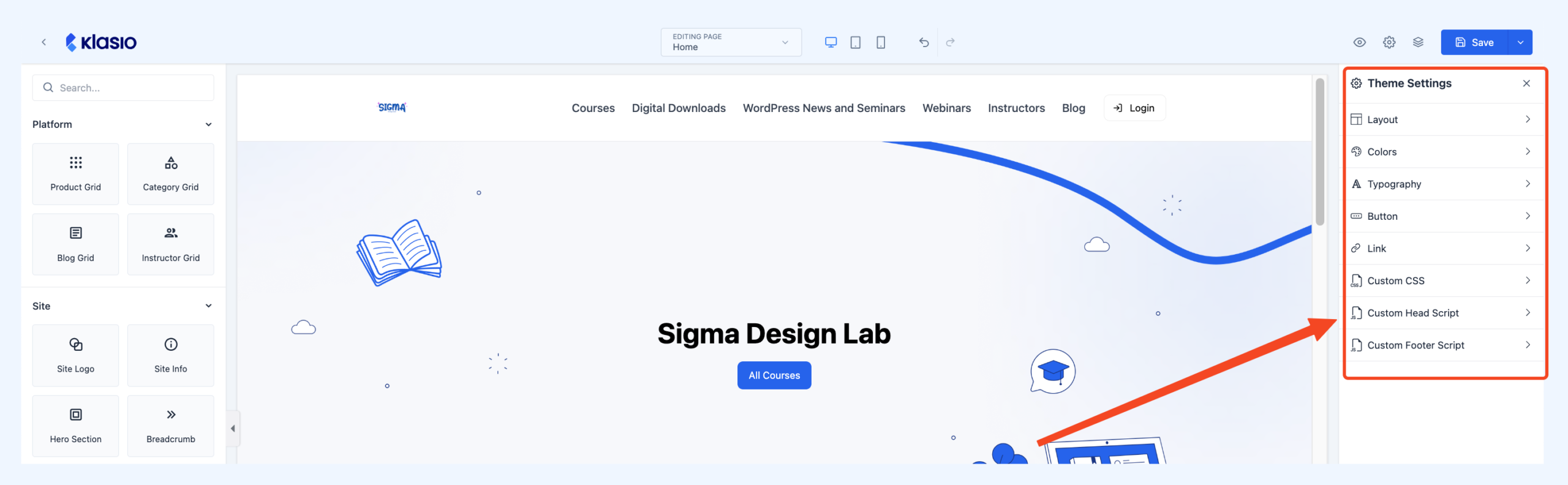
3. On the new page, locate the “Theme Settings” on the right, and at the bottom of the list, you will see three options: Custom CSS, Custom Header, and Custom Footer.
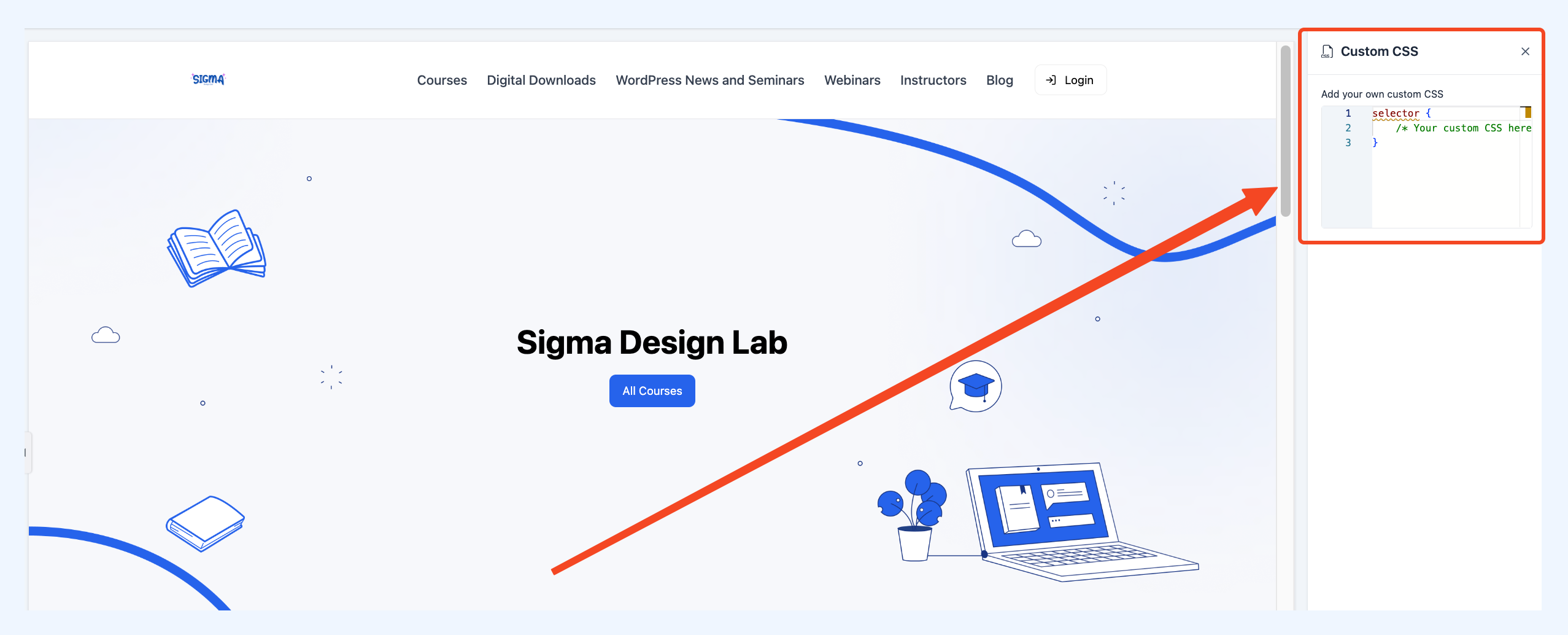
4. You can click on each option to reveal the field for the respective option. Use the “Custom CSS” field for adding custom CSS code, “Custom Header” for adding custom code for the heading, and “Custom Footer” for adding custom code to the footer.
If you face any problems adding custom CSS and scripts to your site, please reach out to us at [email protected].