
Before you make your subscription deals live for your students, you will need to use the subscription block in the Klasio page builder to make the pricing plans appear properly on your website.
Here’s how you can use the subscription block in the Klasio page builder:
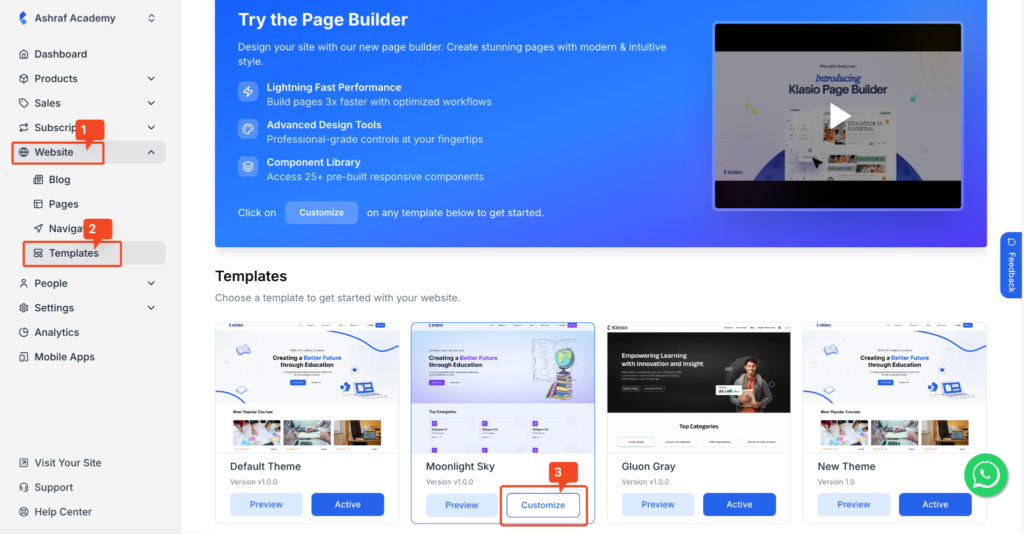
1. To access the page builder, go to Website > Templates. Then, click on the “Customize” button on the theme that’s currently in use.
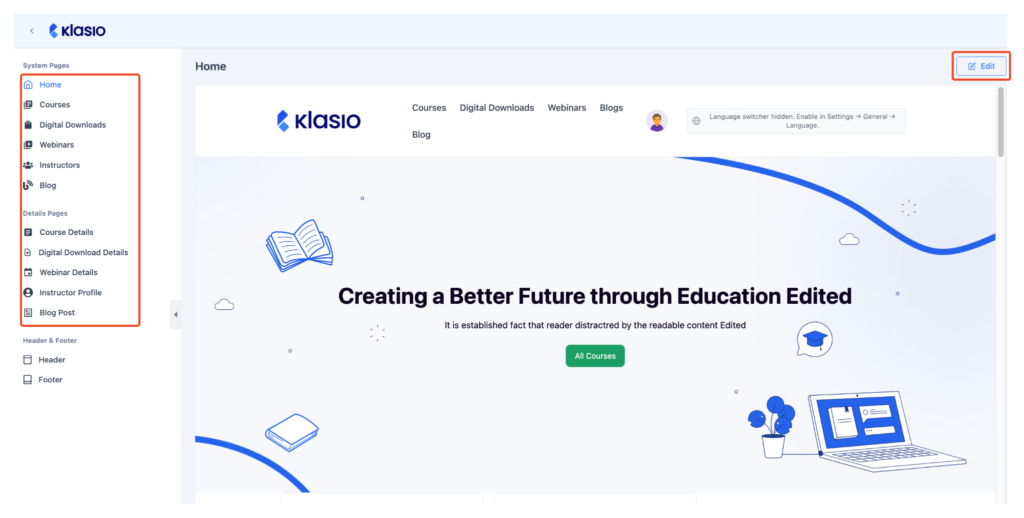
2. In the next screen, choose any of the pages where you want to add the subscription block and then click on the “Edit” button at the top right.
3. Once you do, you will be able to edit the page you selected in the page builder. On the left, you will see the blocks that are available in the page builder.
Find the “Subscription Plan” block under the “Platform” section. Then, simply drag and drop the block wherever you want to display the subscription plan on the page.
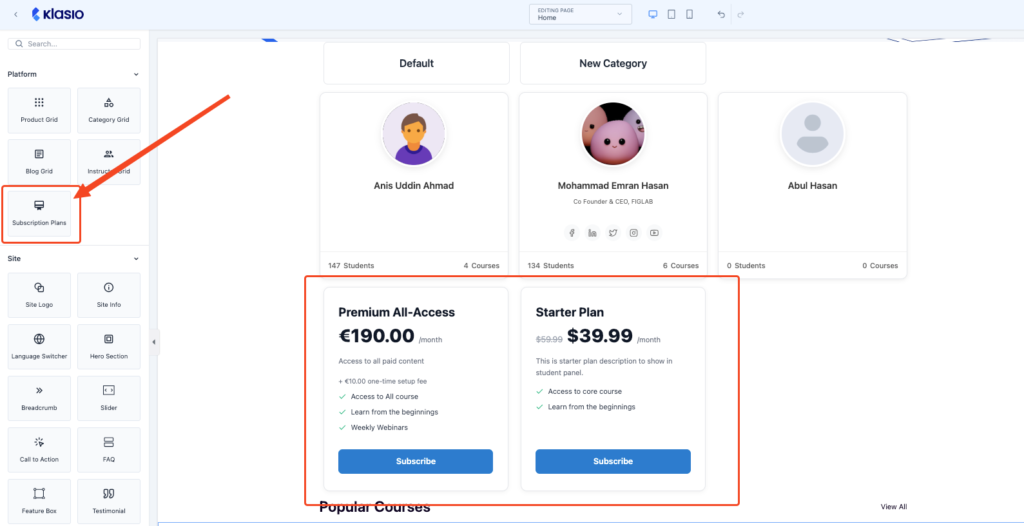
4. The subscription block will dynamically display the pricing plans you have created in Klasio. To customize the subscription block, click on it to select it. Then, in the top left, you will see three separate tabs with options for customization.
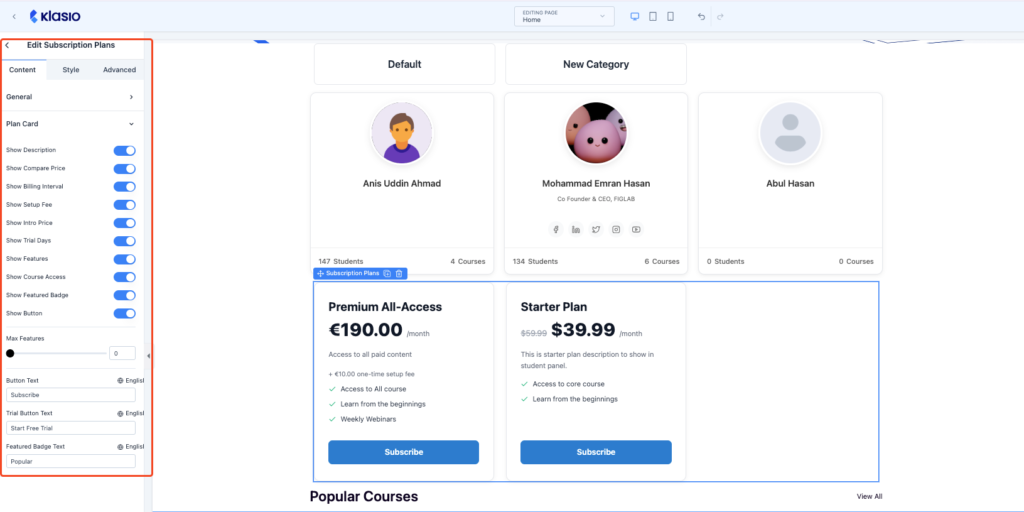
Let’s explore the customization options:
Content:
- General: You can choose the number of columns your subscription plan will have.
- Plan Card: Simply choose which information you want to display on the cards by toggling options on or off.
Style: Visually customize each component of the card separately.
Advance: Add custom CSS code and other advanced visual features for the card.
5. Once you are done customizing the card, click on the “Save” button to save the changes.