
The Authentication Settings module allows administrators to control how many devices and sessions students can use, monitor currently active devices, and force logout sessions when necessary.
This functionality helps improve platform security, prevents account sharing, and gives administrators full visibility into how student accounts are being accessed across web and mobile platforms.
To access the authentication and device management dashboard, go to Settings > Authentication from your dashboard.
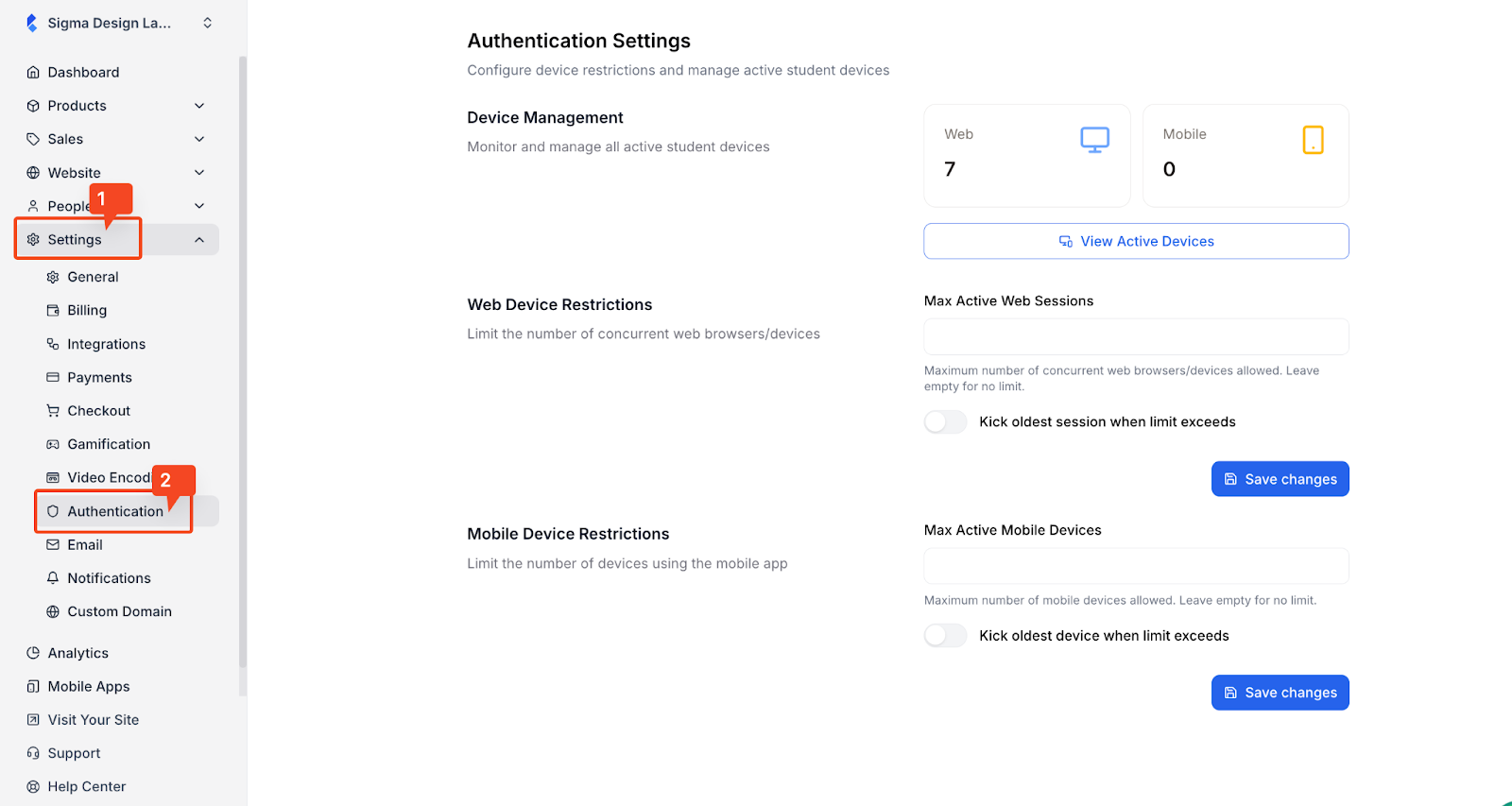
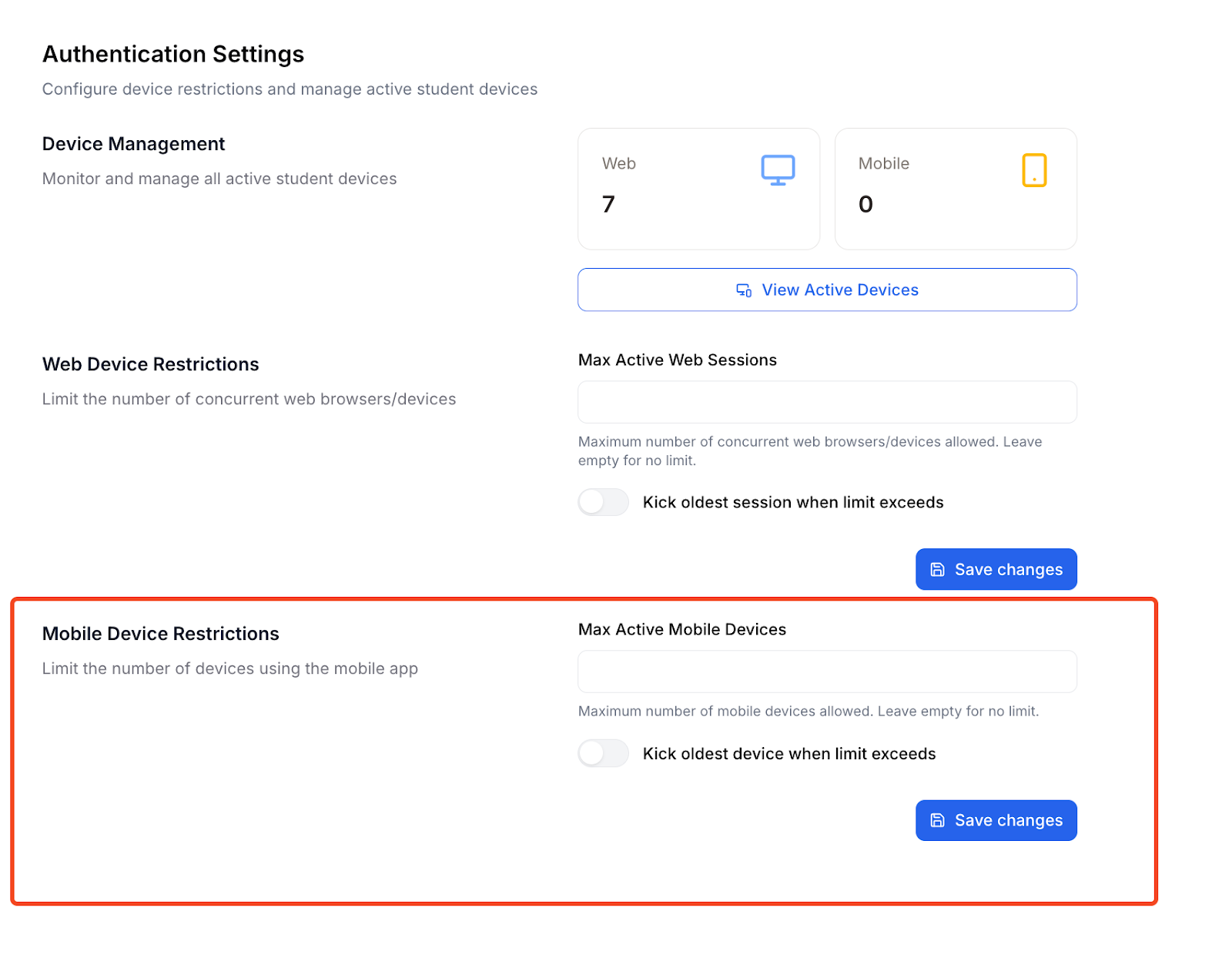
Once you are at the authentication page, you will see that it is divided into three core areas: Device Management, Web Device Restrictions, and Mobile Device Restrictions.
Device Management
The Device Management section provides a real-time overview of all active student devices. At the top of this section, administrators can see a summary of currently active devices, separated by platform.
The web counter shows the number of active browser-based sessions, while the mobile counter displays the number of active mobile app sessions.
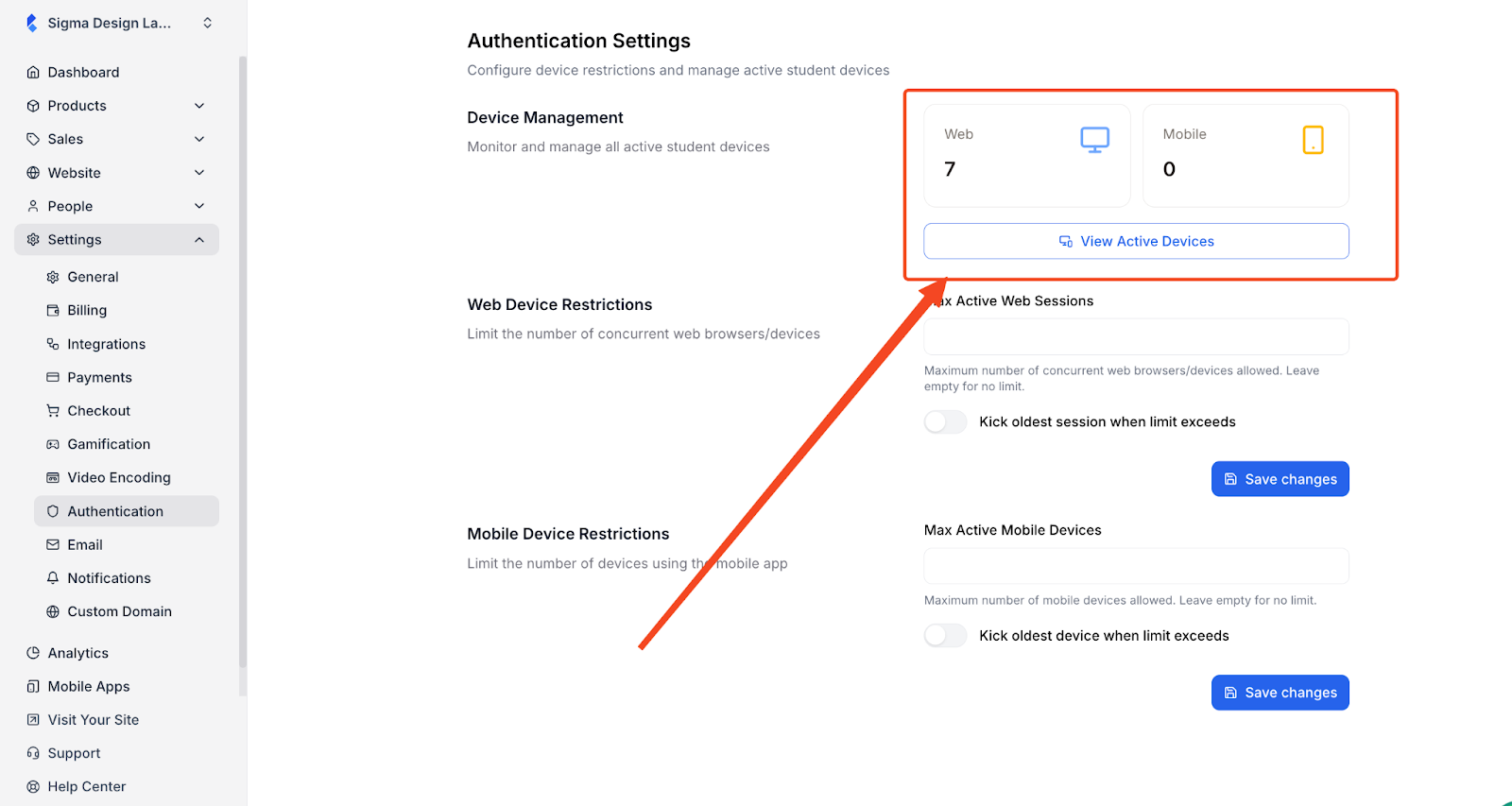
Administrators can click the “View Active Devices” button to access a detailed list of all active student devices. This page allows direct management of individual sessions and offers visibility into device activity across the platform.
Once you click on the “View Active Devices” button, you will be taken to a new screen where you can see the list of devices that are currently active.
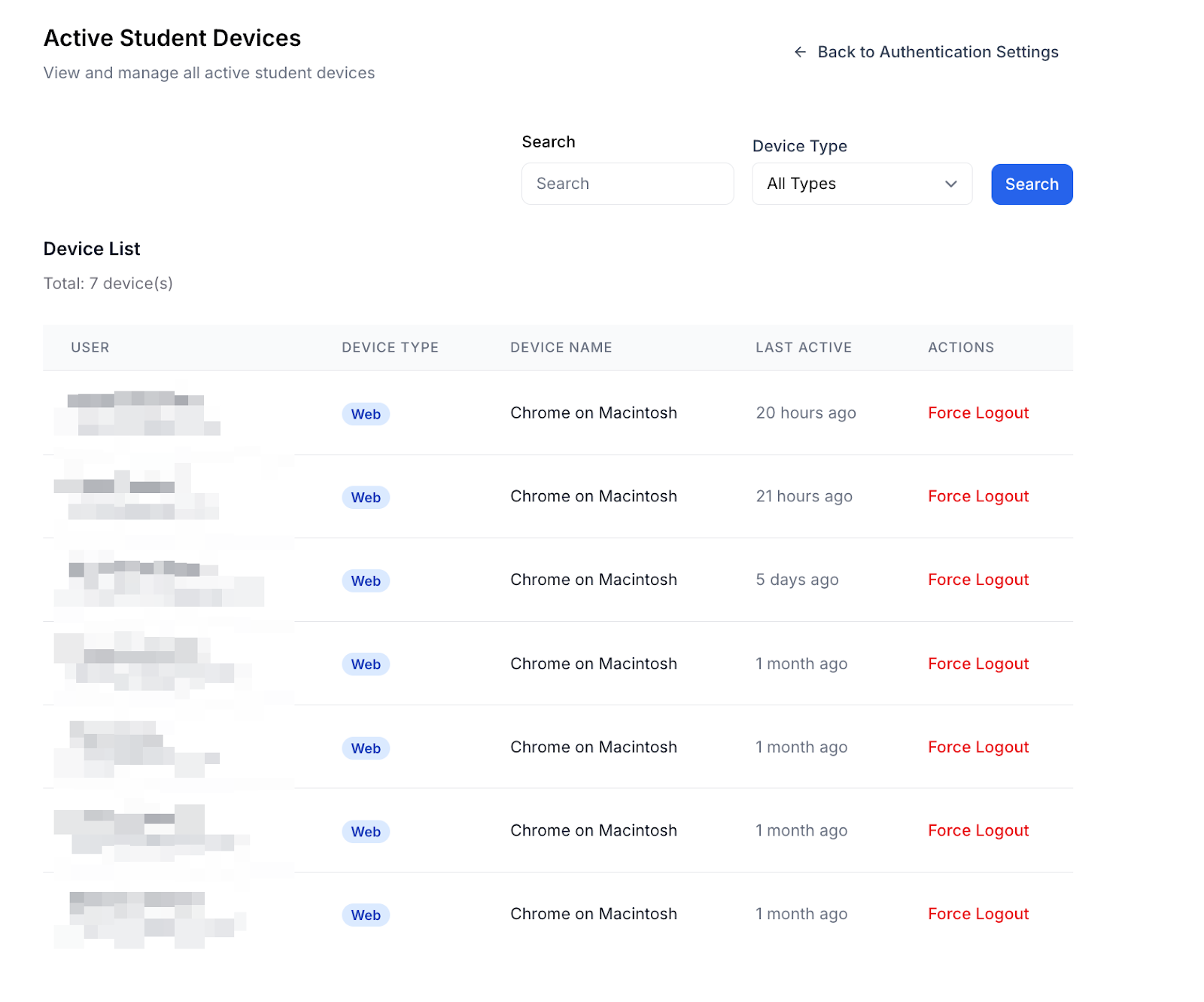
You can search for specific students or filter them based on the device type. Also, if you notice any discrepancies, you can force logout of any specific students.
Web Device Restrictions
The Web Device Restrictions section allows administrators to control how many concurrent web sessions a student can have at any given time. The “Max Active Web Sessions” field defines the maximum number of web browsers or devices that can be used simultaneously by a single student.
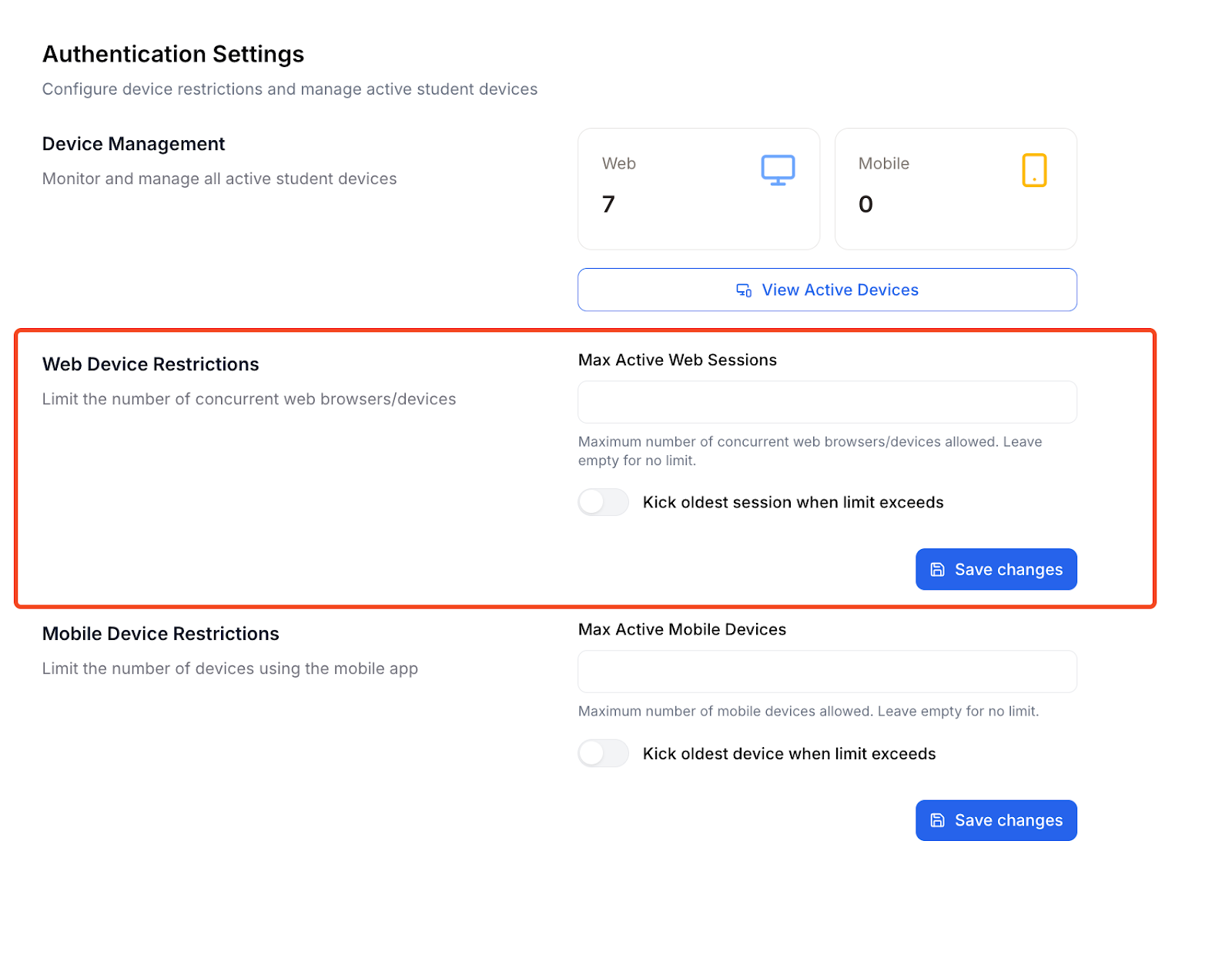
If this field is left empty, there is no restriction, and students can log in from an unlimited number of web devices.
An optional toggle labeled “Kick oldest session when limit exceeds” determines how the system behaves when the session limit is reached. When enabled, the system automatically logs out the oldest active web session to allow a new login.
When disabled, additional login attempts may be blocked once the maximum limit is reached. After configuring these settings, administrators must click “Save changes” to apply them.
Mobile Device Restrictions
The Mobile Device Restrictions section works similarly to web restrictions but applies specifically to mobile app usage.
If you face any issues regarding authentication or Klasio, please do not hesitate to contact us at [email protected]