
Once tax is active on your academy, the Tax Report shows you exactly what’s been collected, from whom, and where – broken down by region and by tax name, for any date range you choose. Klasio records this data for your reference, but it doesn’t file or remit tax on your behalf, so treat this report as your source of truth when it’s time to reconcile or file.
Here’s how to read it.
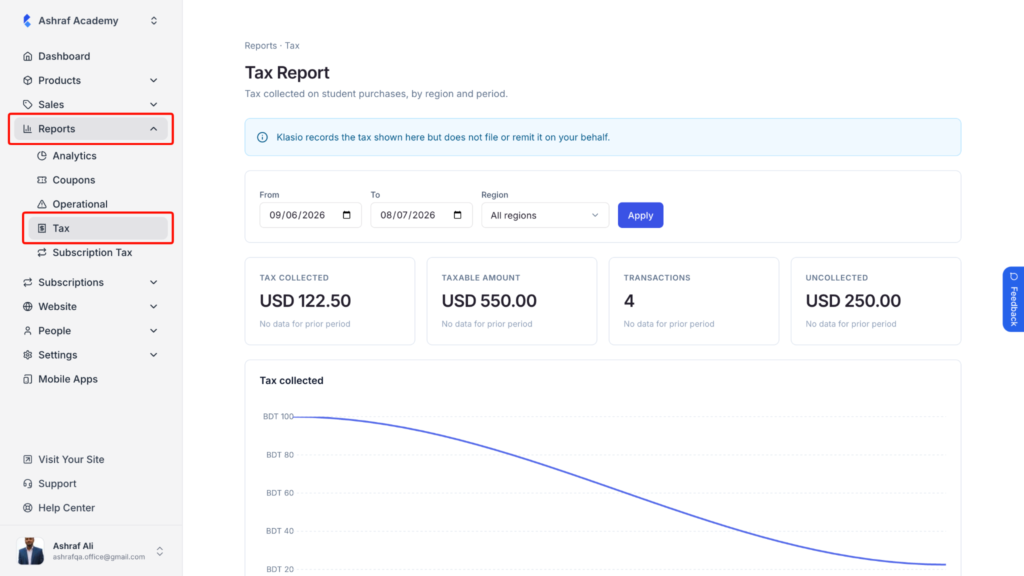
1. From the admin dashboard, expand Reports, then click Tax.
2. Set your From and To dates, and narrow the results to a specific Region if needed. Click Apply to update the report.
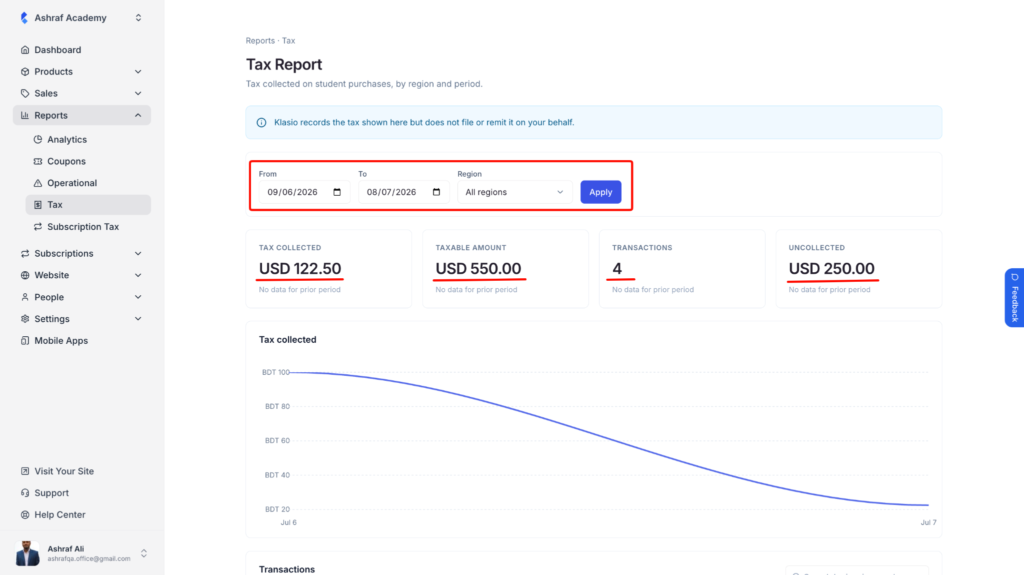
The four cards at the top summarize the period you selected:
- Tax Collected – the total tax charged to students during this period.
- Taxable Amount – the total order value that tax was calculated on.
- Transactions – how many orders included tax.
- Uncollected – the value of purchases in regions with no tax rate configured, where tax may have been owed but wasn’t charged.
Each card compares against the prior period when there’s data to compare against.
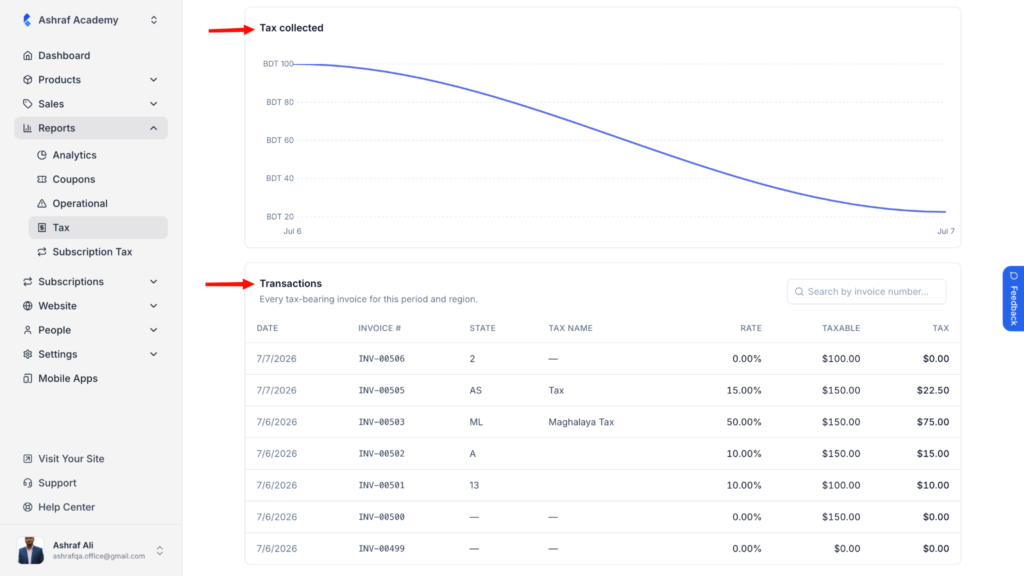
3. Below that, the Tax collected chart plots how much tax came in day by day across your selected range, so you can spot spikes or gaps at a glance.
The Transactions table lists every tax-bearing invoice for the period and region you selected – date, invoice number, state, tax name, rate, taxable amount, and tax charged. Use the search field to jump straight to a specific invoice number.
4. By region rolls the same data up by country, so you can see total transactions, taxable amount, and tax collected per region at a glance.
By tax name does the same, grouped by the tax name you set up when configuring rates (for example, “Sales Tax” or “VAT”) – useful if you’re filing under different tax categories.
Uncollected – no rate configured lists purchases made from regions you haven’t set a tax rate for yet. Tax may have been legally due on these but wasn’t charged, since Klasio only collects tax where you’ve configured a rate. If you see a region showing up here regularly, that’s a sign to go add a rate for it.
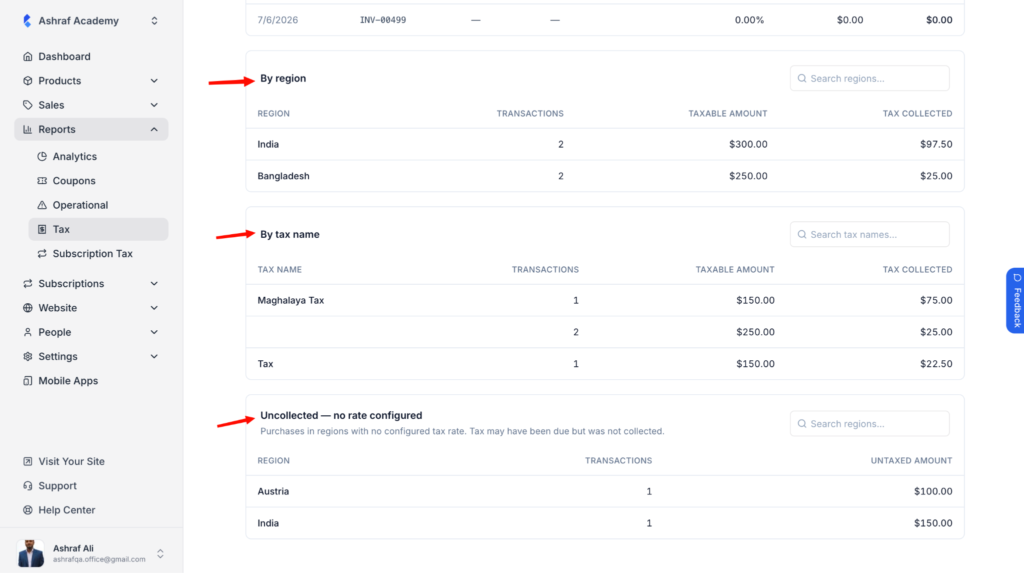
If you spot gaps here, head back to Settings → Tax to add a rate for that region – see How to Set Up Tax Rates in Klasio for the full walkthrough.