
Klasio’s Video Encoding settings allow you to control how your course videos are processed, displayed, and made compatible across different devices. Through this module, you can select encoding resolutions, add a watermark, and enable fallback formats to ensure wider accessibility.
Accessing Video Encoding Settings
From your dashboard, navigate to Settings and select Video Encoding. This opens the video encoding page, where you’ll see options for resolutions, watermark customization, and MP4 fallback.
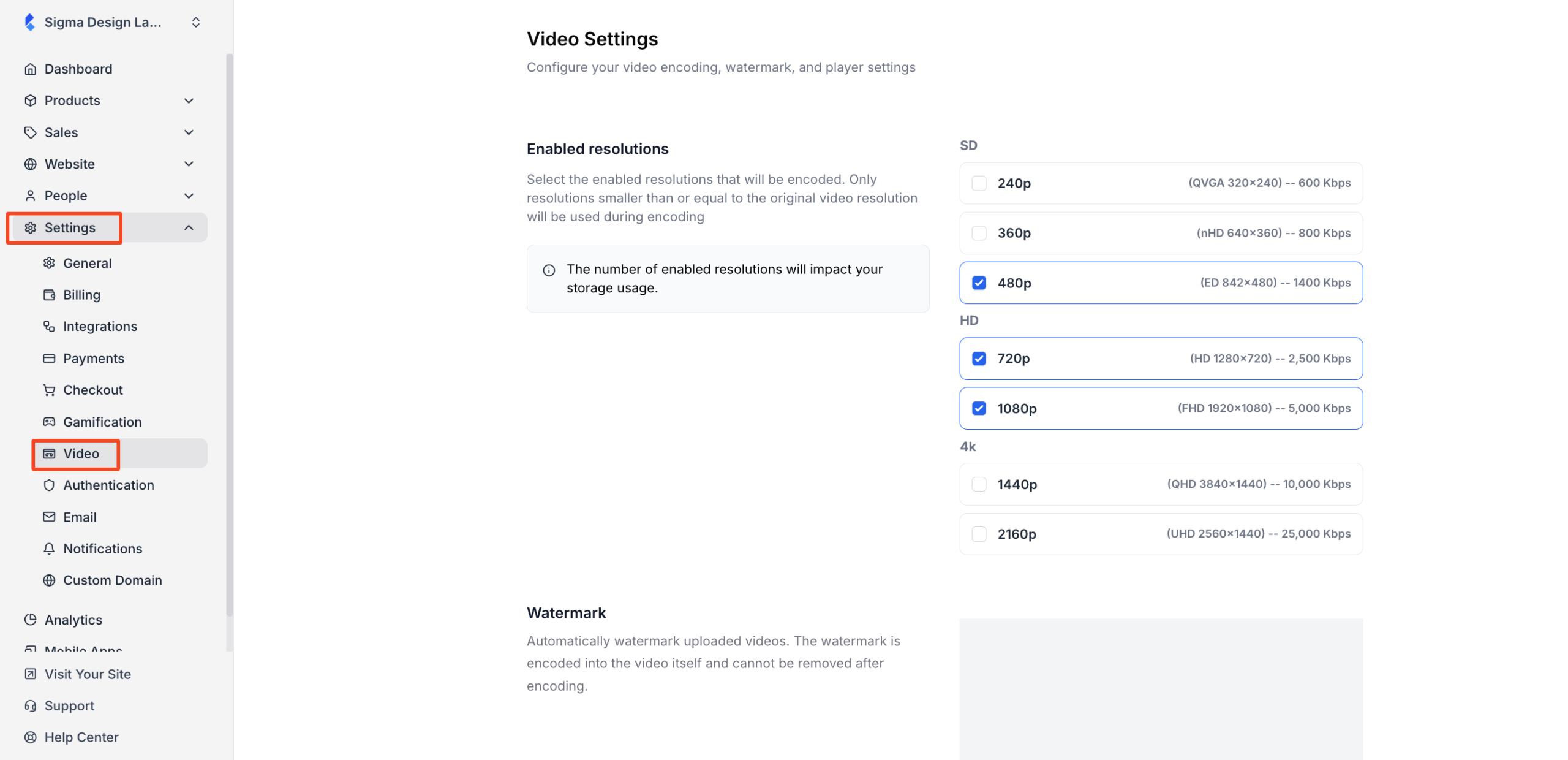
Video Resolutions
The Resolution section lets you choose which video resolutions (from 240p up to UHD) you want Klasio to generate for your courses. Select all the resolutions you plan to offer your students.
- You can only encode downwards: the encoded resolution cannot exceed your source video’s resolution. For example, a 720p video can be encoded to 240p, 360p, 480p, and 720p, but not to higher resolutions.
- Selecting more resolutions provides more playback options for viewers but uses additional storage space. If you leave a resolution unchecked, Klasio will not create that version.
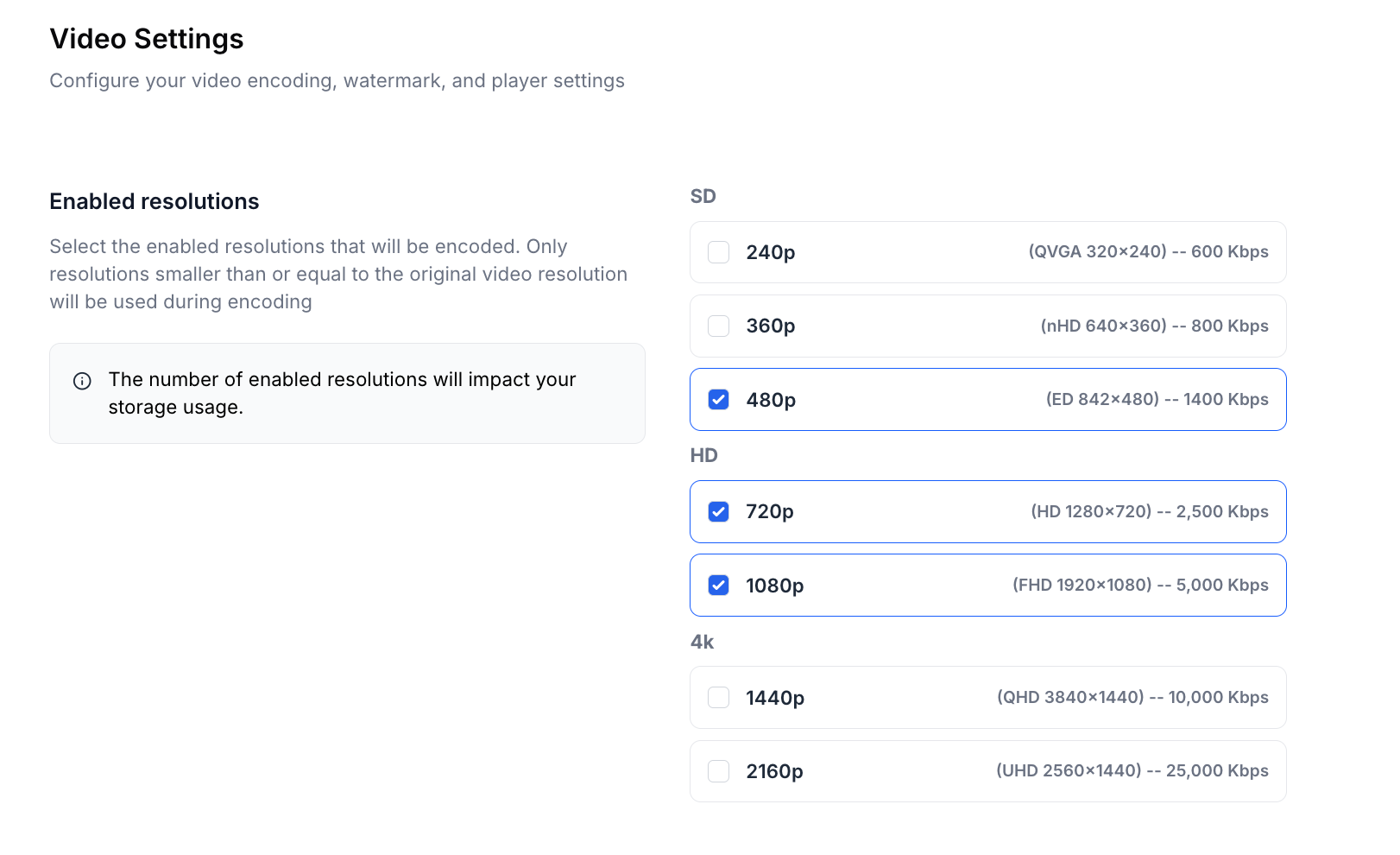
When finished, click Save Changes to apply your chosen resolutions.
Video Watermark
To brand your videos, upload a watermark (typically your site logo) by clicking the camera icon. After uploading:
- Adjust the watermark’s size and positioning using the on-screen sliders.
- Once encoded, the watermark becomes a permanent part of the video file and cannot be removed from that copy.
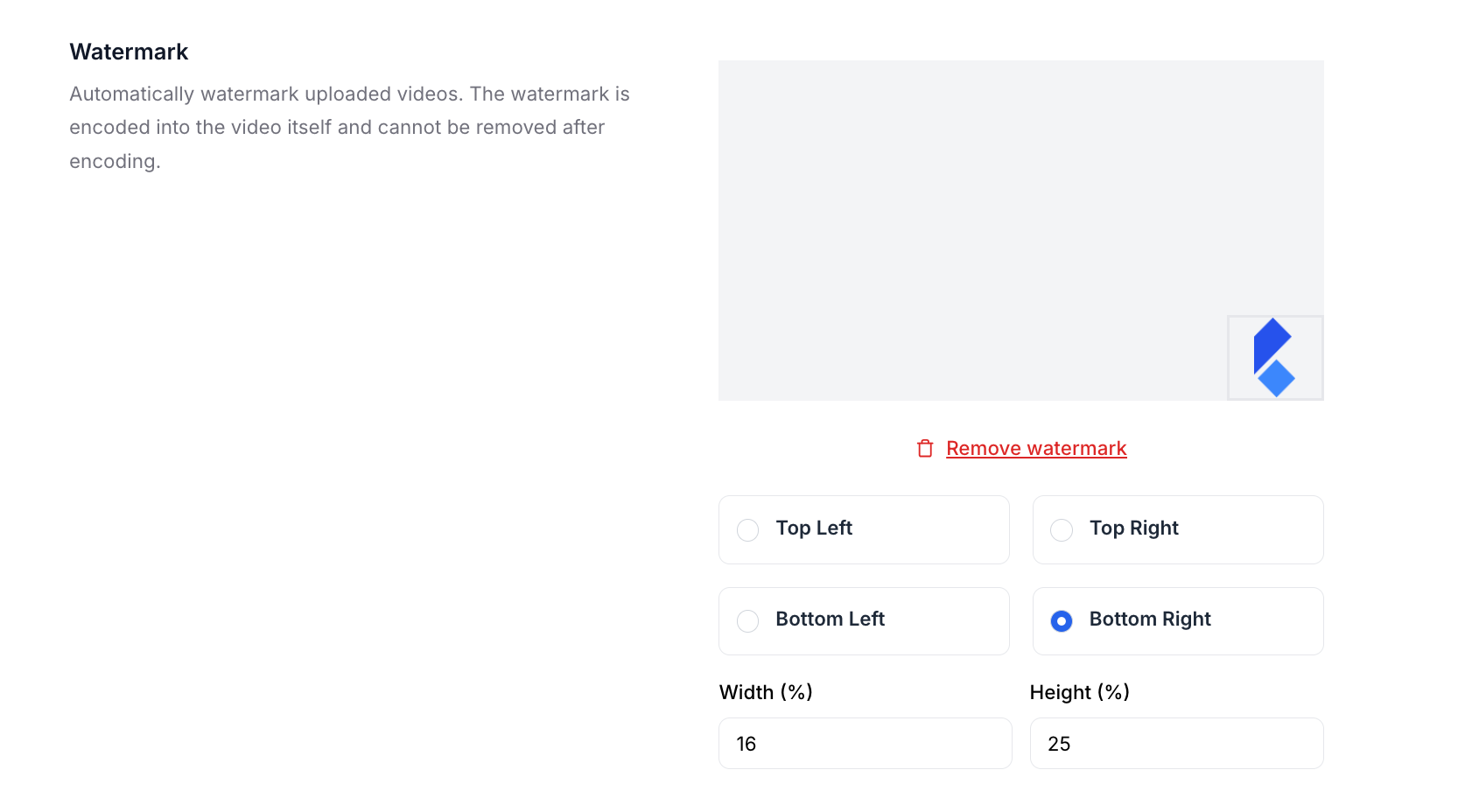
Click Save Changes once you’re satisfied with the placement.
MP4 Fallback
For older browsers or devices that don’t support modern streaming formats, Klasio can generate an MP4 fallback. When you enable this option:
- Klasio creates an extra MP4 copy with a maximum resolution of 720p.
- This fallback copy increases compatibility at the cost of longer processing times and more storage usage.
Toggle the option on if you need broader compatibility, then click Save Changes.
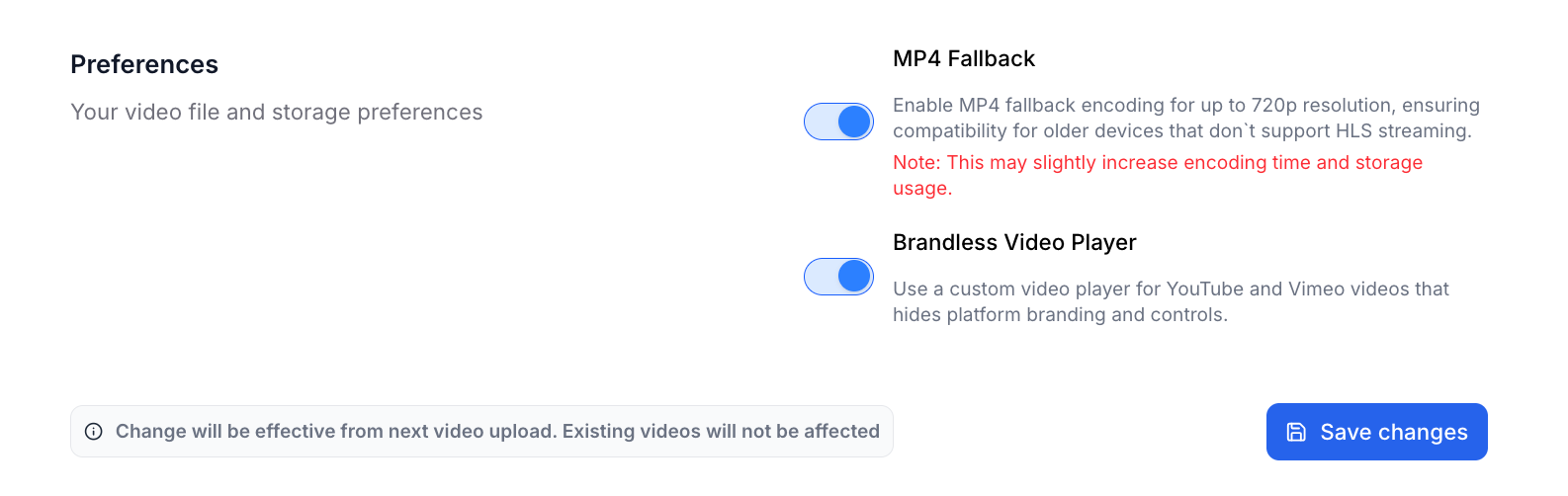
Brandless Video Player
The Brandless Video Player option allows Klasio to use a custom video player for external video sources such as YouTube and Vimeo.
When enabled:
- Platform branding and default player controls from YouTube or Vimeo are hidden.
- Videos are displayed using a clean, custom player interface within your course.
This helps create a more consistent learning experience and keeps students focused on your course content rather than external platform branding.
Save & Apply Changes
The settings you choose here apply only to videos uploaded after these changes are saved. Existing videos remain as they are. Be sure to click Save Changes after updating each section to make your selections active for future uploads.