
Live lessons help you connect with students in real time — answer questions instantly, run discussions, and create a classroom-like experience. By integrating Google Meet with Klasio, you can host live sessions directly inside your courses without managing links manually.
Below is a two-part process: first, connect Google Meet to Klasio; then, use it to create live lessons.
Connect Google Meet with Klasio
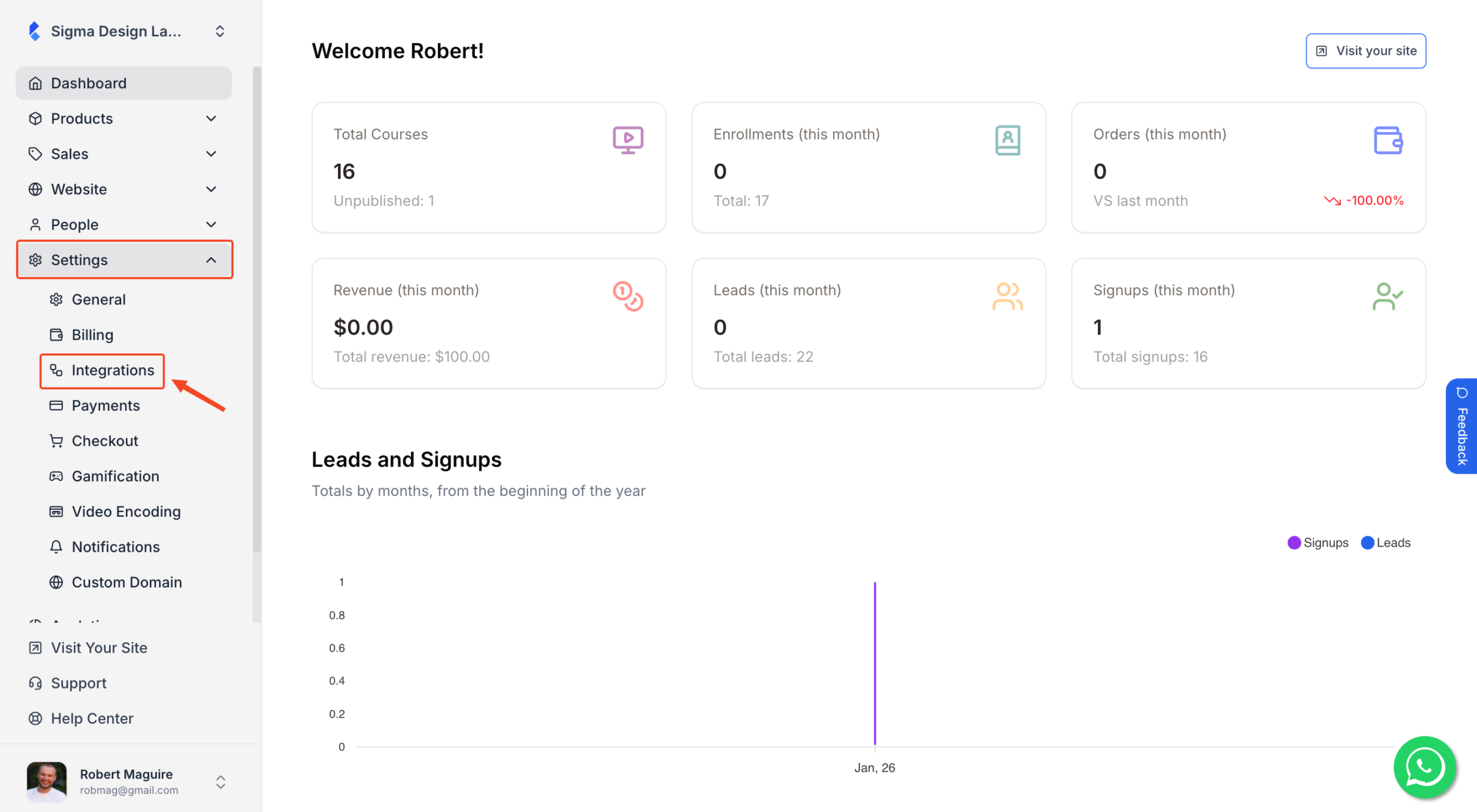
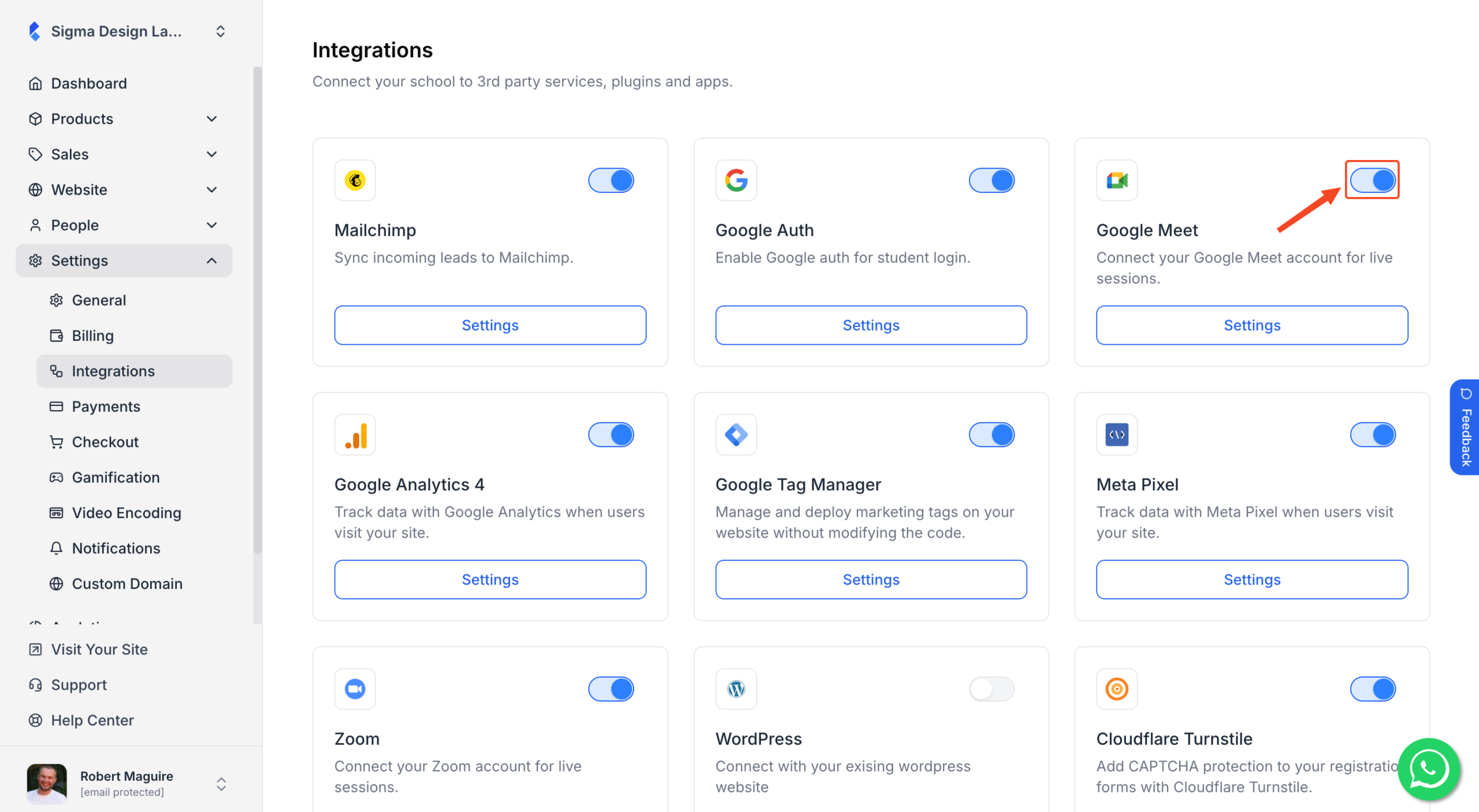
From your admin dashboard, expand Settings and click Integrations
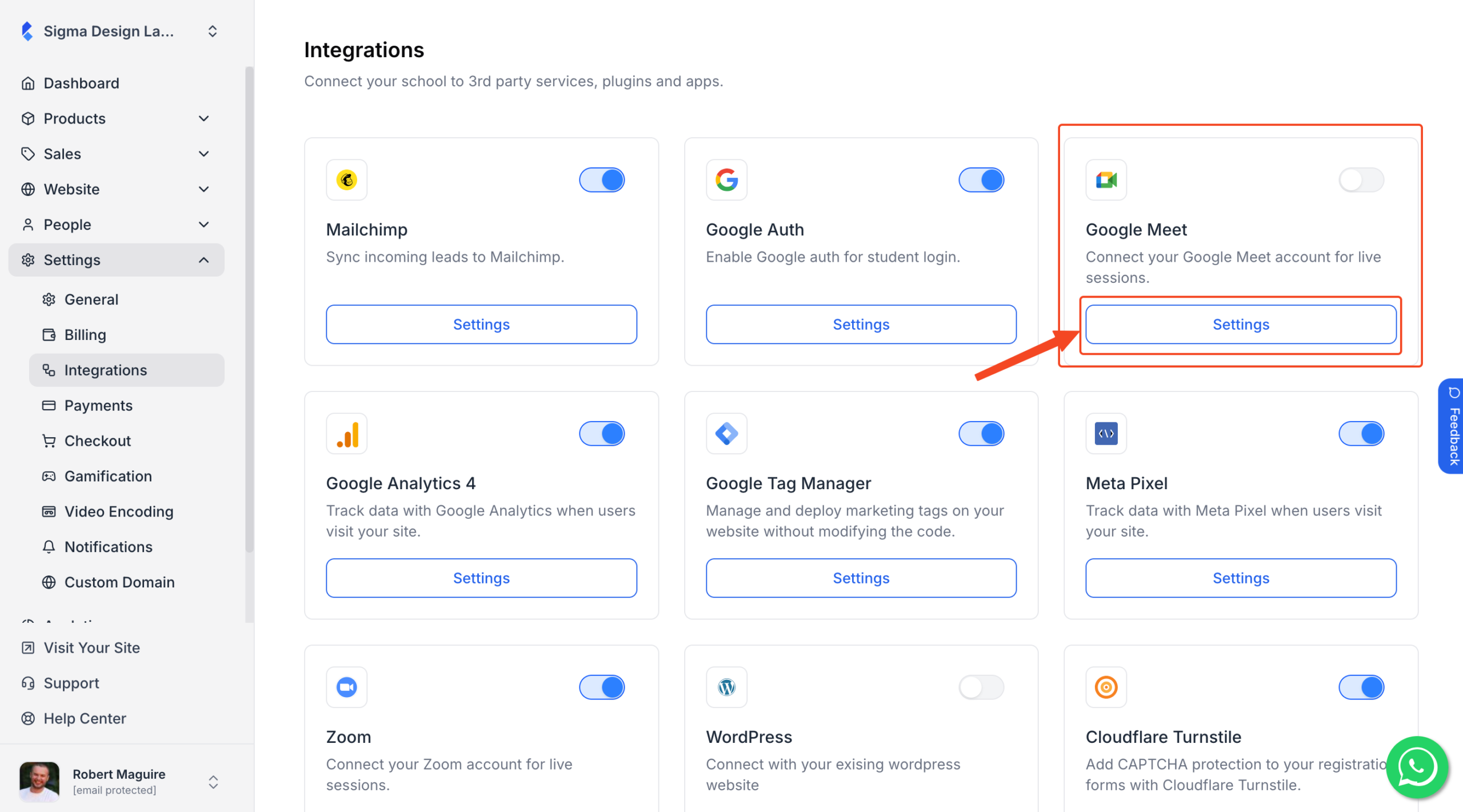
From the list of integrations, locate Google Meet and click on Settings.
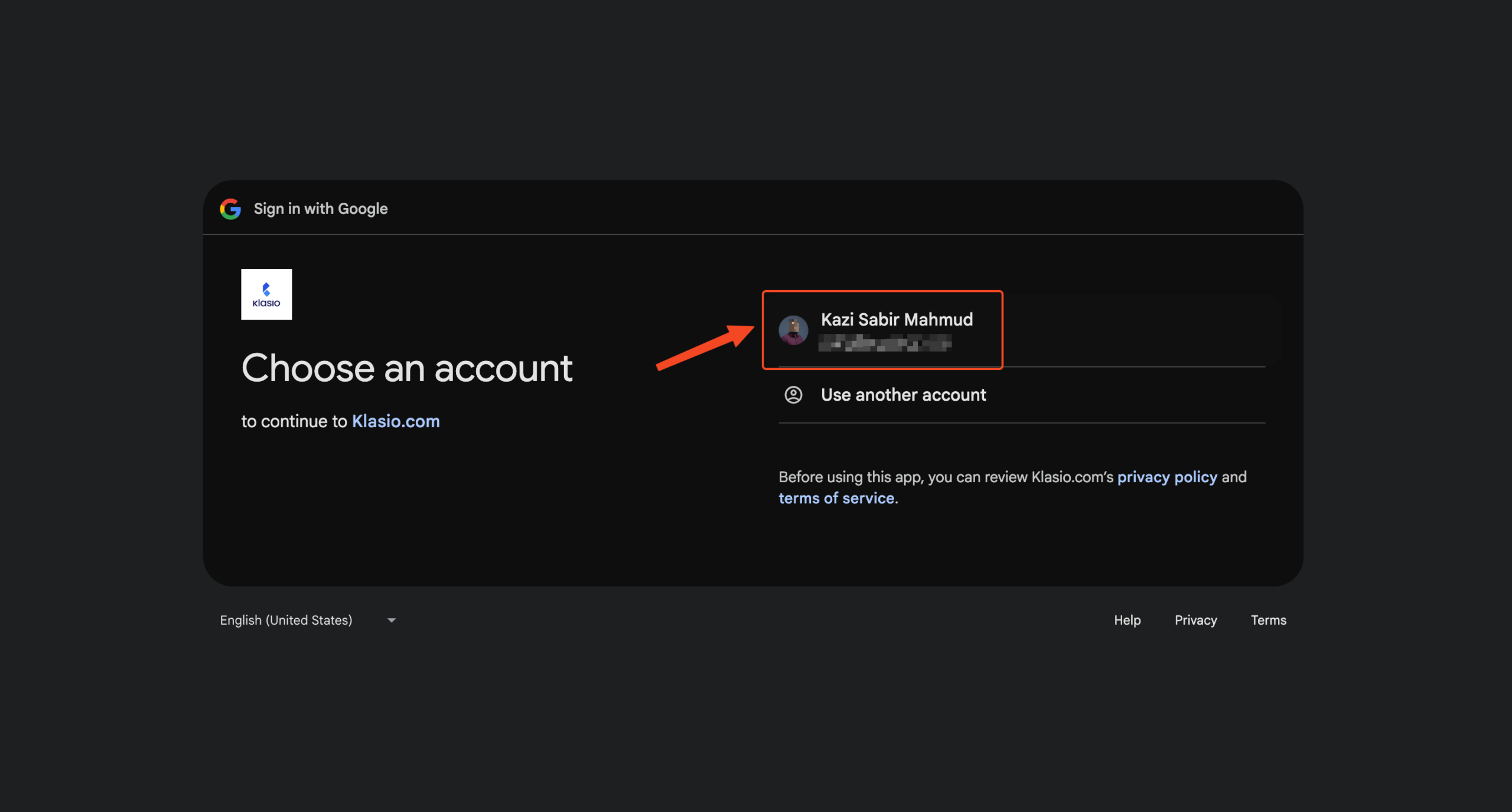
You’ll be taken to the Google Sign-in window, where you need to select the Google account you want to configure for Klasio.
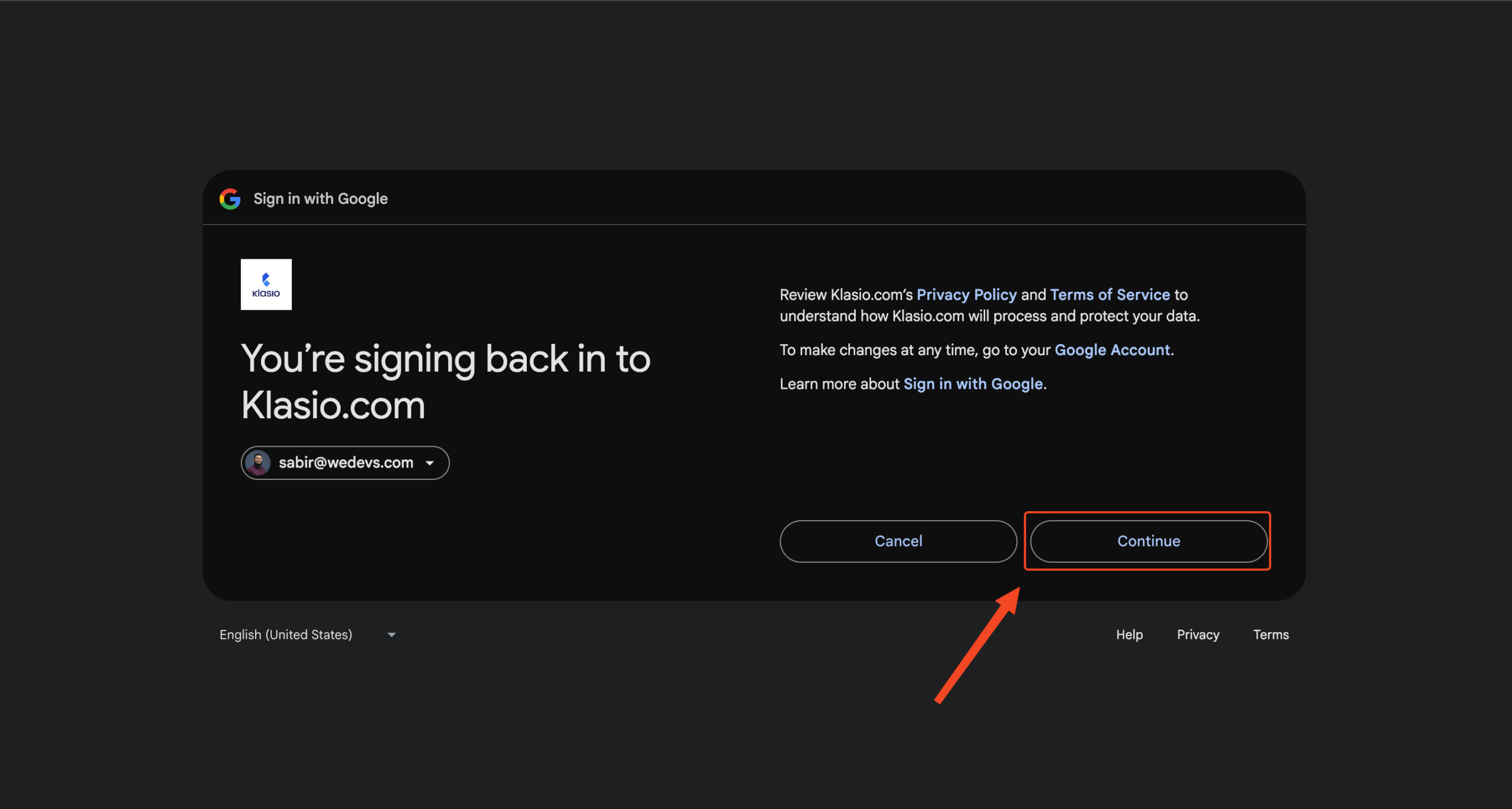
On the next screen, select Continue.
You’ll see that the toggle on the Google Meet widget is now on. This means, Google Meet has been integrated with Klasio.
Offering Live Lessons with Google Meet
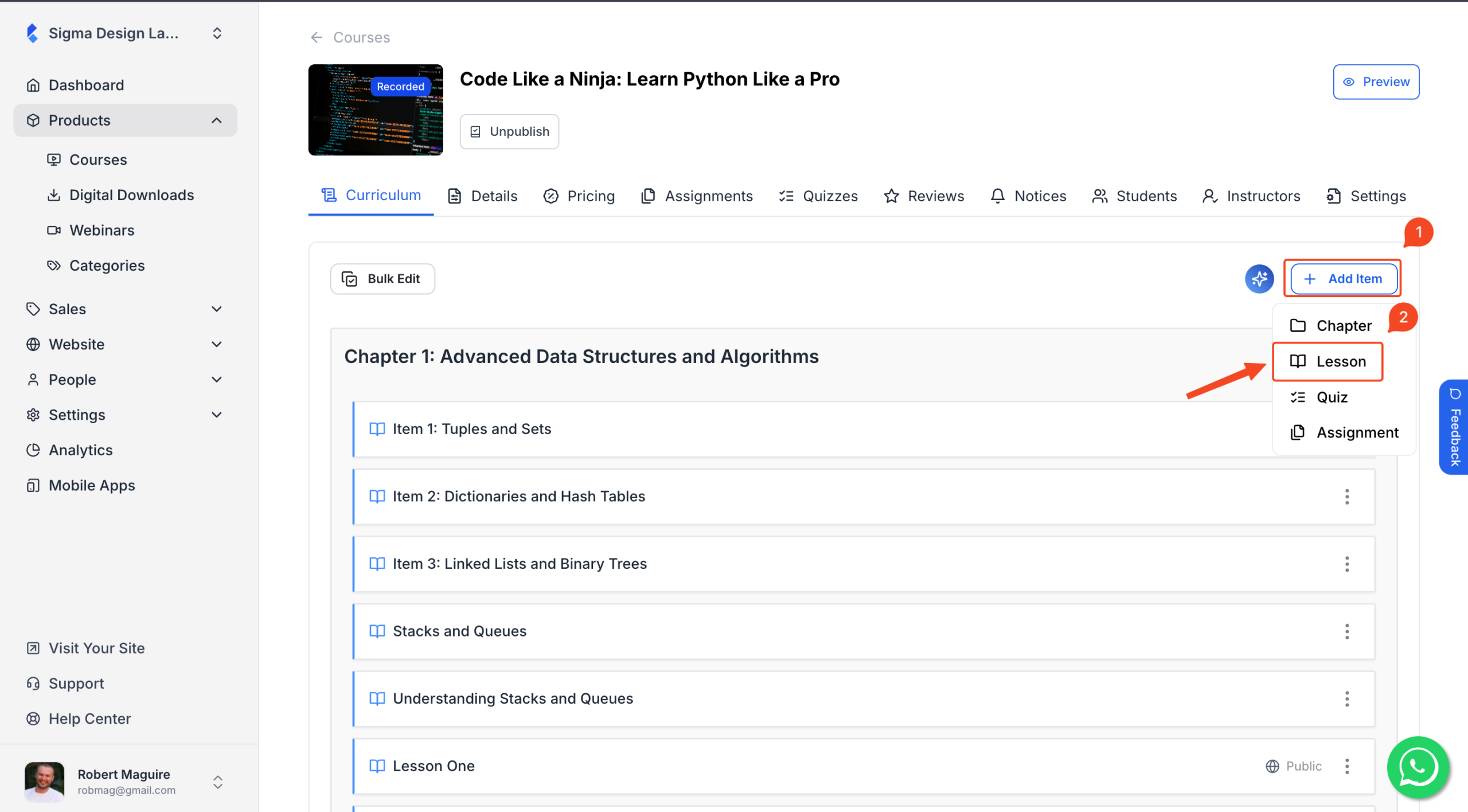
From any course editing panel, Click Add Item and select Lesson.
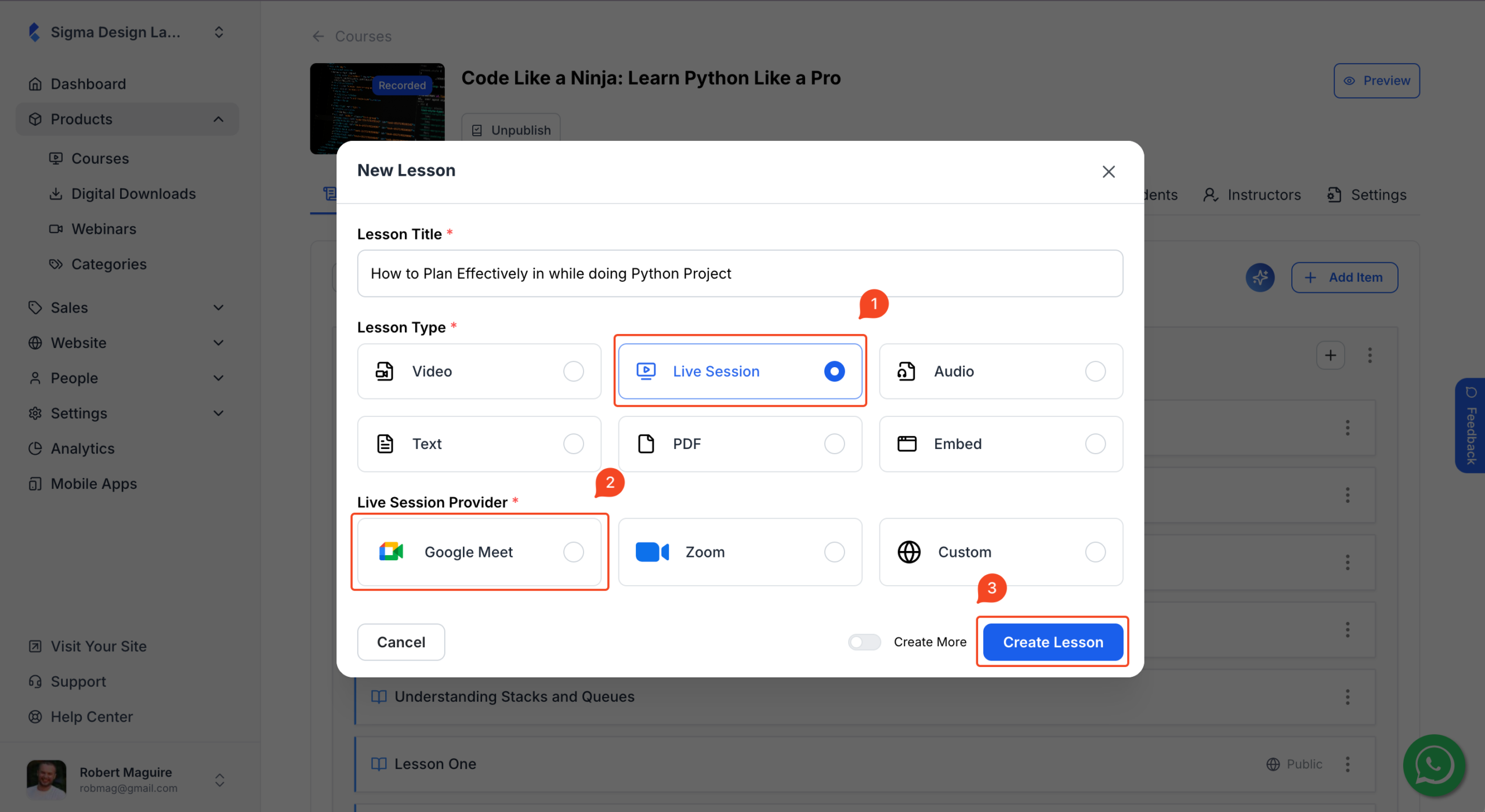
On the pop-up screen, select Live Session and then select Google Meet as your Live Session provider. Finally, click Create Lesson.
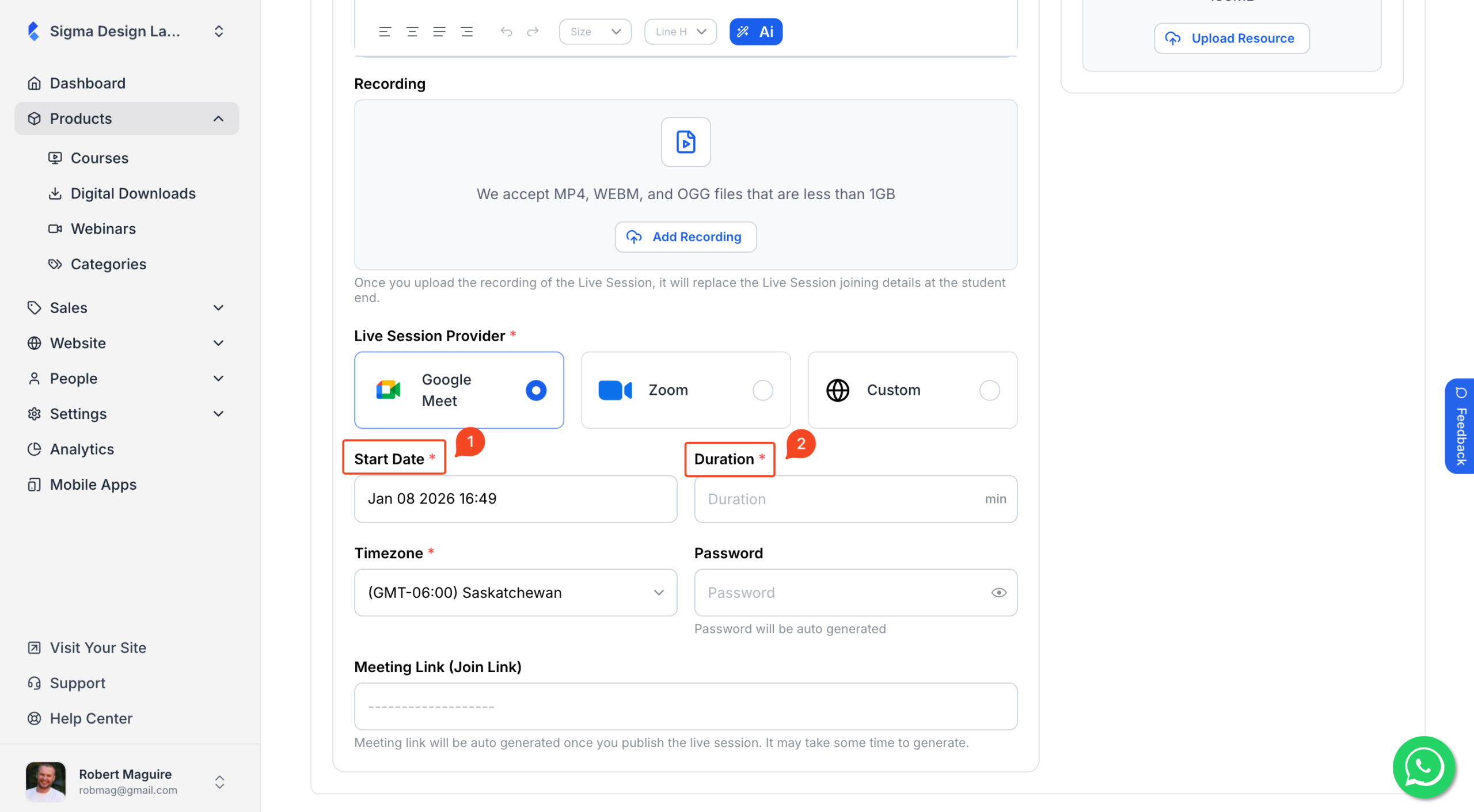
On your lesson editing panel, scroll down to configure the Live Lesson schedule. Your meeting link and password will be auto-generated for your students.
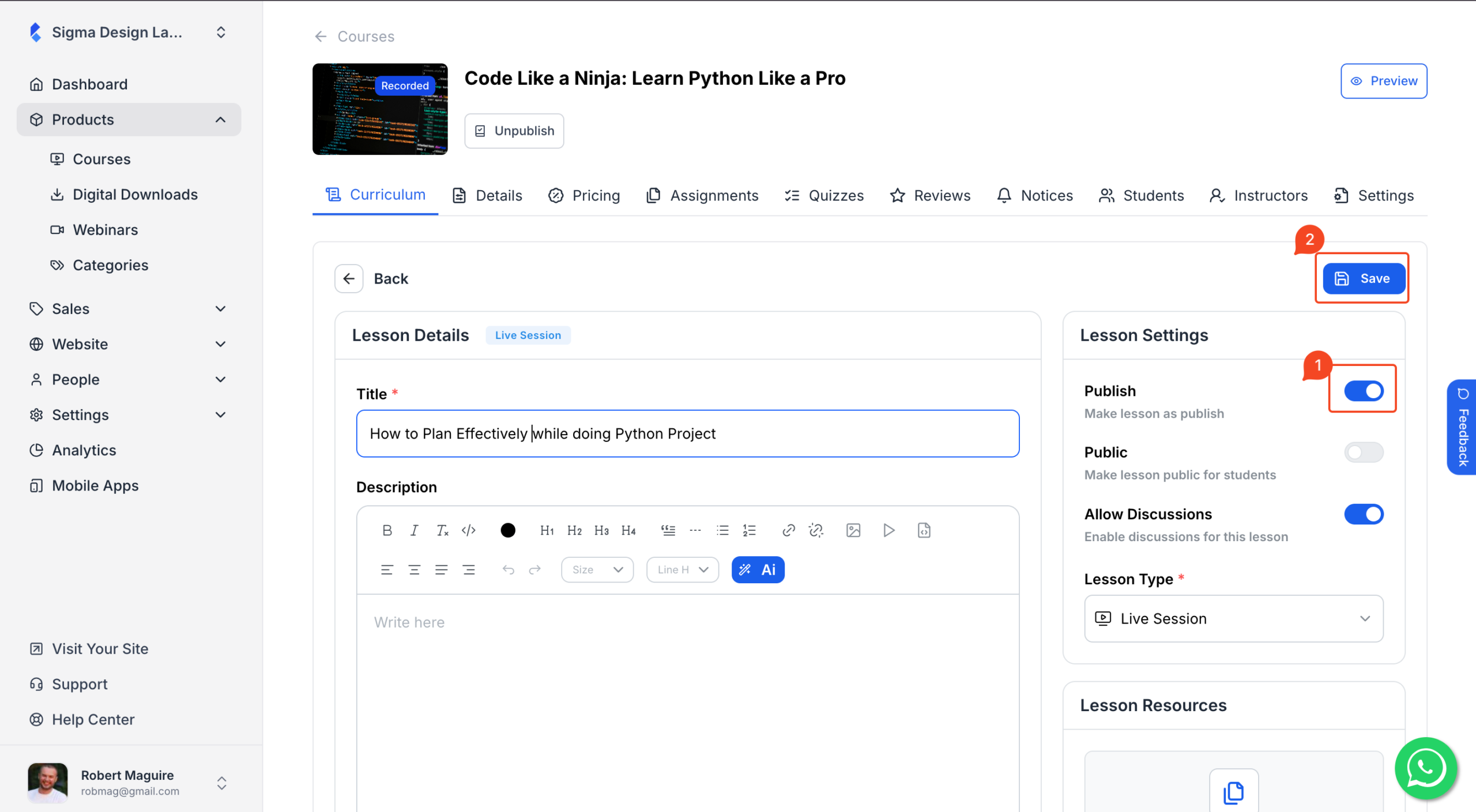
Finally, make sure that the Publish toggle on and hit Save.
Your Live Lesson is now available in your students’ dashboard.
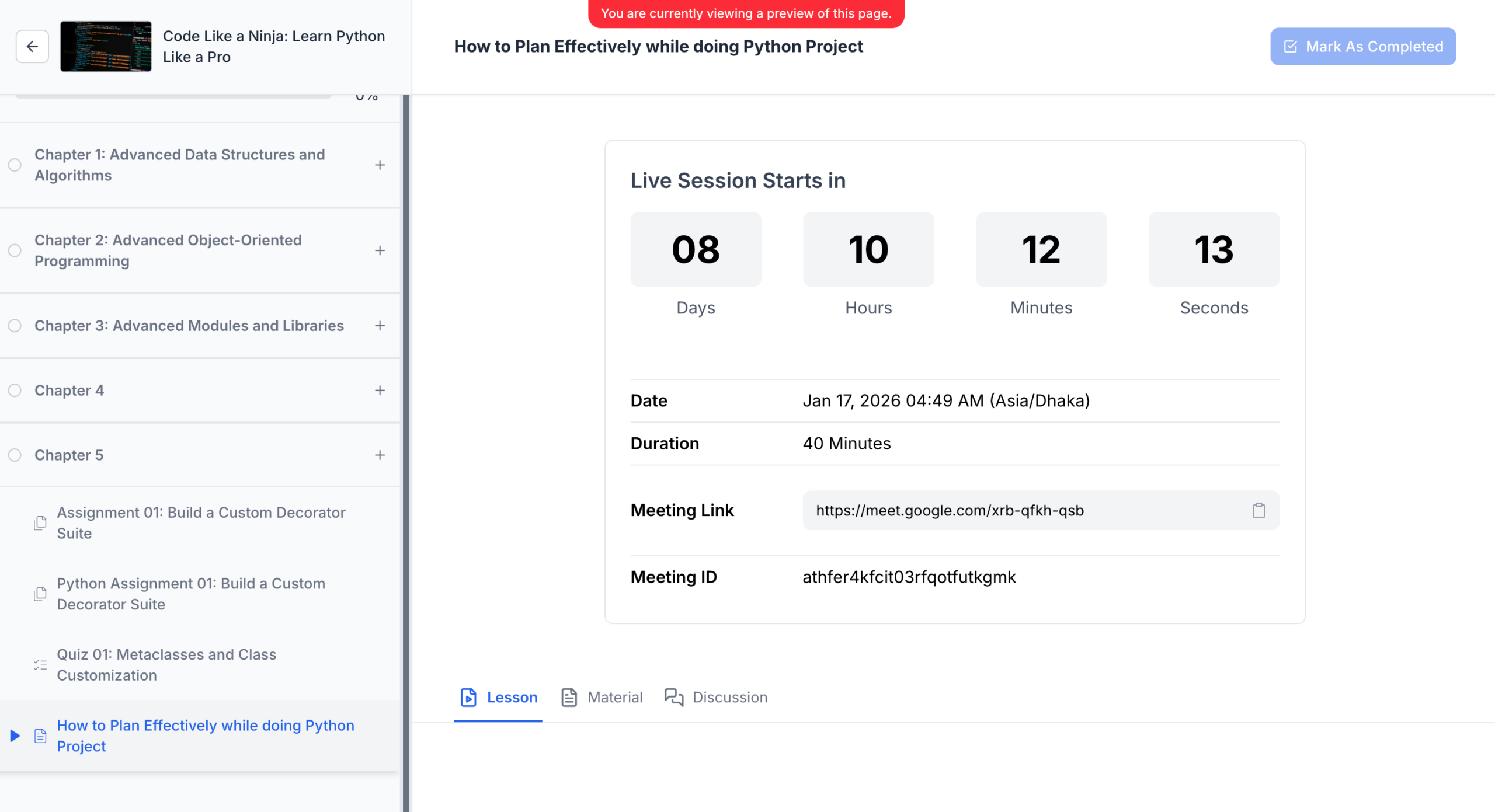
You’ve successfully integrated Google Meet into Klasio and offered a live lesson.