How to Connect a Custom Domain in Klasio
A custom domain lets your students reach your academy at your own web address, such as learn.yourbrand.com or yourbrand.com, instead of your Klasio address. It makes your school look more professional and keeps your brand front and center. This guide shows you how to connect a subdomain or a root domain, step by step.
Subdomain or root domain?
You can connect either a subdomain or a root domain (also called an apex domain). The setup is a little different for each, so pick one before you start.
| Subdomain | Root domain | |
|---|---|---|
| Example | learn.yourbrand.com | yourbrand.com |
| Setup steps in Klasio | 3 | 4 |
| DNS provider | Any provider works | Cloudflare recommended |
| DNS records to add | 1 CNAME record | 1 A record + 1 CNAME record |
| Cloudflare proxy | Off (DNS only) | On (Proxied) |
| Extra setup | None | Redirect rule + SSL/TLS mode |
| HTTPS certificate | Issued by Klasio, renewed automatically | Handled by Cloudflare |
| Your site opens on | learn.yourbrand.com | www.yourbrand.com |
Before you start
- Admin access to your Klasio dashboard
- A domain you own
- Login access to the DNS provider where your domain is managed (Cloudflare, Namecheap, GoDaddy, etc.)
How to Connect a Subdomain
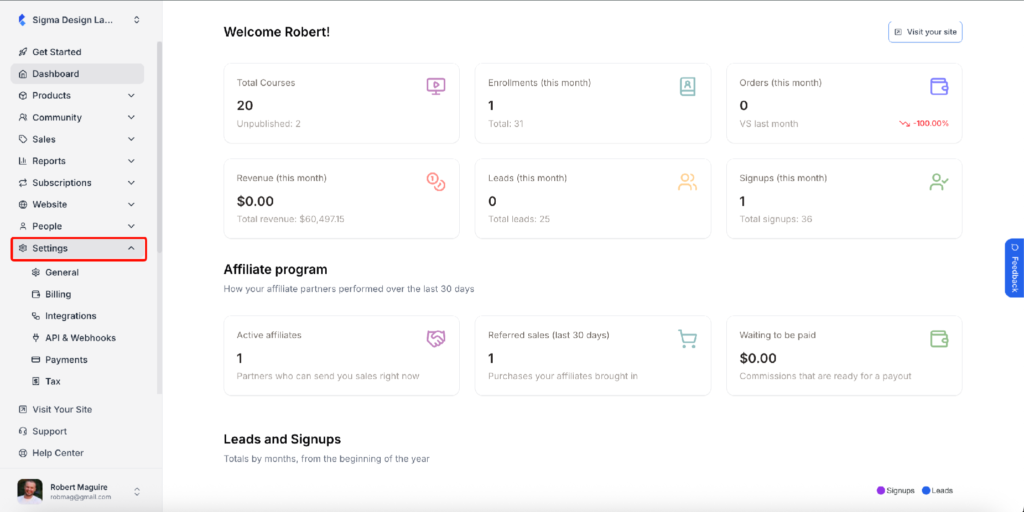
- From the admin dashboard, go to Settings and then click Custom Domain.
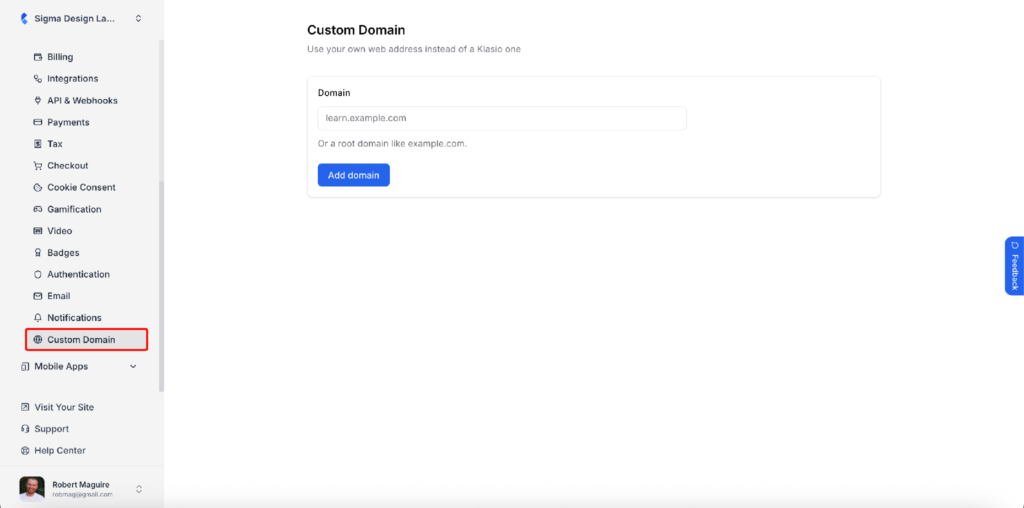
- In the Domain field, type your subdomain (for example, learn.yourbrand.com) and click Add domain. Leave out https:// and any trailing slash.
- Klasio detects it as a Subdomain and shows the record you need under Add these records at your DNS provider. In a new tab, log in to your DNS provider and add this CNAME record:
| Type | Name | Points to | Proxy |
|---|---|---|---|
| CNAME | learn (your subdomain) | custom.klasio.com | DNS only |
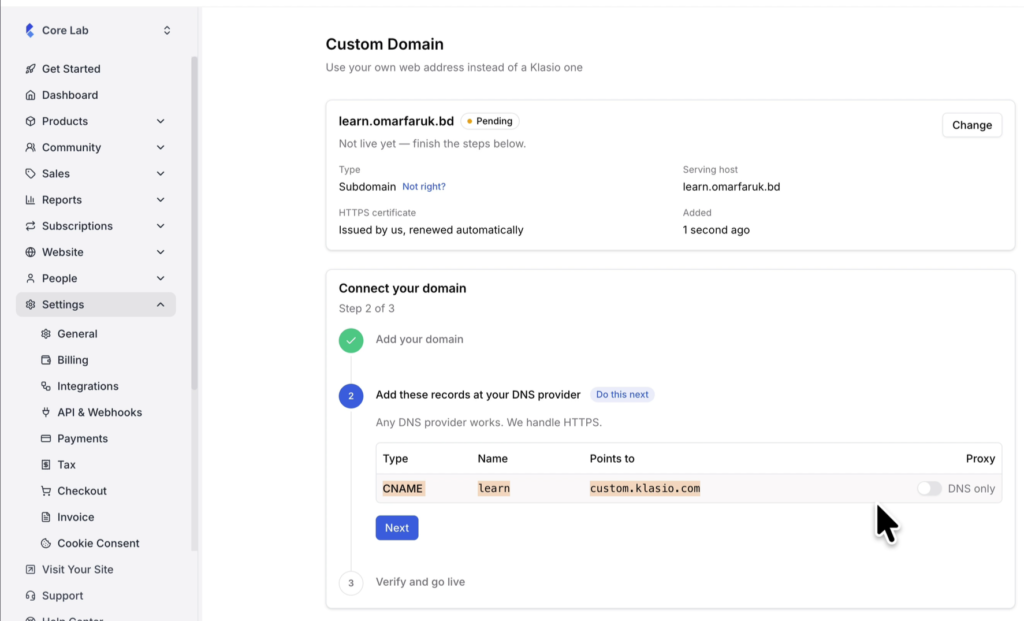
Important: If your DNS is on Cloudflare, turn the proxy off for this record so the cloud icon is grey (DNS only). Klasio issues and renews your HTTPS certificate itself, and a proxied record blocks that.
- Once the record is saved at your DNS provider, go back to Klasio and click Next.
- Wait a few minutes, then click Verify domain. DNS changes usually spread in a few minutes, but can take up to 24 hours. Use Check DNS propagation to see whether your record is live yet.
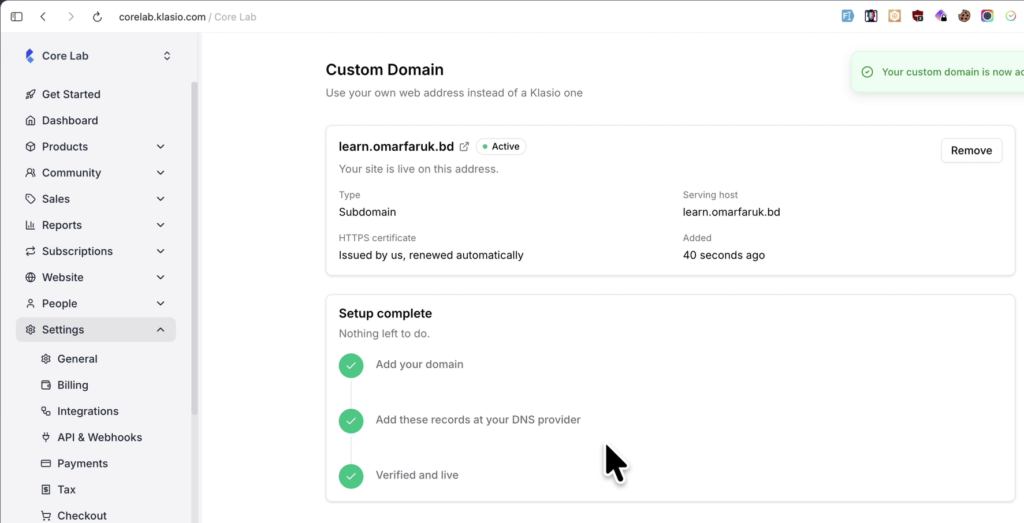
- When the connection succeeds, you will see “Your custom domain is now active.” The status changes from Pending to Active, and every step under Setup complete is ticked. Click your domain name to open your site on its new address.
How to Connect a Root Domain
Root domains serve on www, so they also need a redirect from yourbrand.com to www.yourbrand.com. Klasio recommends Cloudflare for this, and the steps below are written for Cloudflare.
- From the admin dashboard, go to Settings and then click Custom Domain.
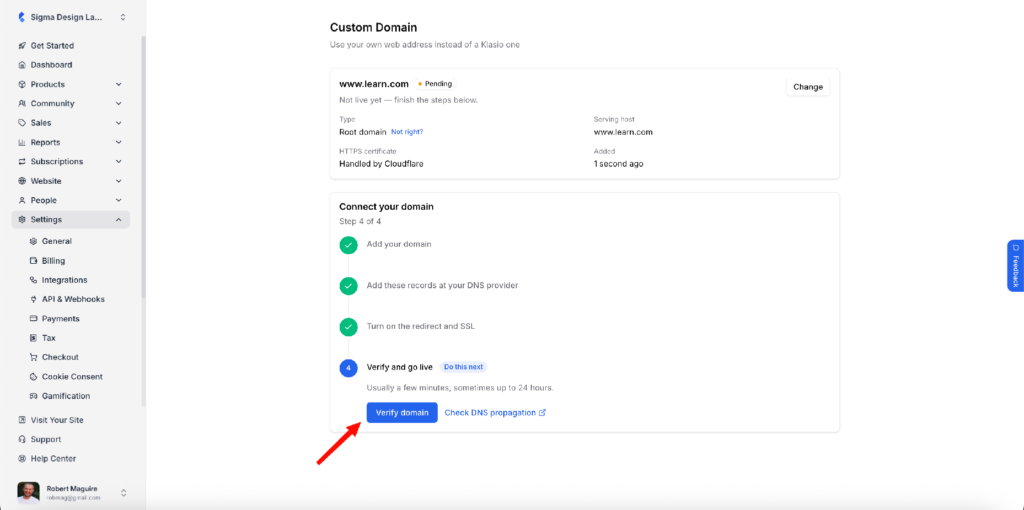
- In the Domain field, type your root domain (for example, yourbrand.com) and click Add domain. Klasio sets the type to Root domain and the serving host to www.yourbrand.com. If the type is wrong, click Not right? next to it.
- In your Cloudflare account, add these two records under DNS, and make sure both are Proxied (orange cloud):
| Type | Name | Points to | Proxy |
|---|---|---|---|
| A | @ | 192.0.2.1 | Proxied |
| CNAME | www | custom.klasio.com | Proxied |
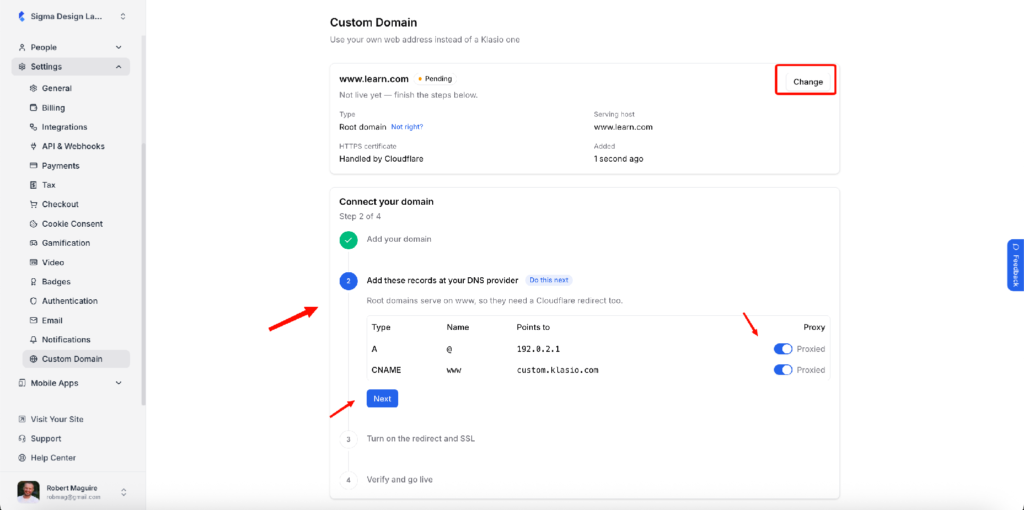
Note: The A record does not point to a real server. It only lets Cloudflare catch visitors on yourbrand.com and send them to www.yourbrand.com.
- Go back to Klasio and click Next.
- In Cloudflare, go to Rules → Redirect Rules and create a single redirect with the values Klasio shows under Turn on the redirect and SSL (replace yourbrand.com with your own domain):
| Setting | Value |
|---|---|
| Rule name | Redirect root to www |
| If incoming requests match… | Wildcard pattern |
| Request URL | https://yourbrand.com/* |
| Target URL | https://www.yourbrand.com/${1} |
| Status code | 301 – Permanent Redirect |
| Preserve query string | Enabled |
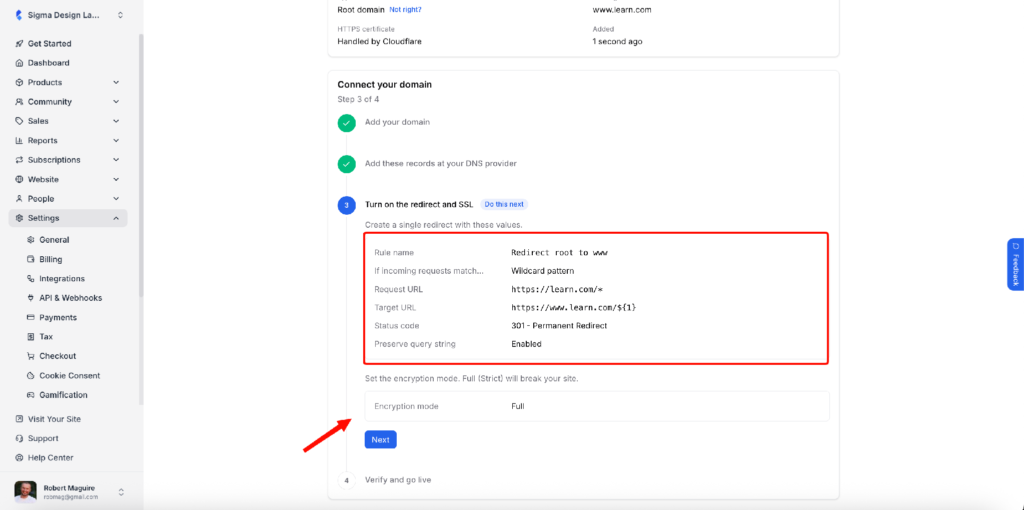
- In Cloudflare, go to SSL/TLS and set the encryption mode to Full.
Remember: Choose Full, not Full (Strict). Full (Strict) will break your site.
- Go back to Klasio and click Next.
- Click Verify domain. If you see “We could not reach your domain yet. DNS changes can take a while to propagate,” wait a while and try again. Once your records have propagated, Klasio connects your domain automatically and the status changes to Active.