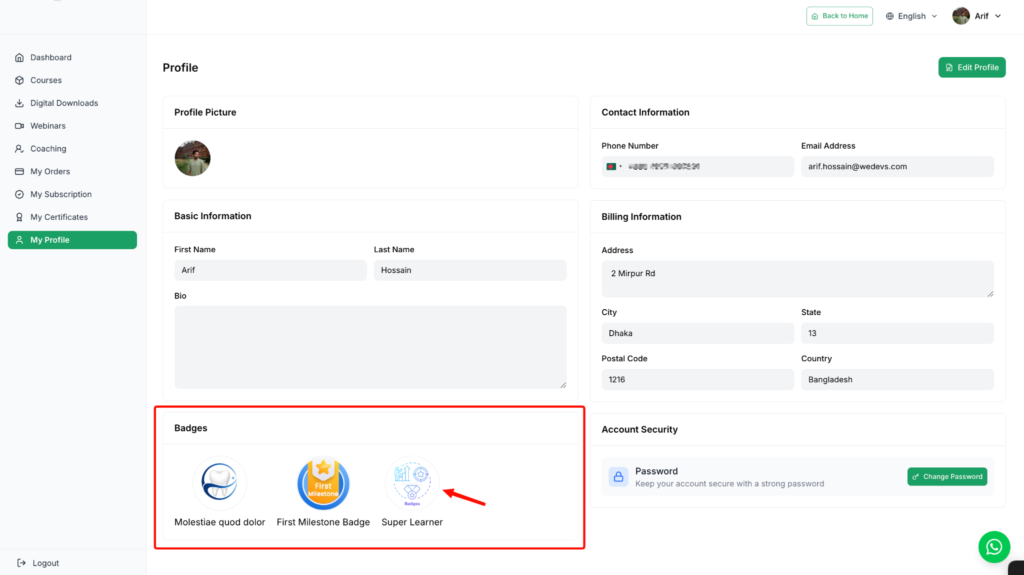
Dynamic badges are awarded to students automatically when they hit a milestone you set. You pick a trigger event, set how many times it must happen, and Klasio handles the rest.
Each badge appears on the student’s profile as soon as they earn it. No manual approval is needed.
Here’s how to do it:
Open the Badges page
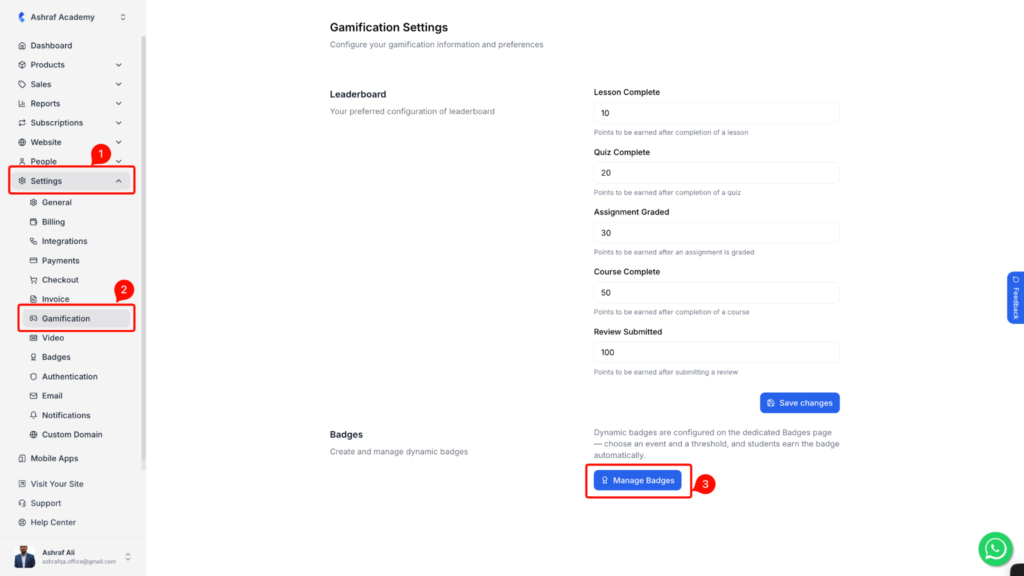
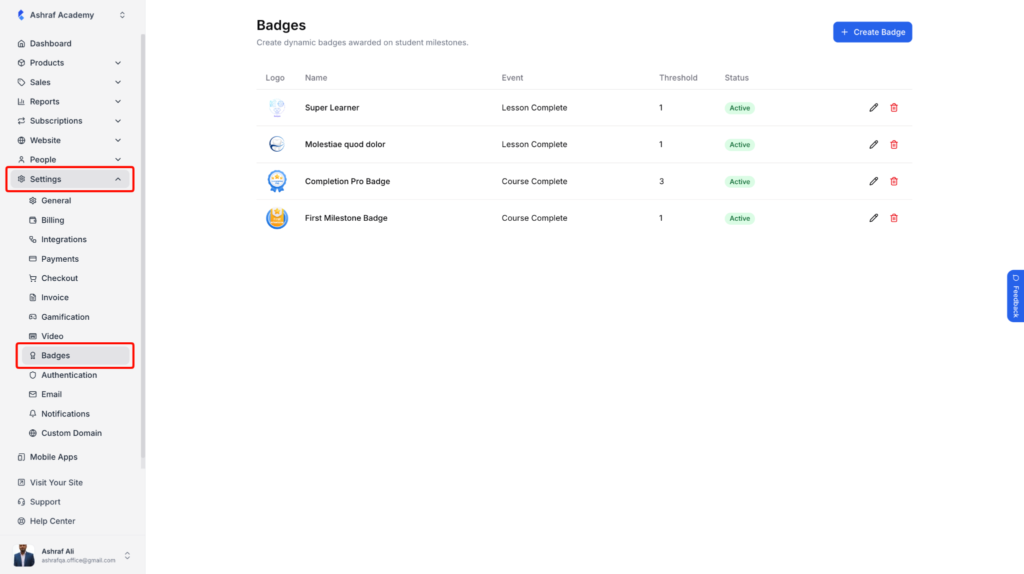
You can reach the Badges page from Gamification settings or from the sidebar.
1. From your admin dashboard, go to Settings > Gamification. Scroll down to the Badges section and click on the “Manage Badges” button.
2. You can also go straight to Settings > Badges from the left sidebar.
Create a badge
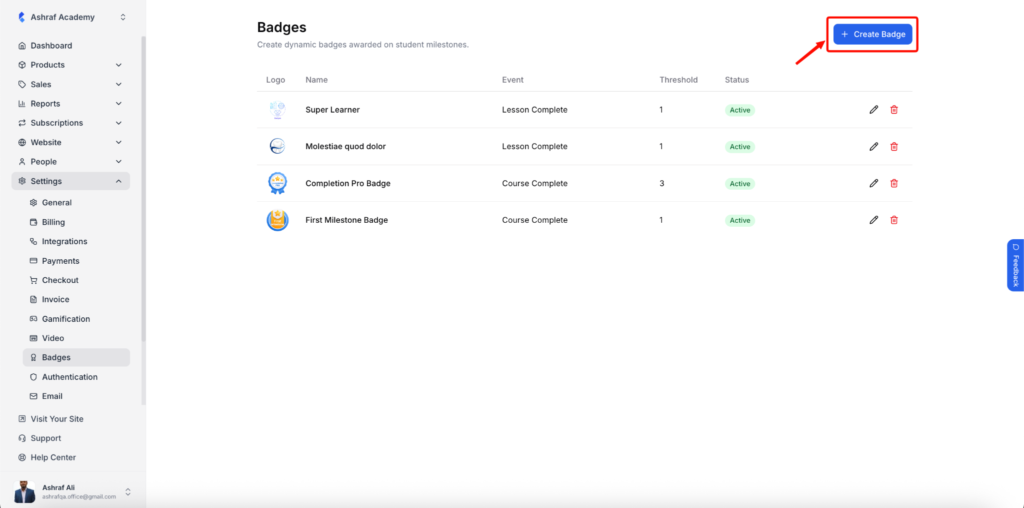
3. On the Badges page, click on the “Create Badge” button in the top right.
4. Enter a Badge Name. This is the name students see when they earn the badge, such as “Quiz Master” or “Super Learner”.
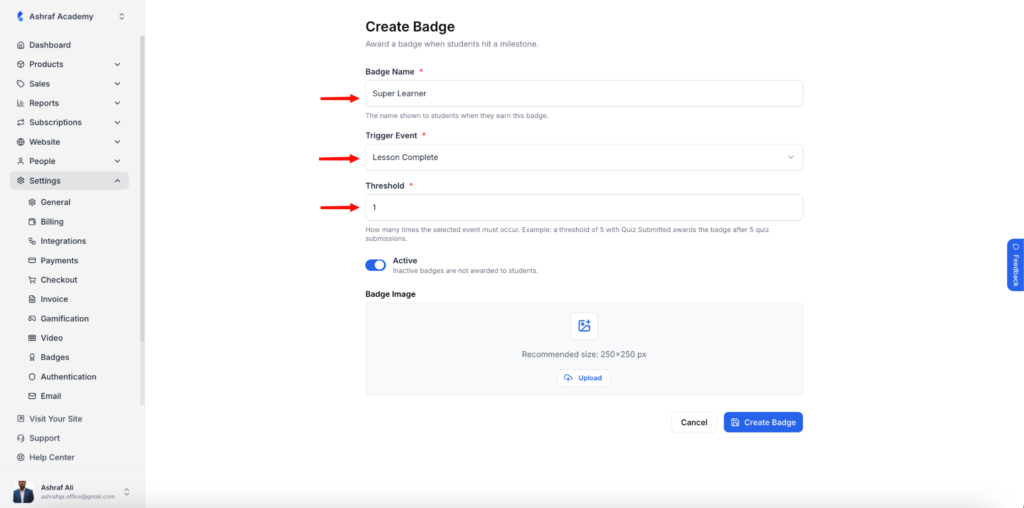
5. Select a Trigger Event from the dropdown. This is the student action that awards the badge.
| Trigger Event | Badge is awarded when a student |
|---|---|
| Lesson Complete | Completes a lesson |
| Quiz Submitted | Submits a quiz |
| Quiz Passed | Passes a quiz |
| Course Complete | Completes a course |
| Assignment Submitted | Submits an assignment |
| Assignment Graded | Receives a grade on an assignment |
6. Set the Threshold. This is how many times the selected event must occur before the badge is awarded.
For example, a threshold of 5 with Quiz Submitted awards the badge after 5 quiz submissions. A threshold of 1 awards it the first time.
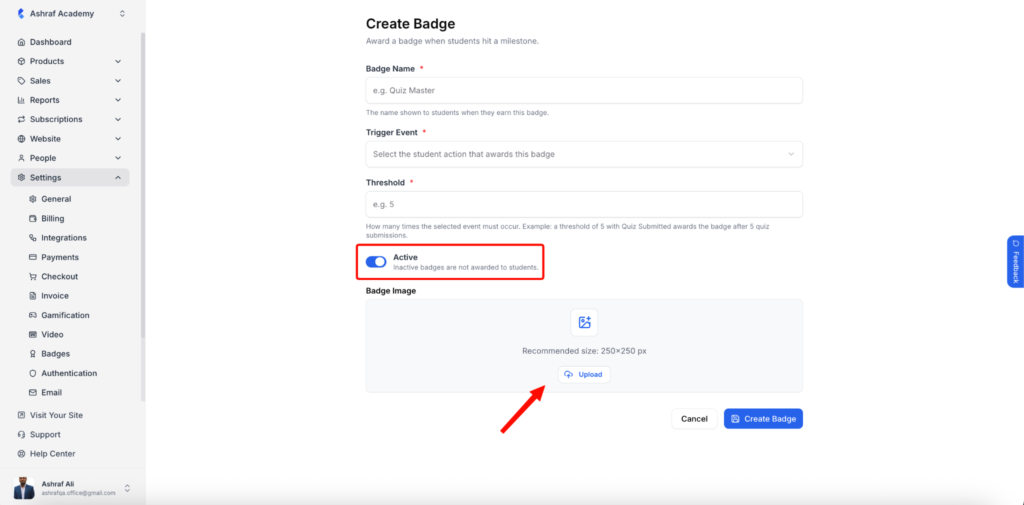
7. Keep the Active toggle on. Inactive badges are not awarded to students. Under Badge Image, click on the “Upload” button and add your badge artwork. The recommended size is 250×250 px.
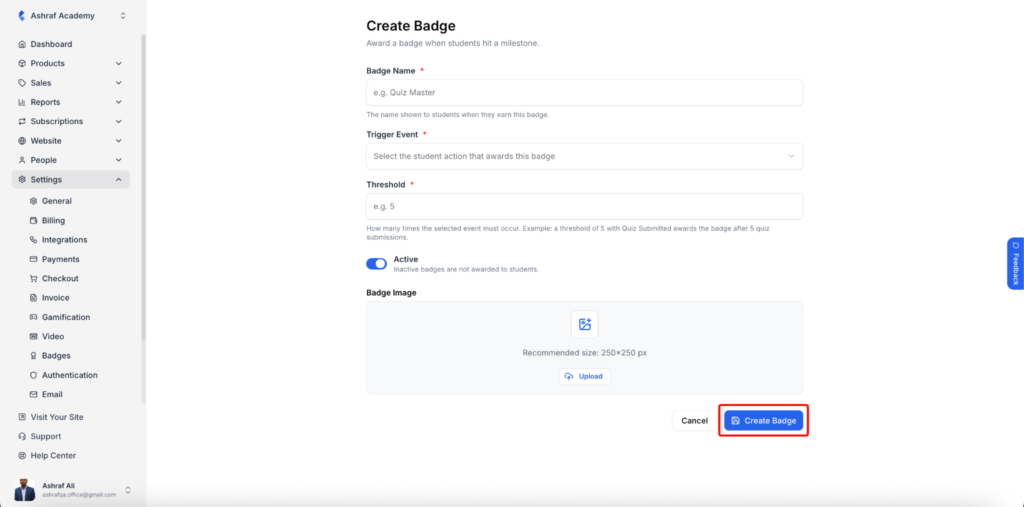
8. Click on the “Create Badge” button to save.
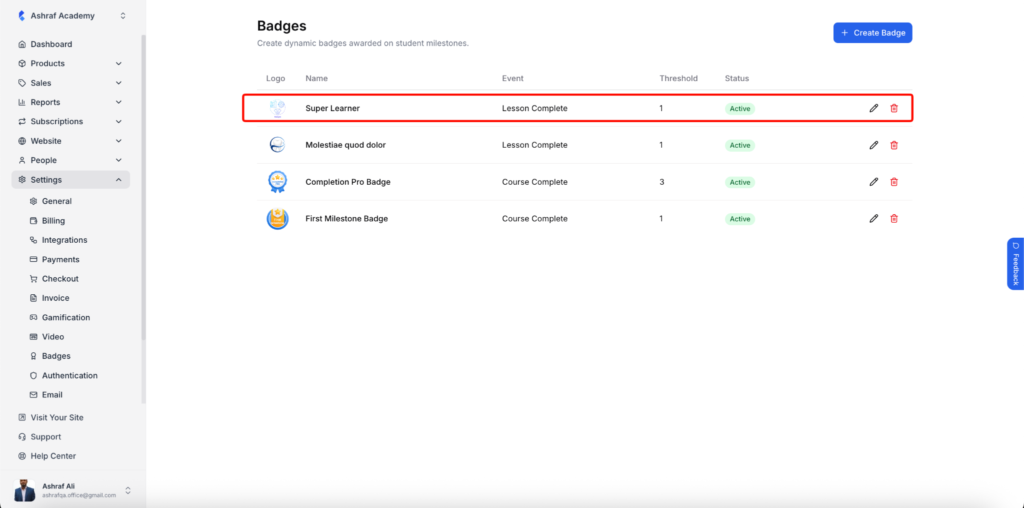
Your new badge now appears at the top of the Badges list.
How students see their badges
Students do not need to claim anything. Once they meet the threshold, the badge is added to their account.
- The student logs in and goes to My Profile from their dashboard.
- The Badges section shows every badge they have earned, with the badge image and name below it.