If you sell Course/Other Products to students in regions where you’re required to charge tax, Klasio lets you configure tax rates by country and state, choose how those rates are shown at checkout, and add your own tax registration details for invoices. Please note that based on your configuration, Klasio only calculates and records the tax. But it does not file or remit it on your behalf. Registration and tax file submission still stay your responsibility.
Here’s how to set it up.
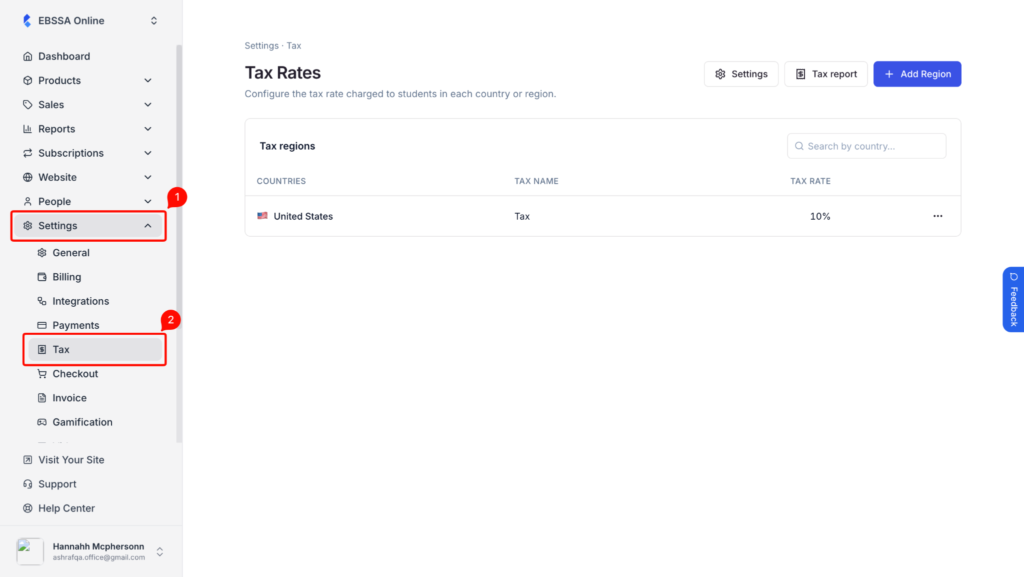
1. From the admin dashboard, expand Settings, then click Tax. This opens the Tax Rates page, which lists every country you’ve already configured, along with its tax name and rate.
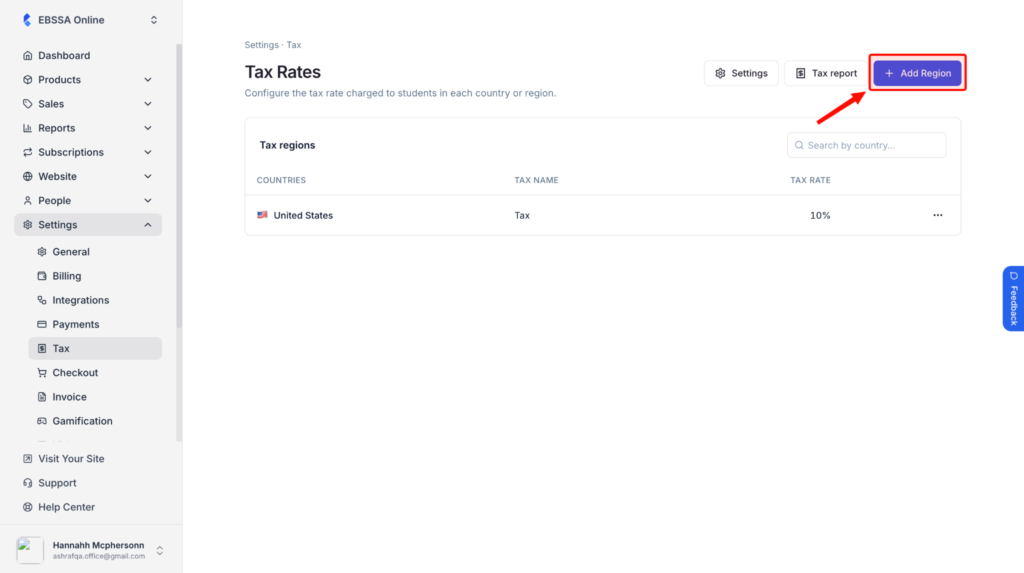
2. To add a new region, click Add Region in the top right.
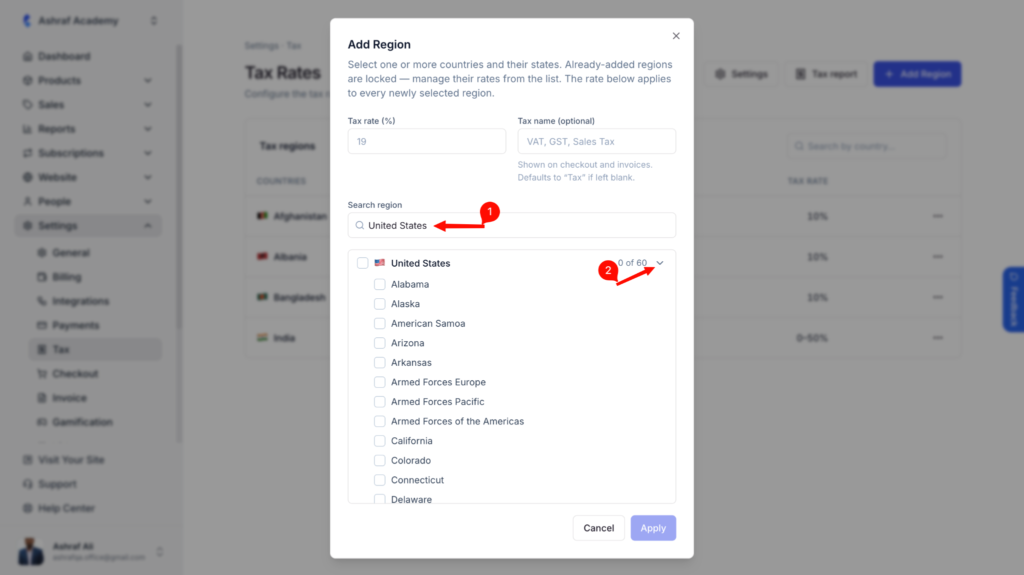
3. In the Add Region window, enter your Tax rate (%). You can also give it a Tax name – this is optional and shows up on the checkout page and on invoices. If you leave it blank, Klasio labels it simply as “Tax.”
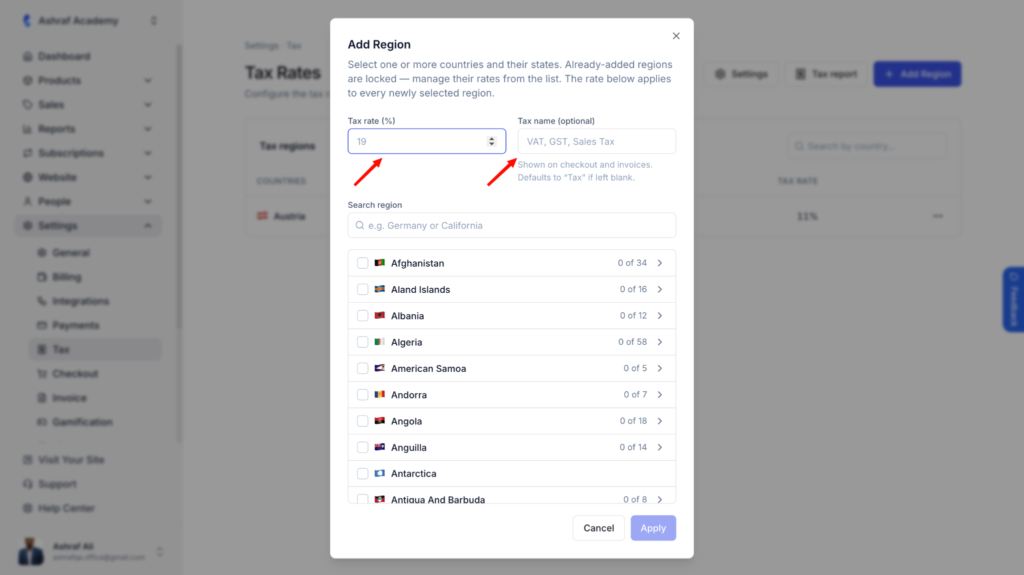
4. Use the Search region field to find the country you want to add. Countries with states or provinces show how many are currently selected (for example, “0 of 12”). Click the row to expand it and choose individual states, or check the box next to the country name to select all of them at once. This is useful if your tax obligation only applies to specific states within a country, rather than the whole country – the United States is set up this way in Klasio, for instance, since sales tax rates vary by state, from 0% in Oregon to over 7% in California.
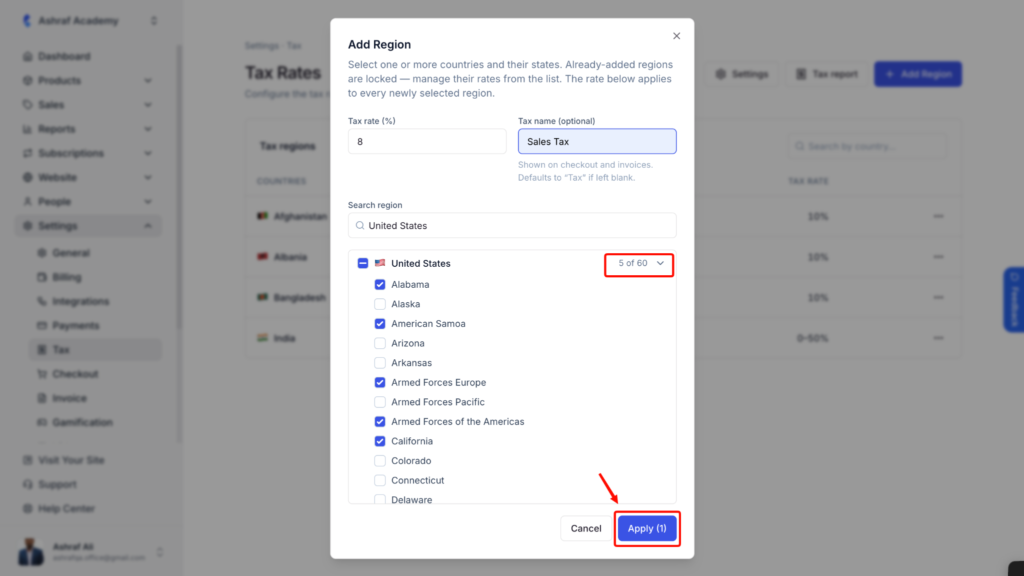
5. Once you’ve made your selections, click Apply. The button shows how many regions you’re about to add, so you can double check before confirming.
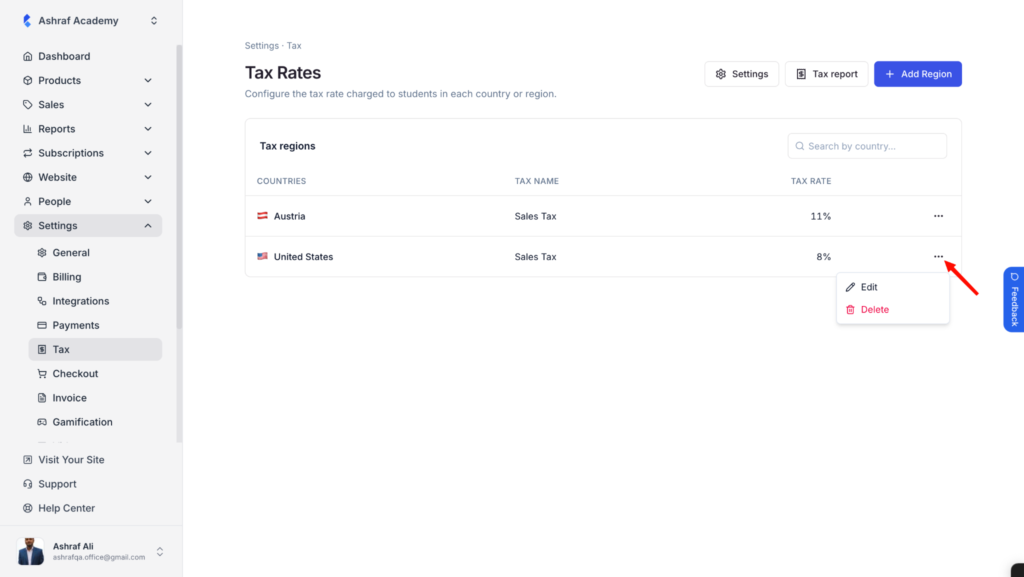
6. Back on the Tax Rates page, your new region now appears in the list. Already-added regions are locked from the Add Region window – to edit a rate or remove a region, use the ⋯ menu next to that row instead.
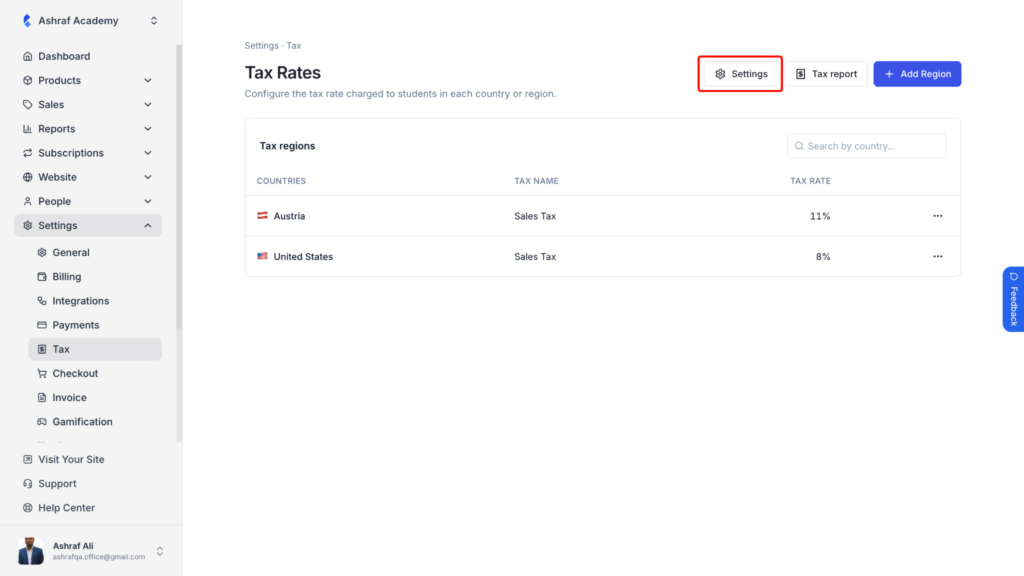
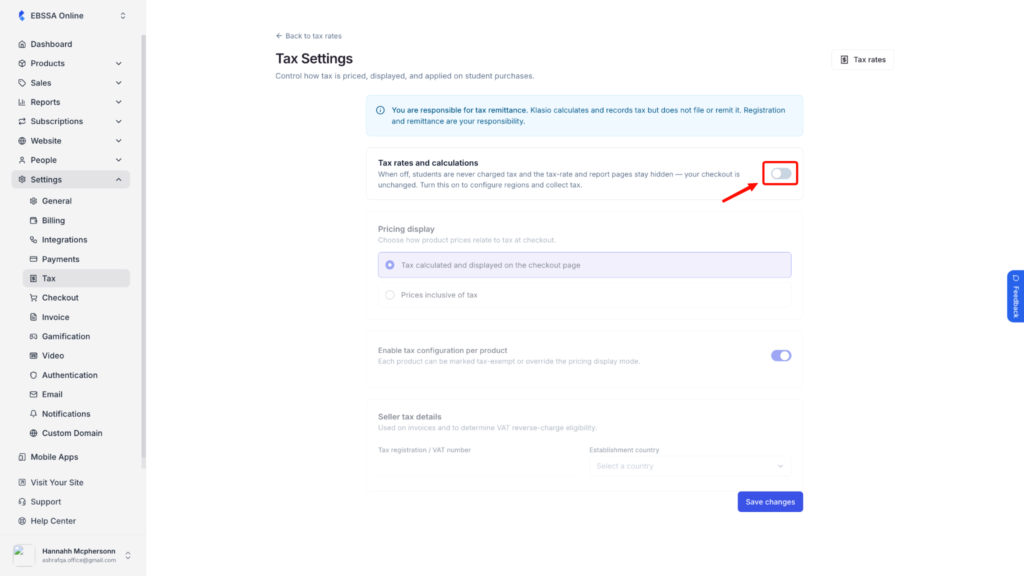
7. Click Settings in the top right of the Tax Rates page to open Tax Settings, where you control how tax is priced and displayed. (You can jump back to the rates list from here anytime using the Tax rates button.)
8. Turn on Tax rates and calculations to activate the feature. While this is off, students are never charged tax, and both the rates and report pages stay hidden – your checkout works exactly as it does today. Turning it on doesn’t retroactively apply tax to past orders; it only affects new purchases going forward.
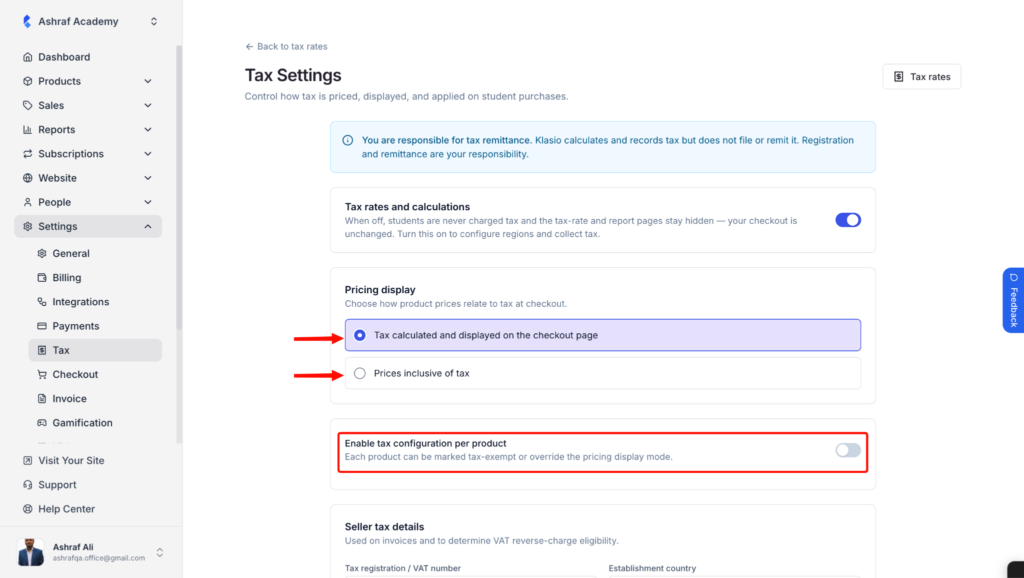
9. Under Pricing display, choose how your product prices relate to tax:
- Tax calculated and displayed on the checkout page – your listed price stays the same, and tax is added as a separate line item at checkout.
- Prices inclusive of tax – your listed price already includes tax, so nothing is added on top at checkout.
Pick whichever matches how you’ve priced your Course/Other Products. This applies across your academy unless you override it per product.
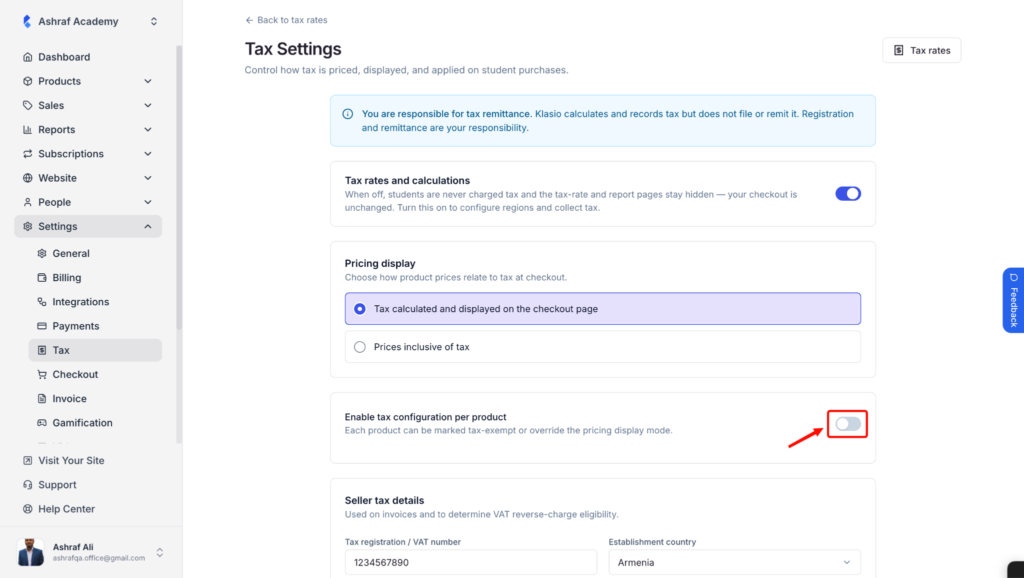
10.If you want some products to use different tax settings than your academy default, first go to Settings → Tax and enable Enable tax configuration per product. This allows individual products to override the default tax settings.
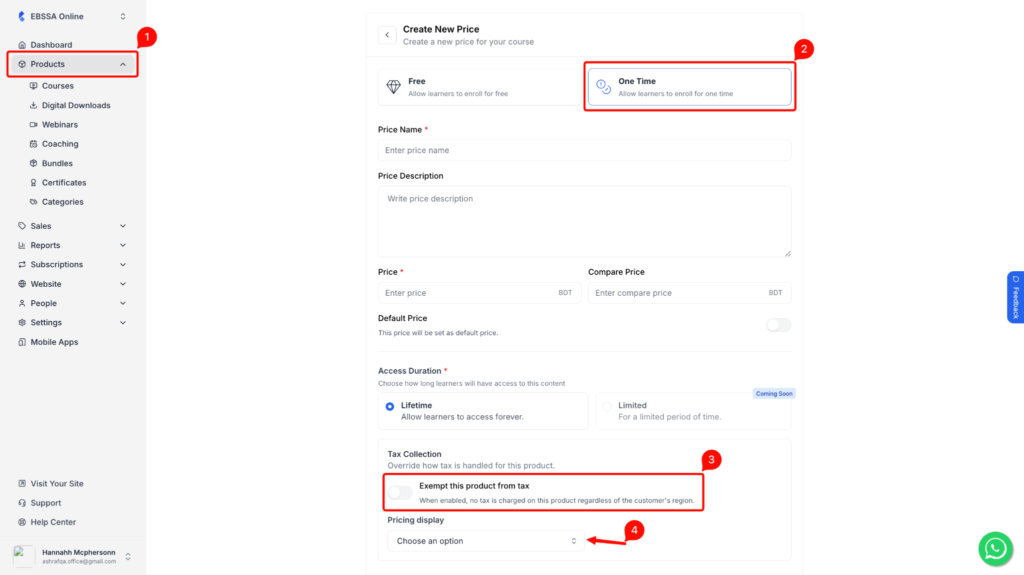
Then, open the product’s pricing settings under Products → Course/Other Products → Pricing. Under Tax Collection, you can enable Exempt this product from tax or choose a different Pricing display option for that product.
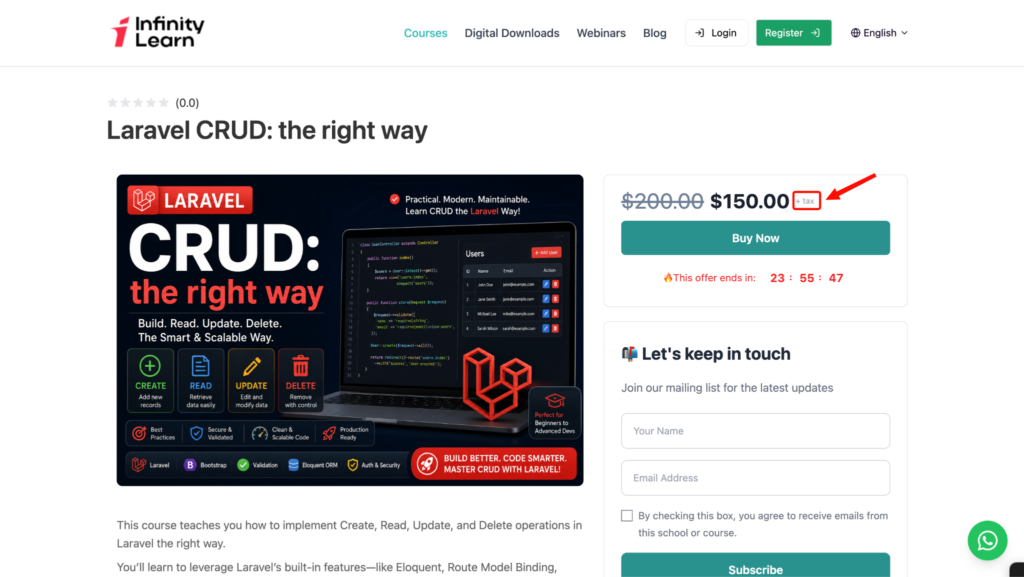
When Tax calculated and displayed on the checkout page is selected for a product, Course/Other Products cards and product detail pages show a small + tax label next to the price so students know tax will be added at checkout.
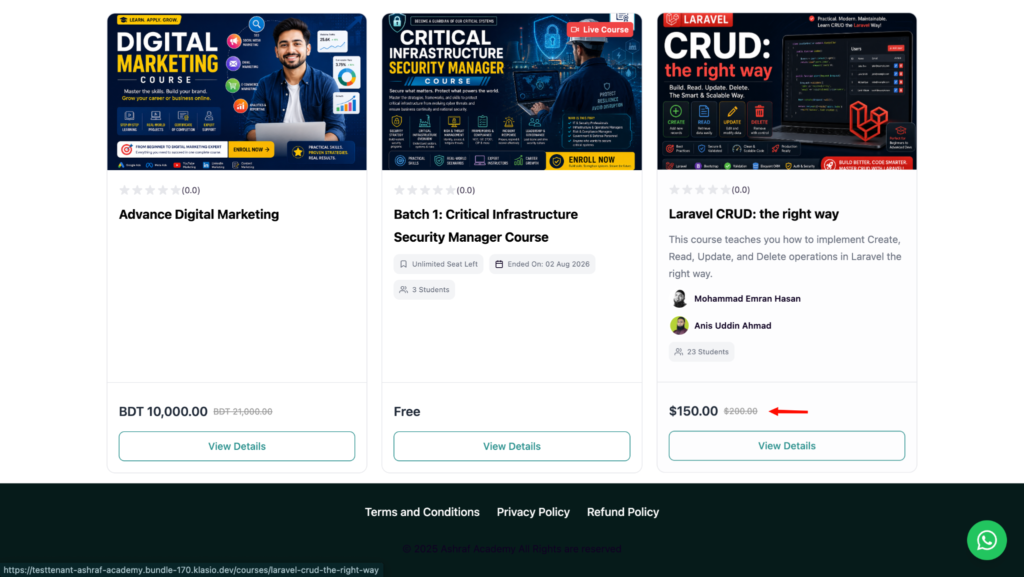
When Prices inclusive of tax is selected, no + tax label appears because the listed price already includes tax.
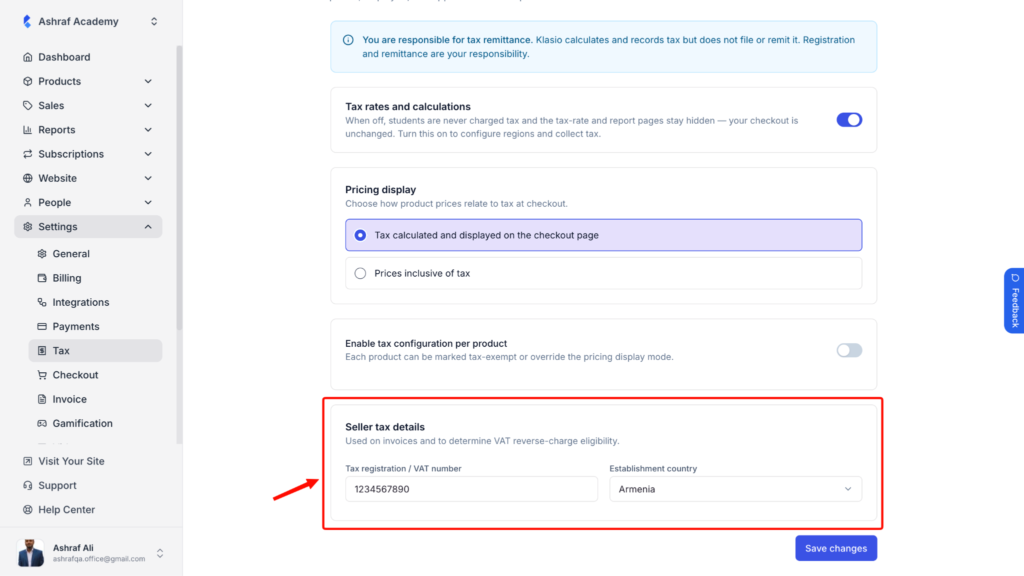
11. Fill in your Seller tax details: your Tax registration or VAT number, and your Establishment country. These appear on invoices and are also used to determine VAT reverse-charge eligibility for eligible transactions.
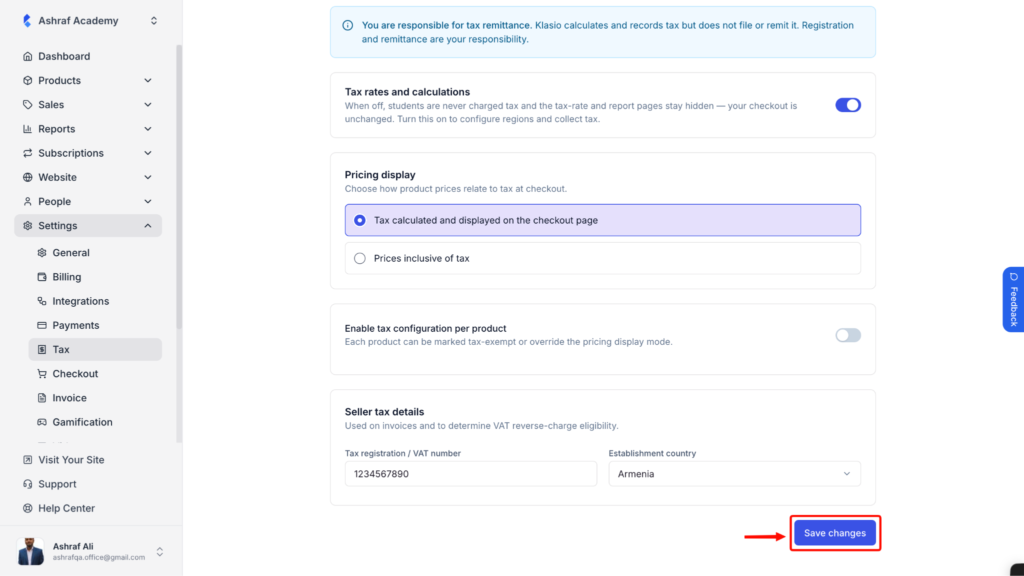
12. Click Save changes.
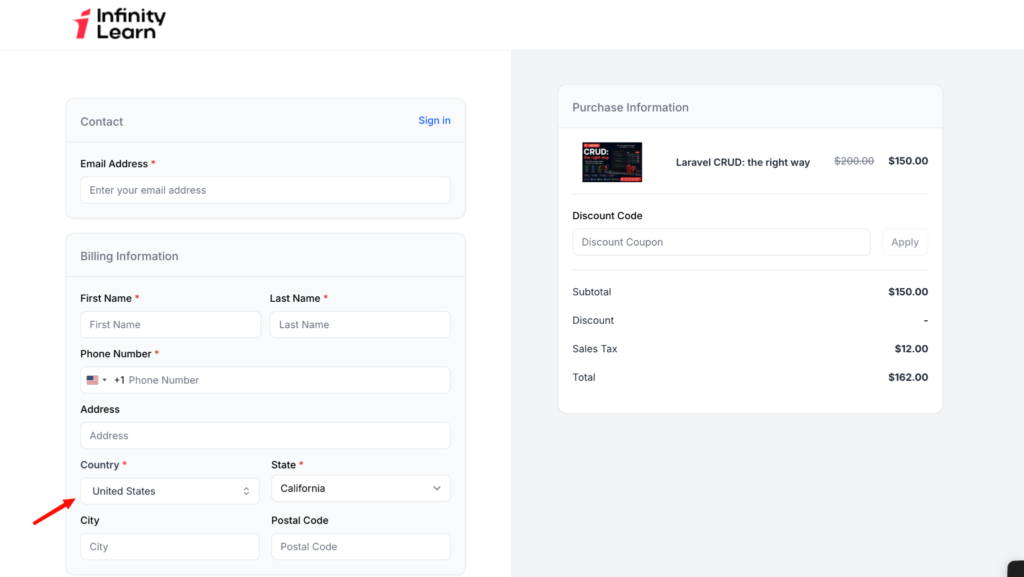
13. That’s it – tax is now active for the regions you’ve configured. Here’s what it looks like for a student at checkout: if they’re in a region with no tax rate configured, no tax is added.
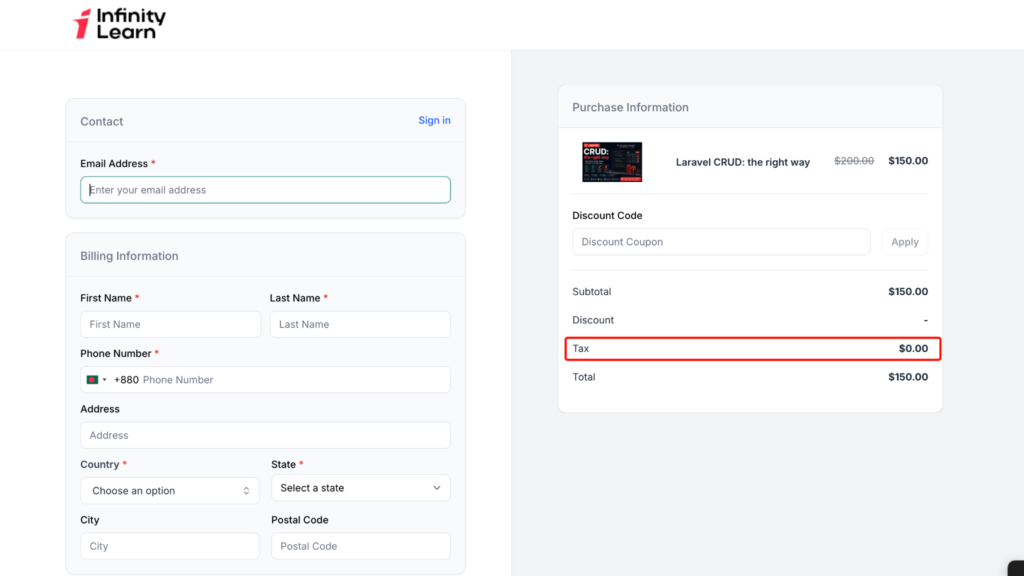
14. Once they fill in a country and state that matches a configured region – California at 12%, for example – the tax line updates automatically and the total reflects it.