
Midtrans lets your students pay with cards, e-wallets, and bank transfer. Connect it once from your Klasio dashboard, and it’s ready for checkout right away.
Create Your Midtrans Account
Go to the Midtrans registration page and sign up if you don’t have an account yet. Once registered, log in to your Midtrans Account Portal (MAP) with your email and password.
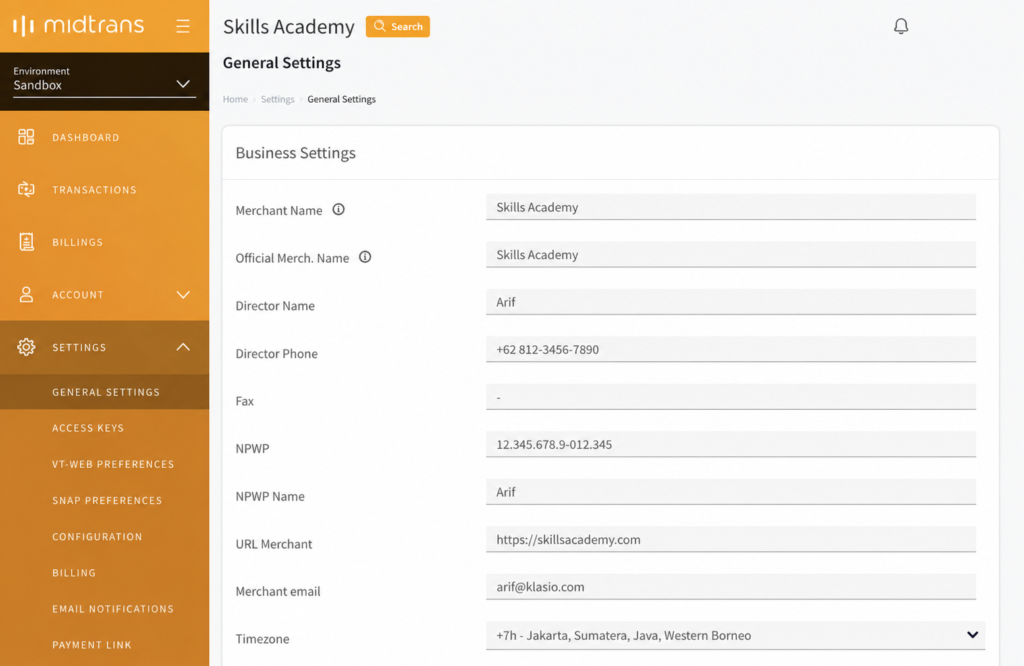
After your first login, complete your account details under Settings > General Settings.
Note:
- Merchant Name cannot contain symbols.
Switch Between Sandbox and Production
Midtrans gives you two environments, switchable from the dropdown at the top left of your dashboard.
- Sandbox is for testing. No real transactions happen here.
- Production is for live payments. Standard transaction fees apply.
Each environment has its own API keys and its own transaction history, so double check which mode you’re in before copying a key.
Get Your API Keys
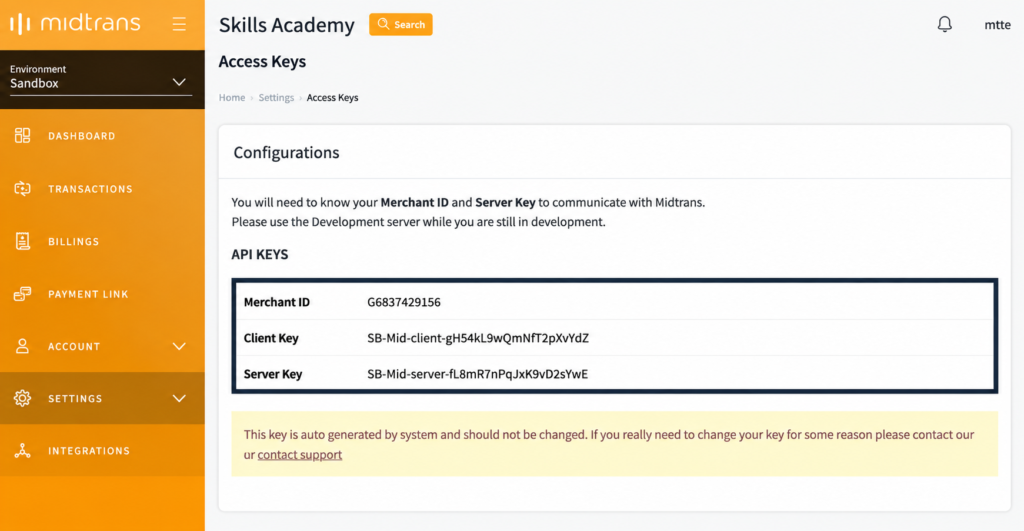
Your Server Key and Client Key live in your Midtrans dashboard.
- Log in to your MAP account.
- Go to Settings > Access Keys.
- Copy your Client Key (used for frontend requests) and Server Key (used for backend requests, keep this one private).
Connect Midtrans to Klasio
Once you have your keys, head to your Klasio admin panel to finish the setup.
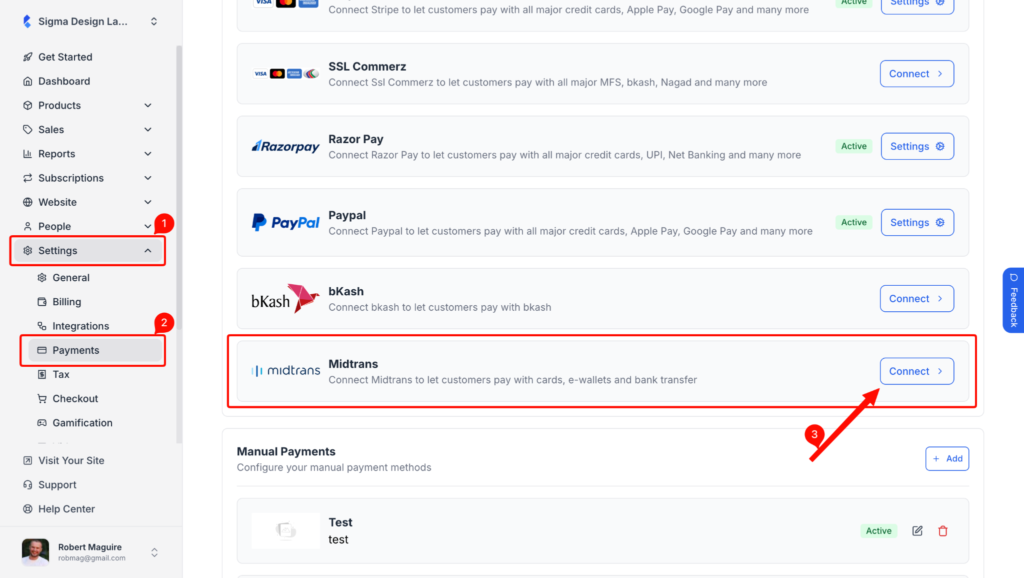
- Go to Settings > Payments.
- Find Midtrans in the list and click Connect.
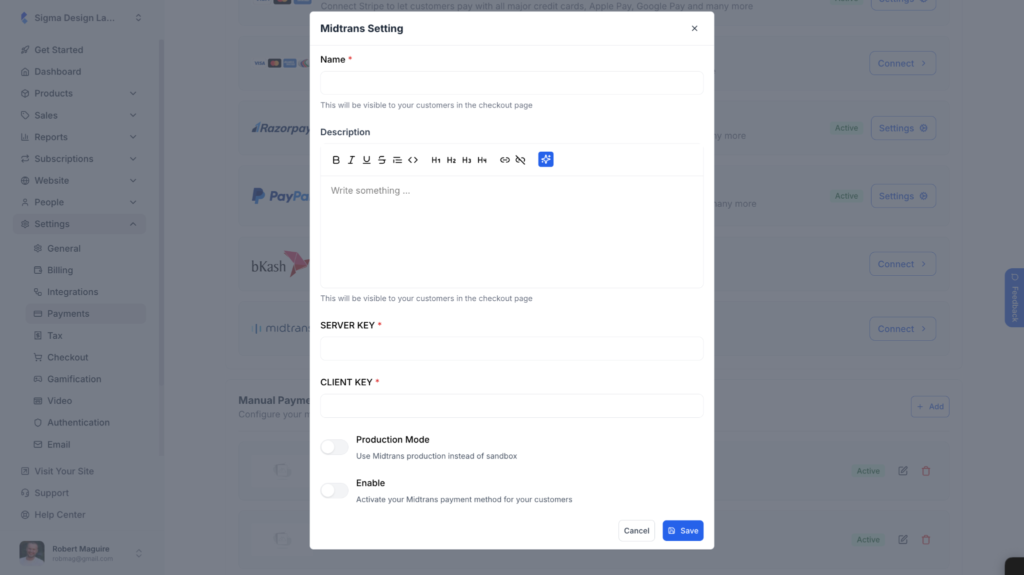
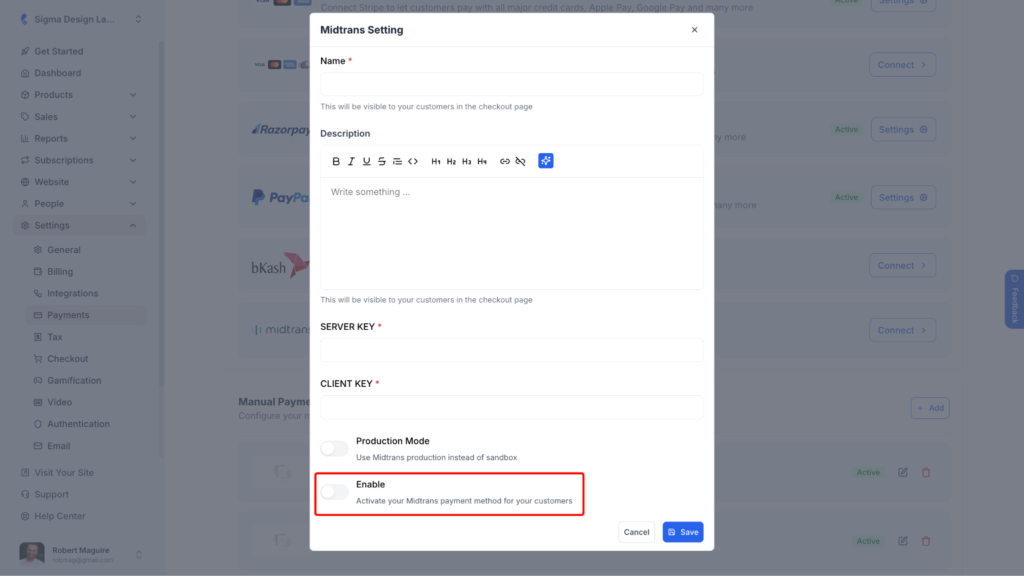
- Enter a Name for the payment method. This shows up for students at checkout.
- Add an optional Description to explain the payment option to students.
- Paste your Server Key and Client Key into their matching fields.
- Toggle Production Mode on if you’re using live keys. Leave it off while testing with sandbox keys.
- Toggle Enable on to make Midtrans available at checkout.
- Click Save.
Your students can now pay through Midtrans the next time they check out.
Turn Off Midtrans Anytime
You don’t have to remove your keys to stop using Midtrans.
- Go to Settings > Payments.
- Find Midtrans and click Settings.
- Turn off the Enable toggle and click Save.
Midtrans disappears from checkout right away, and your saved keys stay in place for whenever you turn it back on.