
Klasio lets you add SCORM packages as lessons inside any course, so you can reuse interactive training you have already built without recreating it.
SCORM (Sharable Content Object Reference Model) is the industry standard for packaging e-learning content. Courses, quizzes, simulations and click-through modules built in authoring tools like Articulate Storyline, Rise 360, Adobe Captivate or iSpring can be exported as a SCORM package and played in any SCORM-compliant LMS.
In Klasio, a SCORM lesson sits in your curriculum alongside your Video, Text, PDF and Audio lessons. Your students open it from the course player like any other lesson.
When to use SCORM lessons
- Moving from another LMS: bring your existing SCORM courses into Klasio as they are, instead of rebuilding every lesson by hand.
- Interactive modules from authoring tools: deliver branching scenarios, simulations, drag-and-drop activities and software walkthroughs built in Storyline, Rise, Captivate or iSpring.
- Off-the-shelf training content: use licensed course libraries (compliance, soft skills, safety) that vendors ship as SCORM packages.
- Corporate and team training: run onboarding, product training or compliance programs for employees, partners or customers.
- Content from instructional designers: publish modules your designer or agency hands over as a SCORM file, with no conversion step.
- Mixed-format courses: combine a SCORM module with your Video, Text, PDF, Quiz and Assignment items in the same curriculum.
Moving your SCORM content from another platform
If you are switching to Klasio from another LMS, your SCORM modules come with you as they are. You only need the .zip package for each module.
Step 1: Get your SCORM packages
Use whichever option applies to your content:
- You still have the original files. Look for the .zip packages you uploaded to your old platform, in your downloads, shared drive, or project folder. These upload to Klasio unchanged.
- You built it in Articulate Rise 360. Open the course, click Export in the upper-right corner, set Export Type to LMS, choose SCORM 1.2 or SCORM 2004, and click Export to download the .zip. (Articulate)
- You built it in Articulate Storyline 360. Go to Home → Publish, select the LMS / LRS tab, choose SCORM 1.2 or SCORM 2004, click Publish, then click Zip. (Articulate)
- You built it in Captivate, iSpring or another authoring tool. Republish the project for LMS as SCORM 1.2 or 2004 and save it as a .zip.
- Your old platform has a SCORM export option. Download each course as a SCORM .zip from there.
- You licensed it from a content vendor. Ask the vendor for the SCORM 1.2 or 2004 .zip of each module.
Step 2: Recreate your structure in Klasio
Create the course and add chapters that match your old layout. Then add one SCORM lesson per package by following the steps in Let’s see how this works below.
Good to know before you migrate
- Only SCORM content moves this way. Lessons you built directly inside your old platform (its own video, text or quiz pages) are not SCORM packages. Recreate those using Klasio’s Video, Text, PDF and Quiz lessons.
- Learner history stays behind. A SCORM package holds the content, not your students’ past progress or scores on the old platform. Export those records from your old LMS separately if you need to keep them.
- Test one package first. Upload a single module, open it as a student, and check it plays end to end before moving the rest.
Before you start
Make sure your package meets these requirements:
- Format: SCORM 1.2 or SCORM 2004
- File type: a single .zip file
- File size: up to 250 MB
- Contents: the exported SCORM package, not the loose source files. A valid package has an imsmanifest.xml file at the top level of the .zip.
You will also need an existing course with at least one chapter in its curriculum.
Let’s see how this works
Step 01: Go to your Klasio admin dashboard. From the left sidebar, expand Products and click Courses.
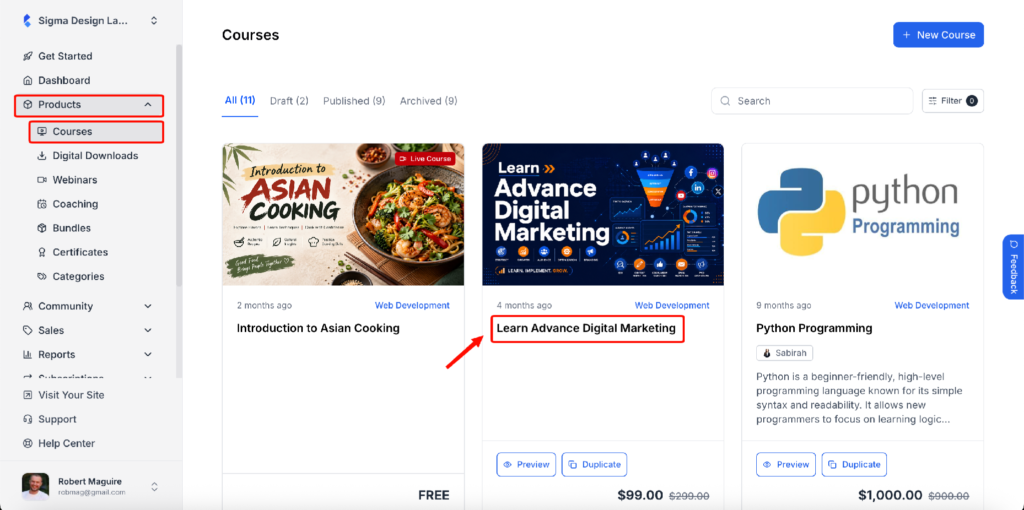
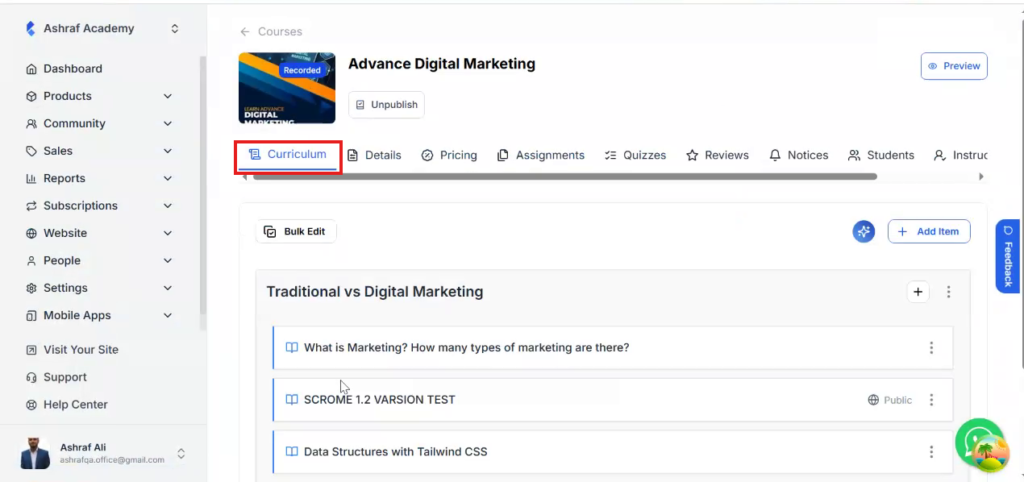
Step 02: Click the course where you want to add the SCORM lesson. The course opens on the Curriculum tab.
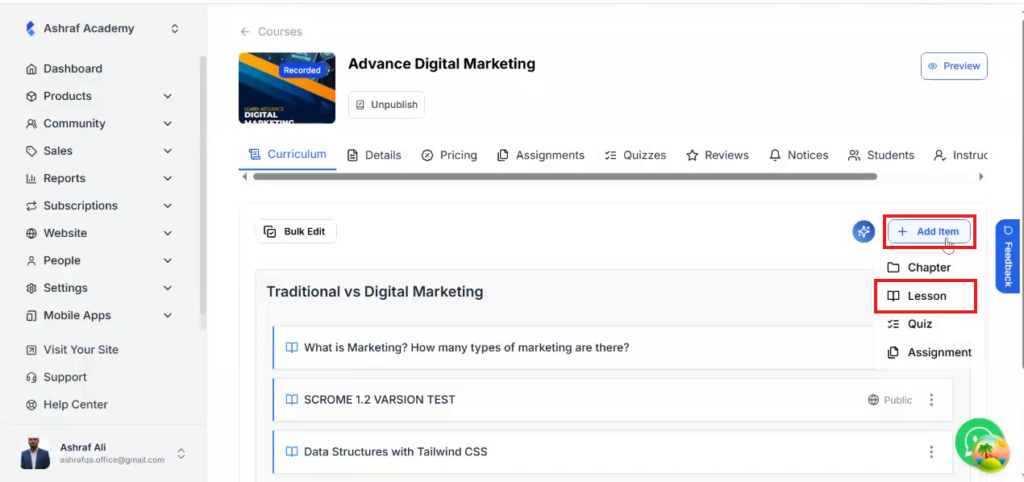
Step 03: Click Add Item at the top right of the curriculum and select Lesson.
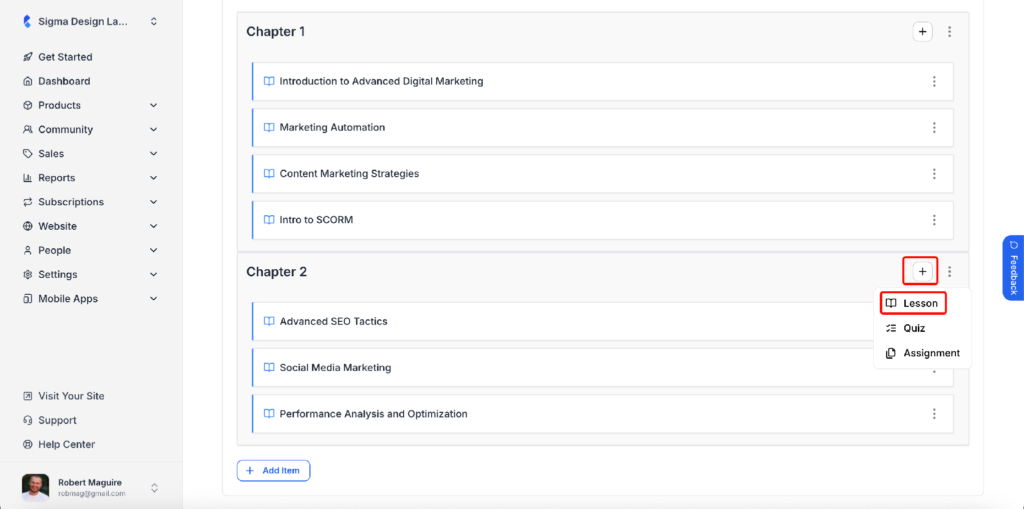
Tip: To add the lesson straight into a specific chapter, click the + icon next to that chapter’s name and select Lesson instead.
Step 04: The New Lesson popup appears. Enter a name in the Lesson Title field.
Step 05: Under Lesson Type, select SCORM.
Step 06: Click Create Lesson. You will see a Lesson added successfully message.
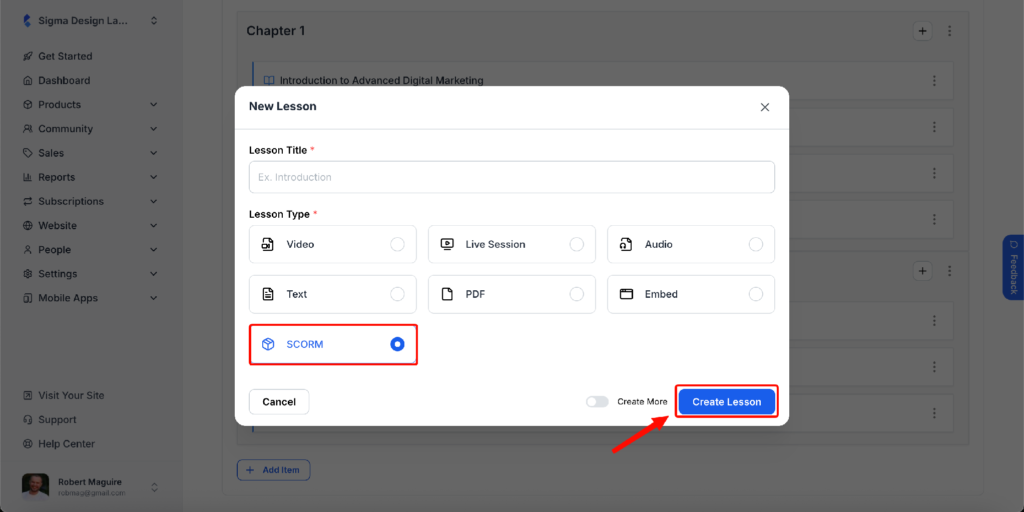
Tip: Turn on Create More before clicking Create Lesson to add several lessons in a row without reopening the popup.
Step 07: Click the new lesson in your curriculum to open the lesson editor. You will see a Scorm tag next to Lesson Details. Optionally, add a Description, or use AI Text to draft one.
Step 08: Scroll down to the upload area and click Upload SCORM Package. Select your .zip file.
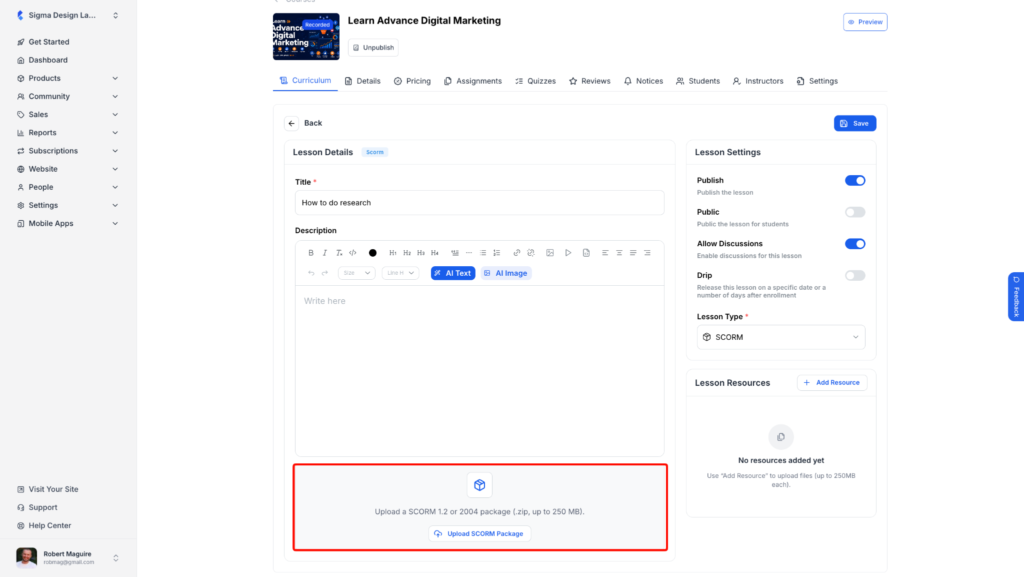
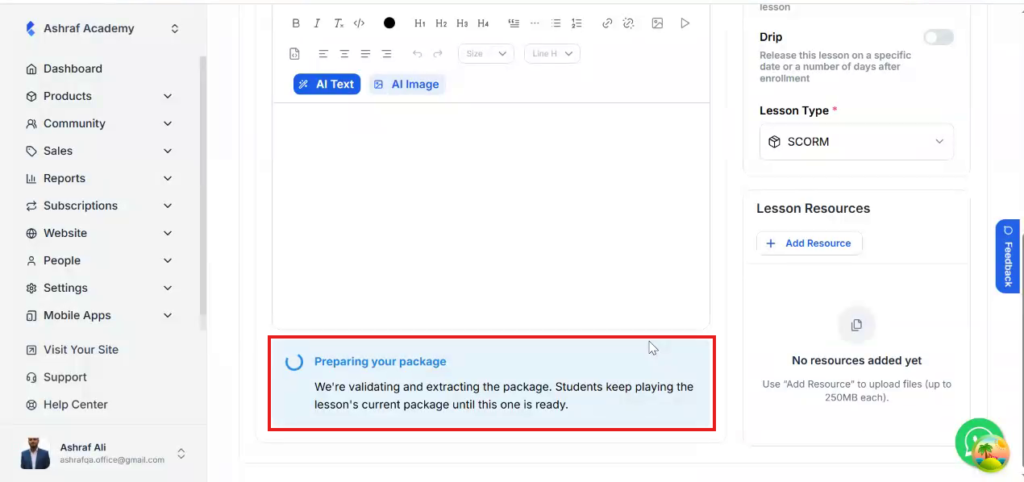
Klasio first shows Uploading SCORM package, then Preparing your package while it validates and extracts the files. Keep the page open until this finishes.
Step 09: When the package is ready, a package card appears with a green check, the package title, its SCORM version (for example, SCORM 1.2), and a Replace button.
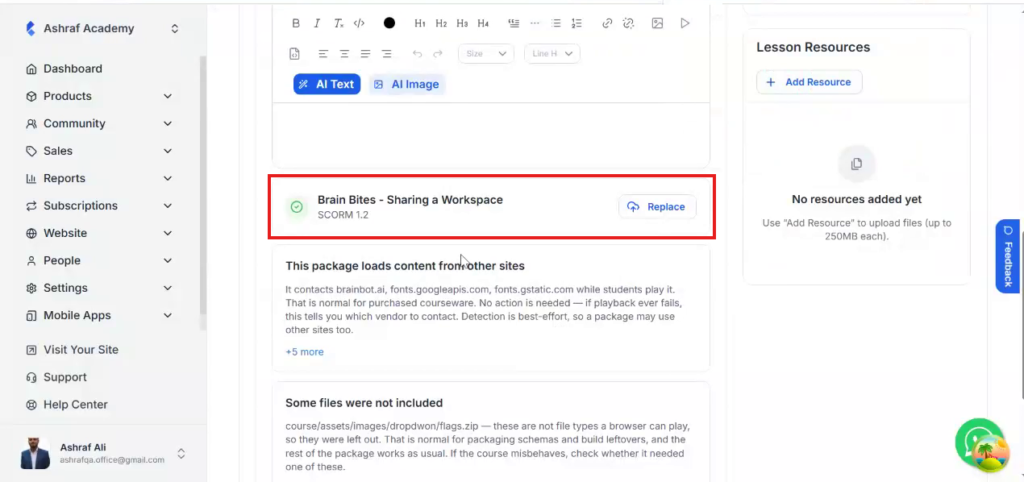
Klasio may also show one or both of these notices below the card:
| Notice | What it means | Do you need to act? |
|---|---|---|
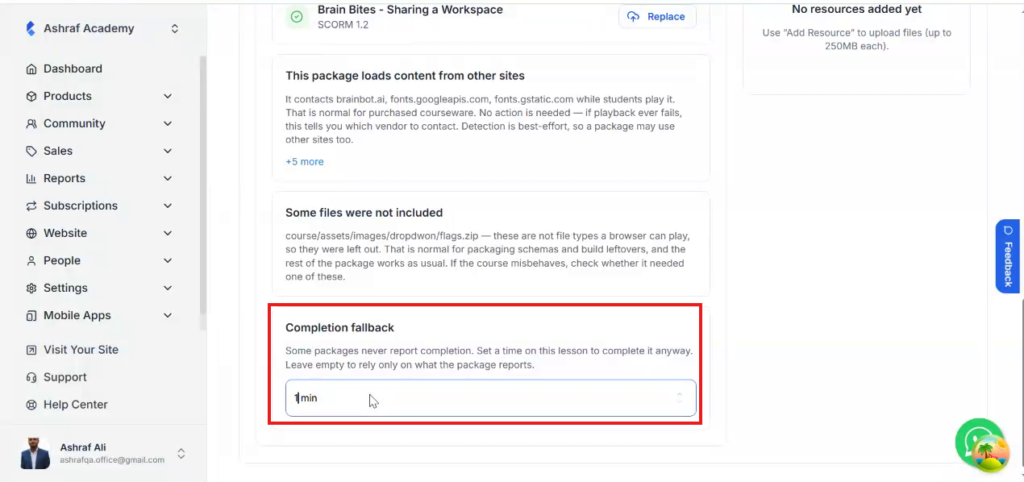
| This package loads content from other sites | The package contacts outside sites (such as fonts.googleapis.com) while students play it. This is normal for purchased courseware. Klasio lists the sites so you know which vendor to contact if playback ever fails. | No |
| Some files were not included | Files a browser can’t play, such as a nested .zip, packaging schemas or build leftovers, were left out. The rest of the package works as usual. | Only if the course misbehaves |
Step 10: Optionally, set a Completion fallback. Some packages never tell Klasio the student has finished. Choose a time, for example 1 min, and Klasio will mark the lesson complete after the student spends that long in it. Leave it as No fallback to rely only on what the package reports. You will see a Completion fallback saved message.
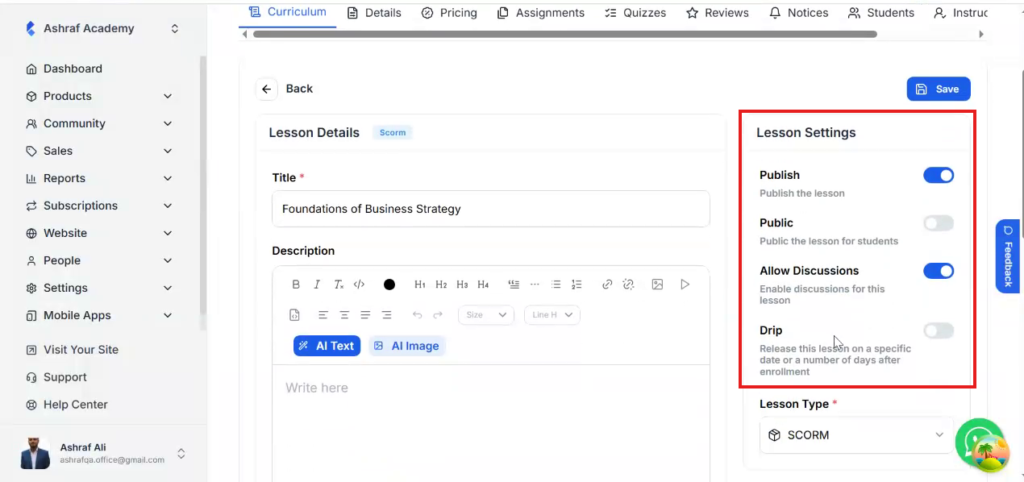
Step 11: In the Lesson Settings panel on the right, set how the lesson behaves:
- Publish: makes the lesson visible to students.
- Public: makes the lesson a free preview for prospective students who haven’t bought the course yet.
- Allow Discussions: lets students comment on the lesson.
- Drip: releases the lesson on a specific date or a set number of days after enrollment.
Step 12: Optionally, click Add Resource under Lesson Resources to attach downloadable study files (up to 250 MB each).
Step 13: Click Save at the top right.
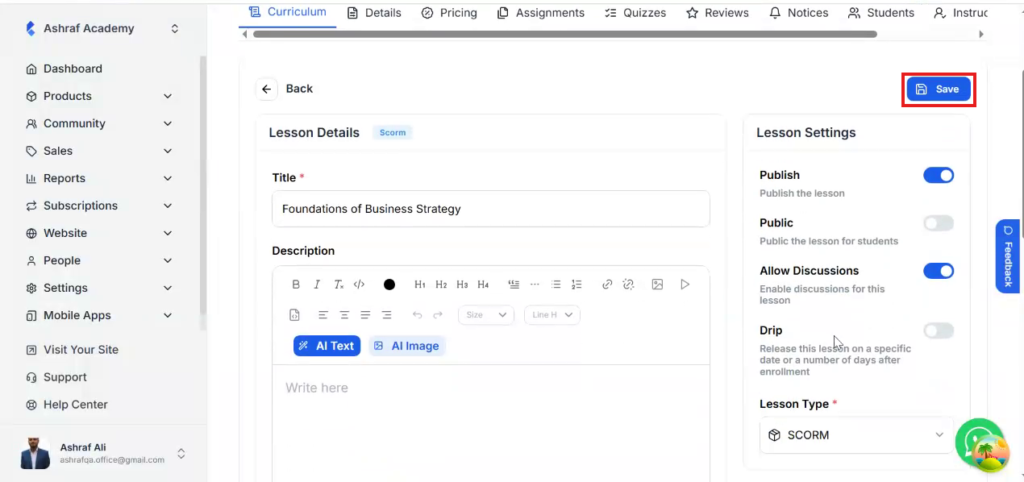
That’s it. Your SCORM lesson is published and appears in your course curriculum.
Preview your SCORM lesson
Before sharing the course, check the lesson from your students’ side. Click Preview at the top right of the course page and pick a view:
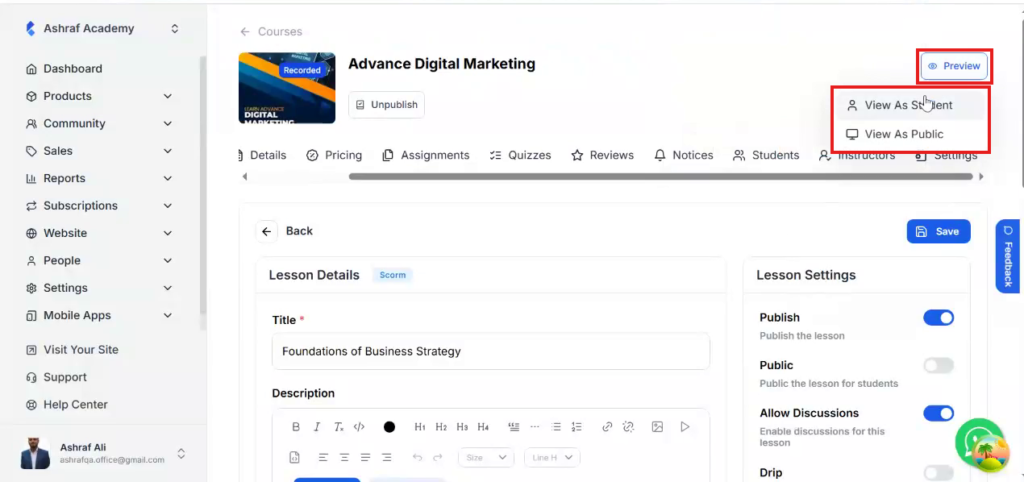
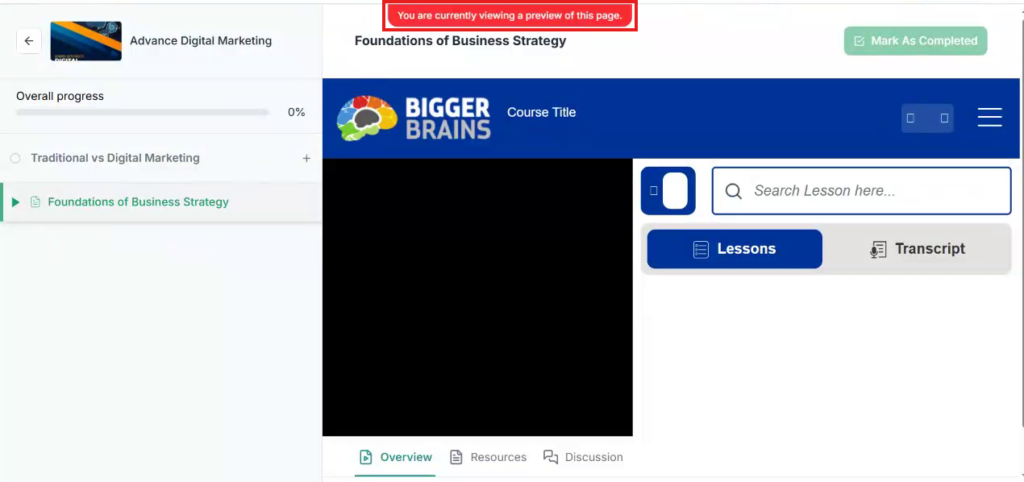
- View As Student: opens the course player as an enrolled student sees it. The SCORM package plays inside the lesson, and a banner reminds you that you are viewing a preview.
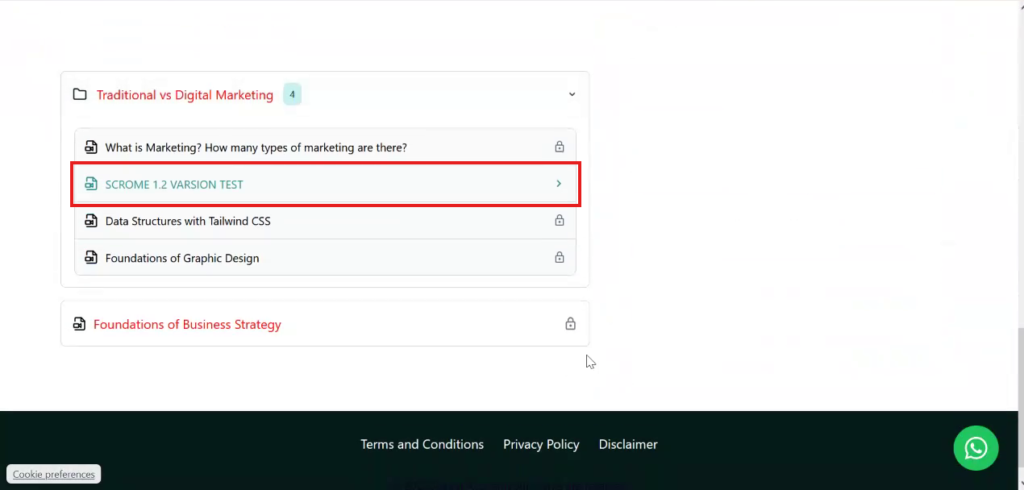
- View As Public: opens the course page as a visitor sees it. Lessons marked Public can be opened as a free preview; all other lessons show a lock icon.
View As Student: the SCORM lesson in the course player, with the preview banner at the top.
View As Public: the public SCORM lesson is open, while the other lessons are locked.
What your students see
Once a student buys the course, the SCORM lesson appears in their course curriculum like any other lesson.
- The student opens the course from Courses in their dashboard.
- They click the SCORM lesson in the curriculum.
- The package plays inside the Klasio course player, with Overview, Resources and Discussion tabs below it and Previous, Next and Mark As Completed buttons at the bottom.
How lesson completion works
Klasio marks a SCORM lesson complete in one of two ways:
- The package reports it. When the student finishes the module, the package tells Klasio, and the lesson is marked complete.
- The completion fallback kicks in. If you set a fallback time and the package never reports completion, Klasio marks the lesson complete once the student has spent that long in the lesson.
When a lesson is complete, its Mark As Completed button changes to Completed. If the student is still on the page, they may need to refresh to see the change.

Updating a SCORM package
To publish a new version of your module, open the lesson and click Replace on the package card. Then upload the new .zip.

Students keep playing the current package without interruption while Klasio prepares the new one. They switch to the new version once it is ready.
Troubleshooting
The upload fails or the package won’t load. Open the .zip and check that imsmanifest.xml sits at the top level. If it is inside a folder, you zipped the folder instead of its contents. Re-zip the files inside the folder and upload again.
The file is larger than 250 MB. Compress the videos and images inside your authoring tool, then re-export. You can also split a long module into two SCORM lessons.
The package plays but looks wrong. Make sure you exported as SCORM 1.2 or SCORM 2004 from your authoring tool, not as a plain web or HTML5 export.
The lesson never shows as completed. Your package may not report completion to Klasio. Open the lesson and set a Completion fallback time so Klasio marks it complete after that duration.
A “Your session has expired” message appears in the lesson. Progress is only saved for signed-in students. Ask the student to sign in again in a new tab, then reload the lesson page.
Still stuck? Reach out to the Klasio support team from Support in the left sidebar of your dashboard.