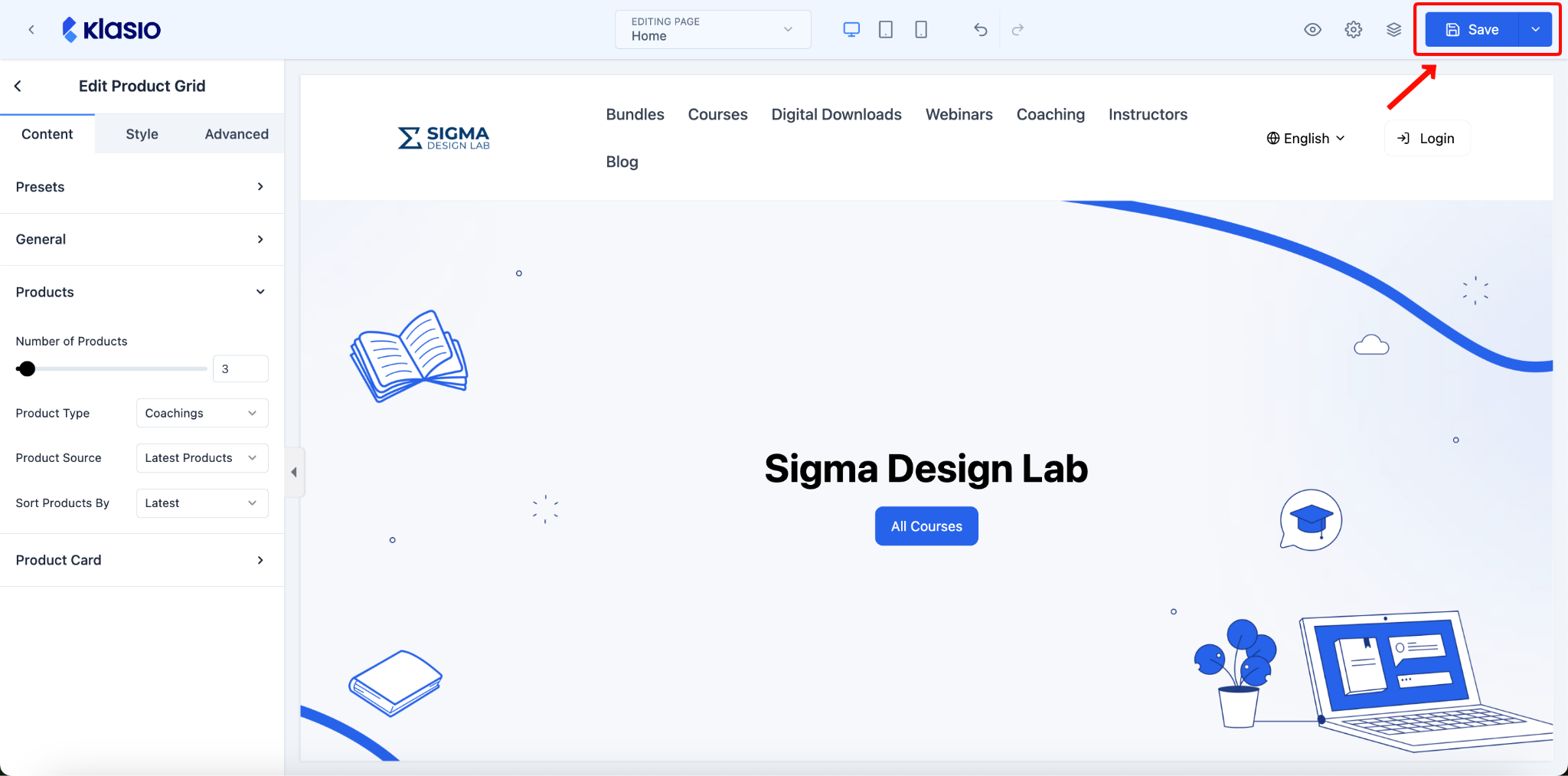
To display coaching on your webpage, follow these steps:
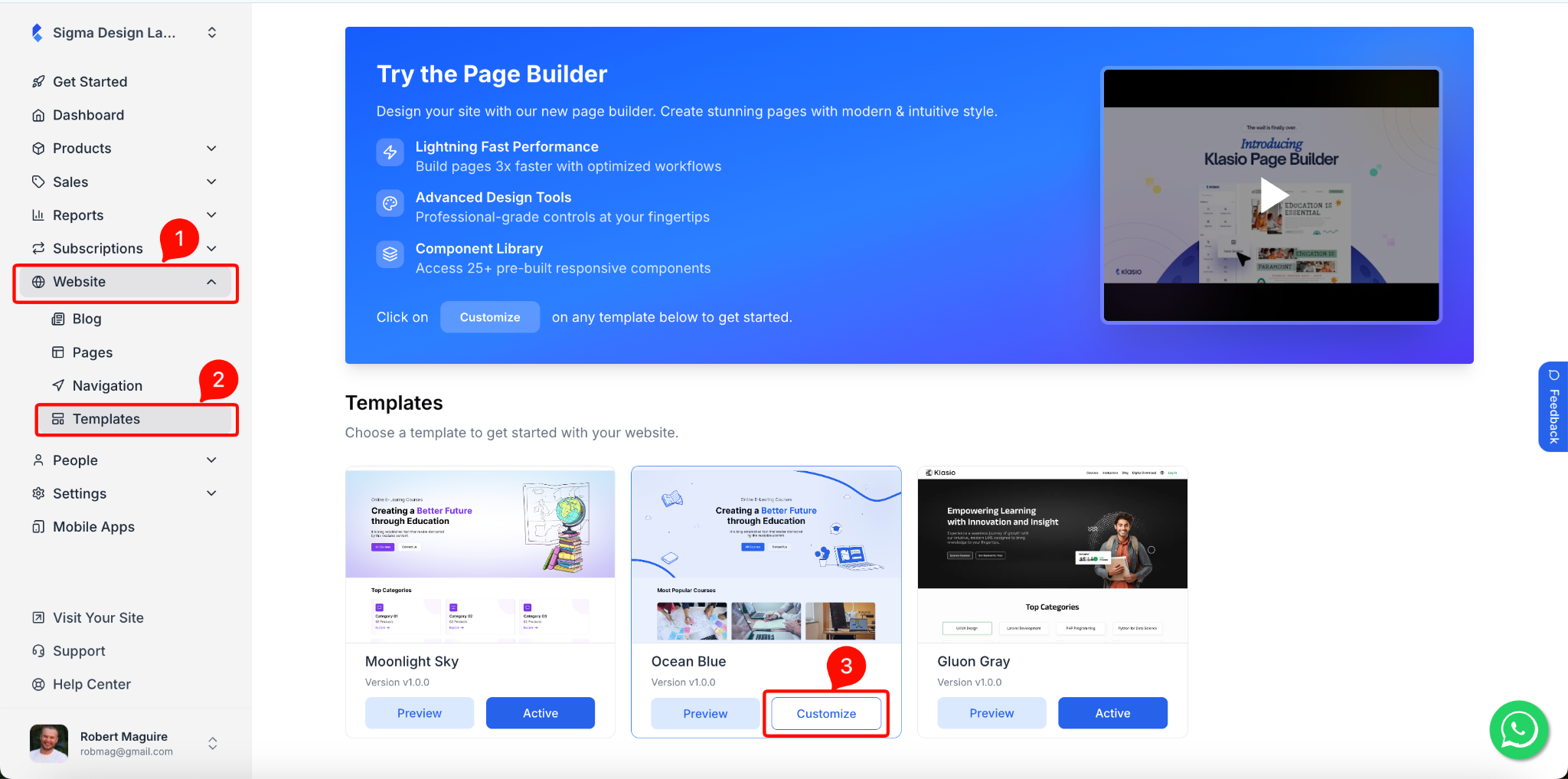
1. From your dashboard, go to Website > Templates. Then click on the “Customize” button on the active theme card.
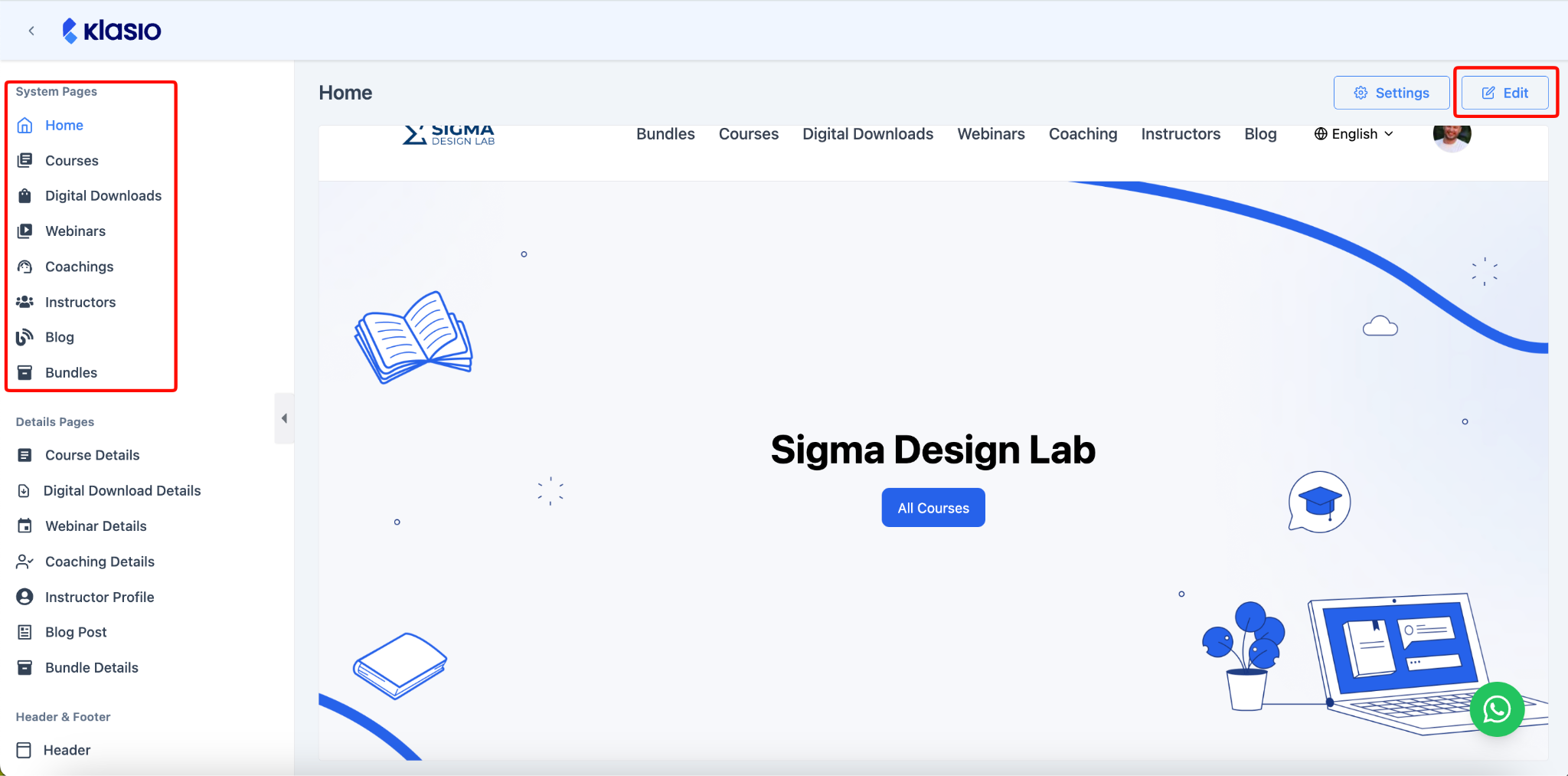
2. On the next screen, you will see a list of all the system pages and details pages. Choose the page where you want to display the coaching, then click on the “Edit” button.
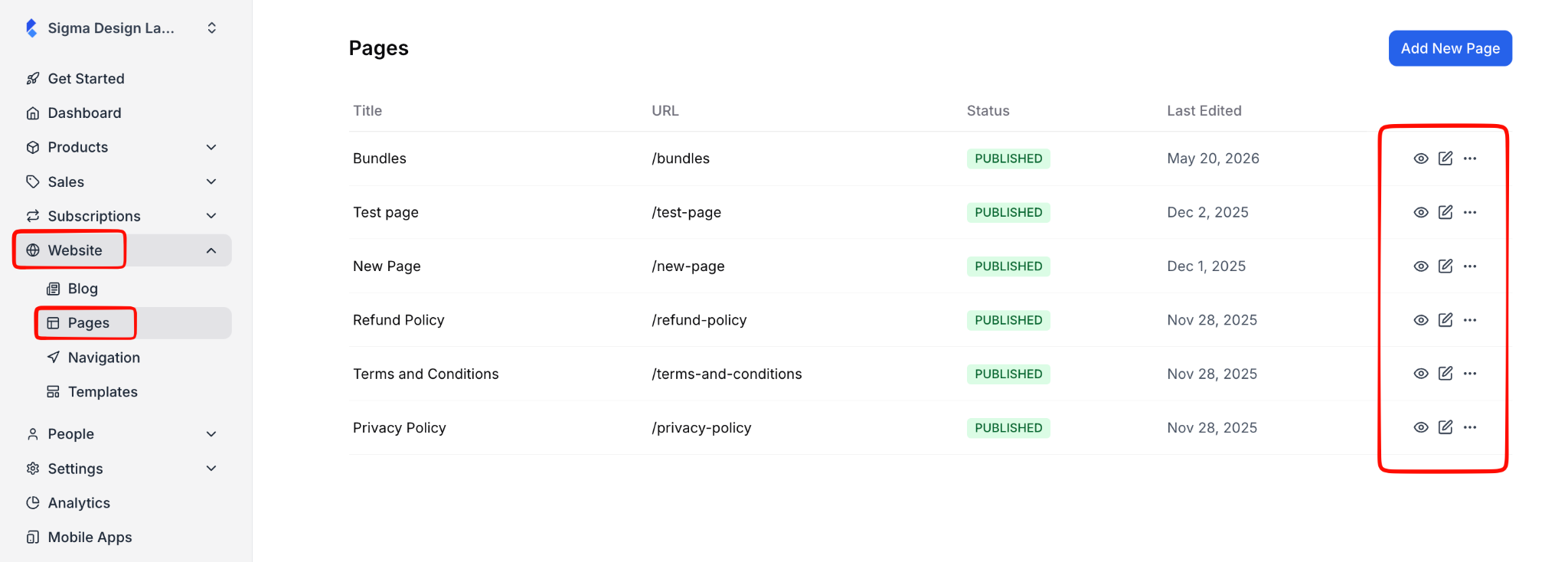
3. If you want to add coaching to any of the custom webpages that you created, go to Website > Pages. Then choose the webpage from the list and click on the edit icon.
4. In both cases, you will be led to the page builder. Find the Product Grid block on the left side and simply drag and drop it on the page where you want.
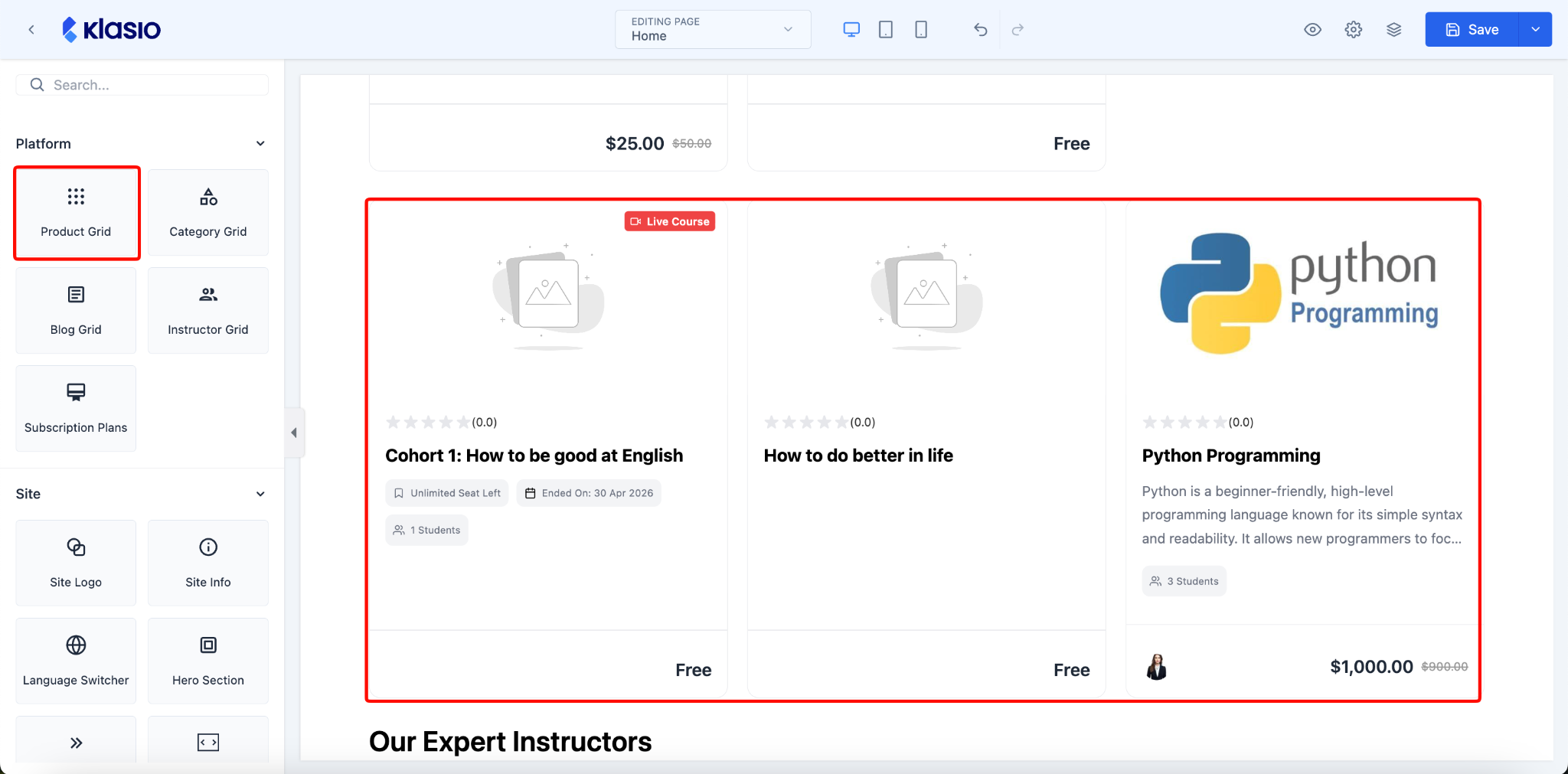
5. Initially, the product grid will display the courses. To change it to coaching, from the Content tab on the left side, scroll down to find “Products”, then click on it to expand. From the “Product Type” dropdown, select Coachings, and now your product grid will display your coaching programs.
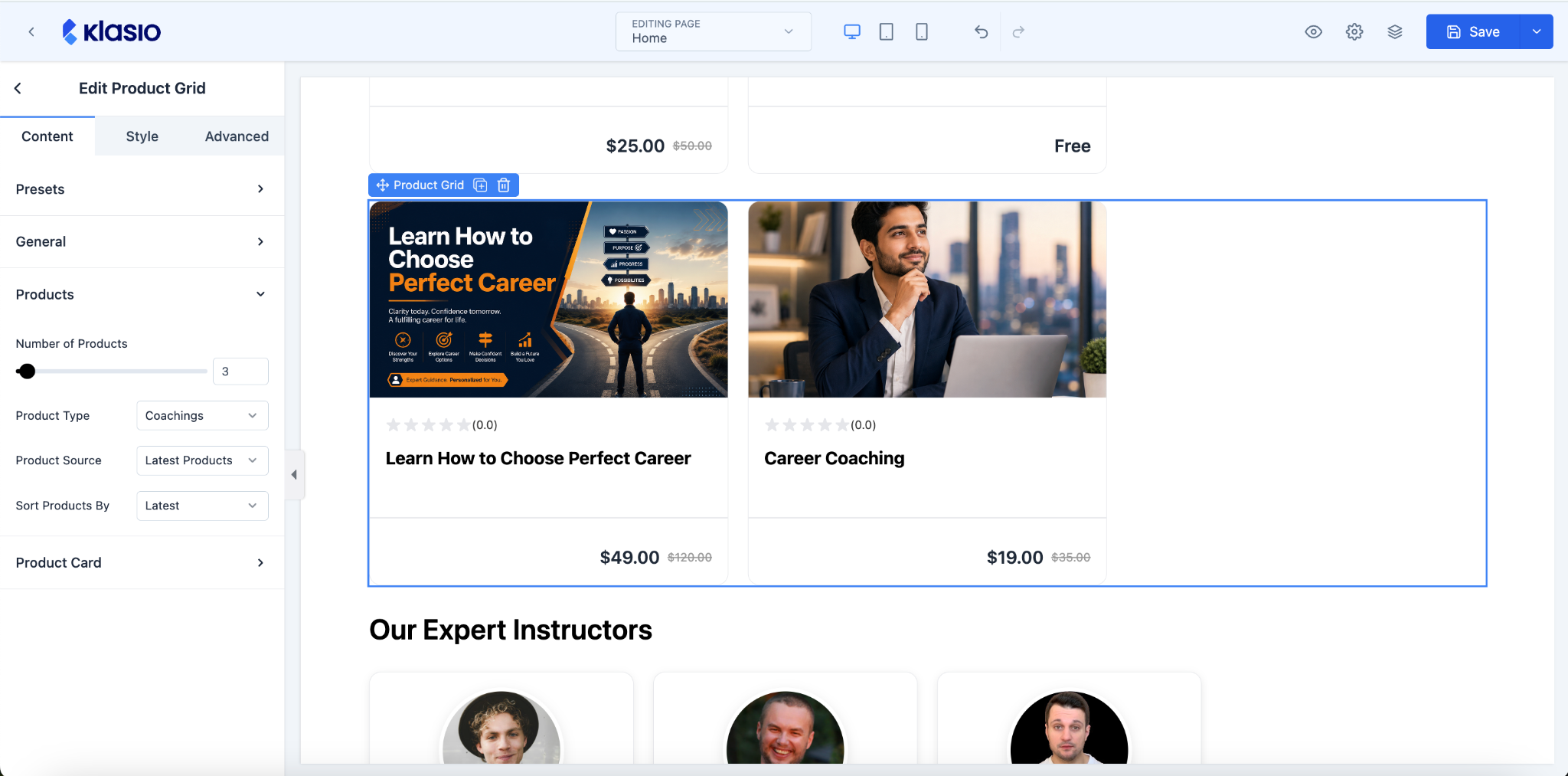
6. There are additional options to display the total number of products, which will be covered in the Product Grid block documentation.
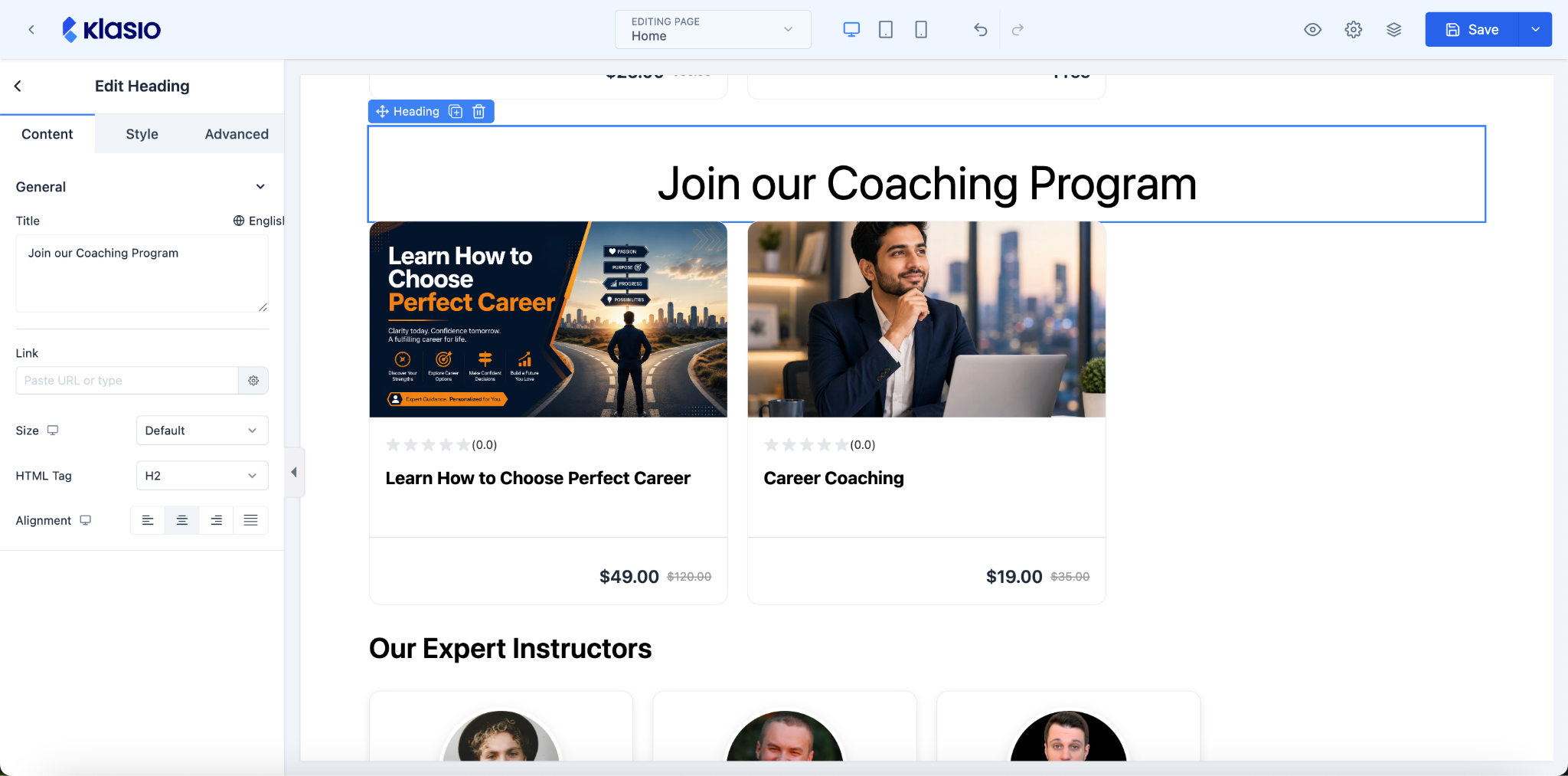
7. For better visibility, you can add a heading before the block.
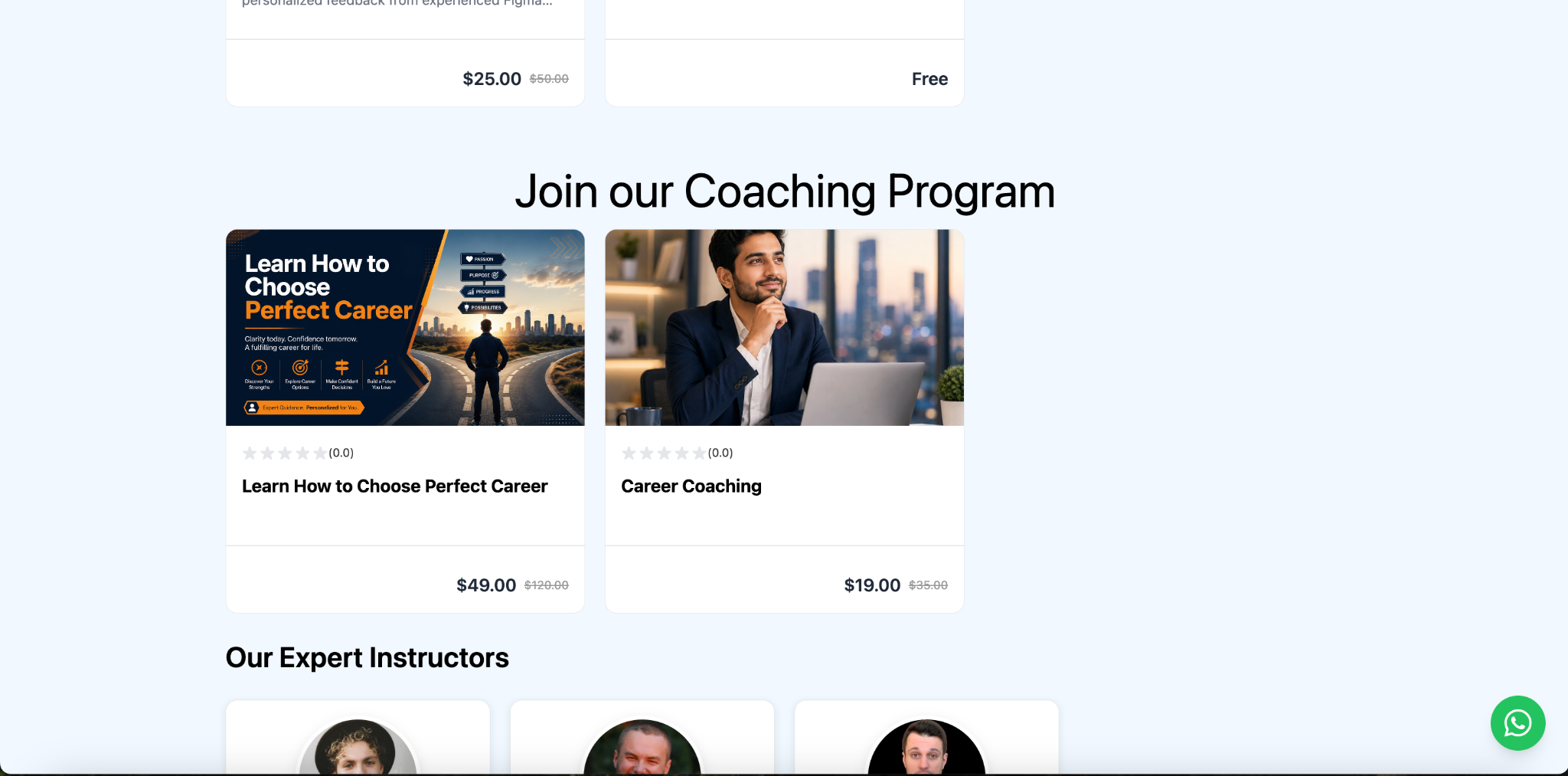
8. This is how the coaching programs would look to your website visitors.
9. Once you are done, click on the “Save” button.