
When you create a live course in Klasio, you set a cohort duration during setup. But plans change. You might need to extend a cohort because you added new lessons, or shorten it because your students are progressing faster than expected. Klasio lets you update the start date and end date of any cohort directly from the course editor.
Here’s how to do it:
Step 1: Open Your Live Course
From the dashboard, expand Products in the sidebar, then click on Courses. Find the live course whose cohort duration you want to update and click on it.

Step 2: Go to All Cohorts
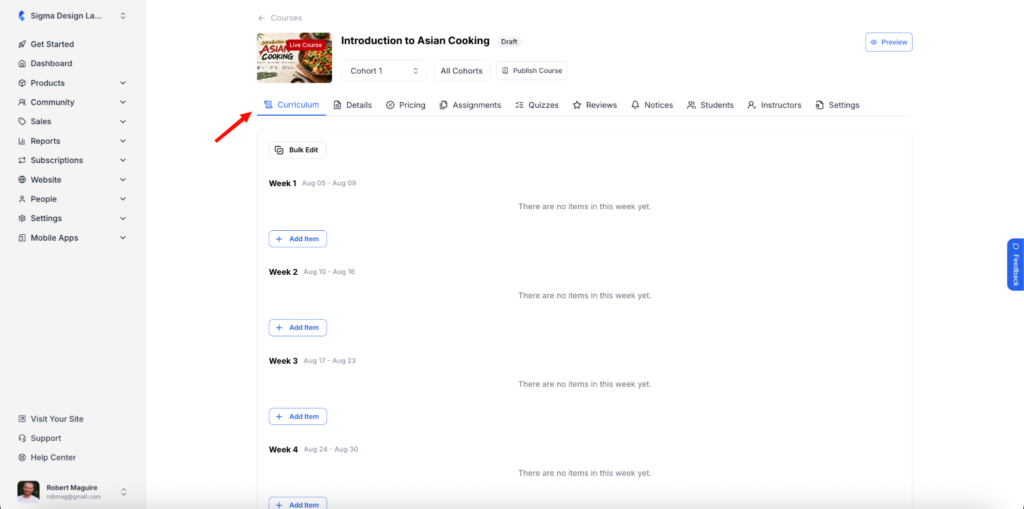
Inside the course editor, you’ll see the Curriculum tab with your weekly schedule. Each week shows the date range and the lessons assigned to it.
To view and manage all cohorts for this course, click the All Cohorts button next to the cohort dropdown at the top.
Step 3: Click the Edit Icon
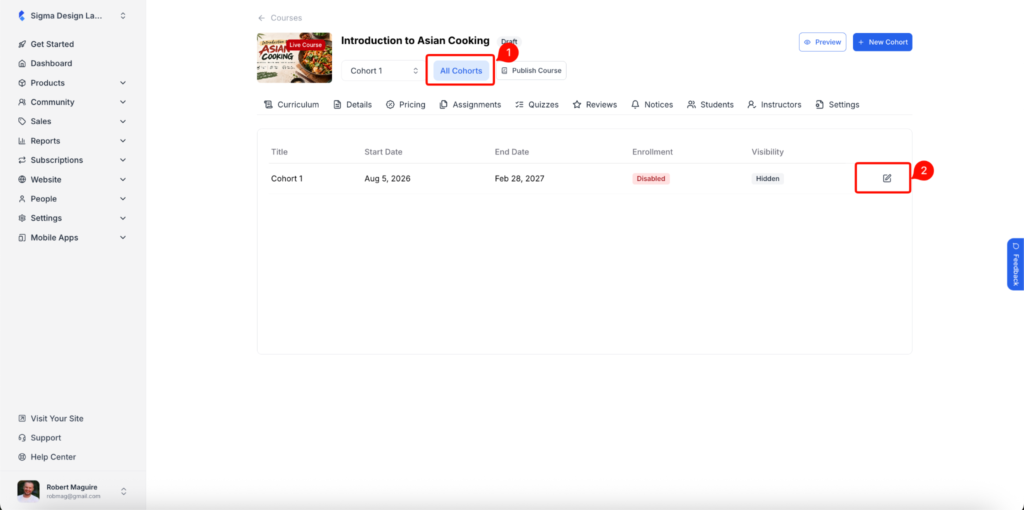
You’ll now see a table listing all cohorts for this course. Each row shows the cohort’s Title, Start Date, End Date, Enrollment status, and Visibility.
Click the edit icon (pencil) on the right side of the cohort you want to update.
Step 4: Find the Date Fields
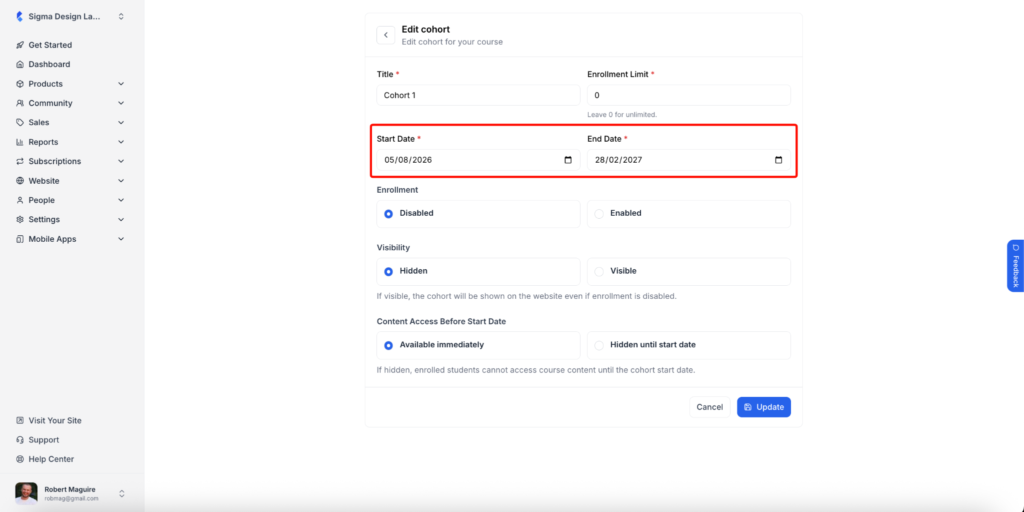
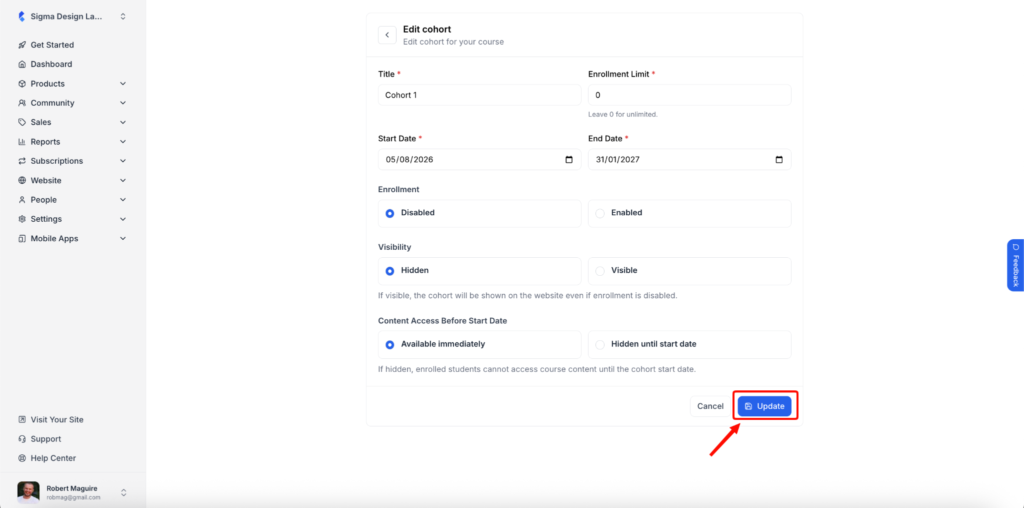
The Edit cohort form will open. You’ll see the current Start Date and End Date for this cohort. These two fields control how long your cohort runs.
Click on whichever date field you want to change.
Step 5: Pick a New Date
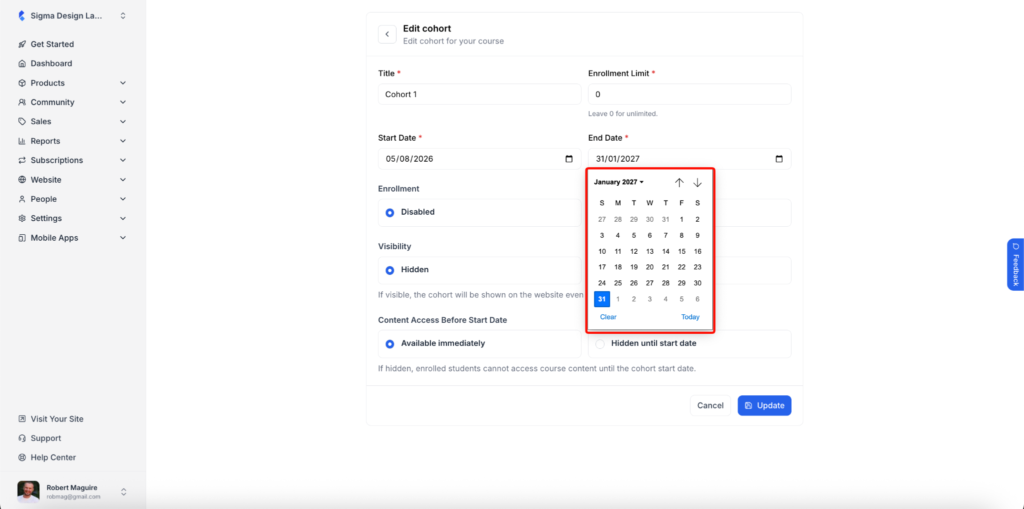
A calendar picker will appear. Select the new date you want. For example, if you need to shorten the cohort by a month, pick an earlier end date from the calendar.
Use the arrows at the top of the calendar to move between months. You can also click Clear to reset the date, or Today to jump to today’s date.
Step 6: Save Your Changes
Once you’ve set the new dates, click the Update button at the bottom of the form to save your changes.
That’s it! Your cohort duration has been updated. The weekly schedule on the Curriculum tab will adjust automatically based on the new dates.